
Uploading content with AI
Uploading photos and video, reviewing the AI-written description, "Approve and send", and also publishing on The Stock.
You upload your files, and the AI writes their description in Arabic and English and their keywords, and suggests a category. You review and edit what it wrote, and nothing is published before you approve it.
You find this in the menu under Upload, Images and Videos. These pages are for the owner and admins only.
Uploading files
Choose the content kind
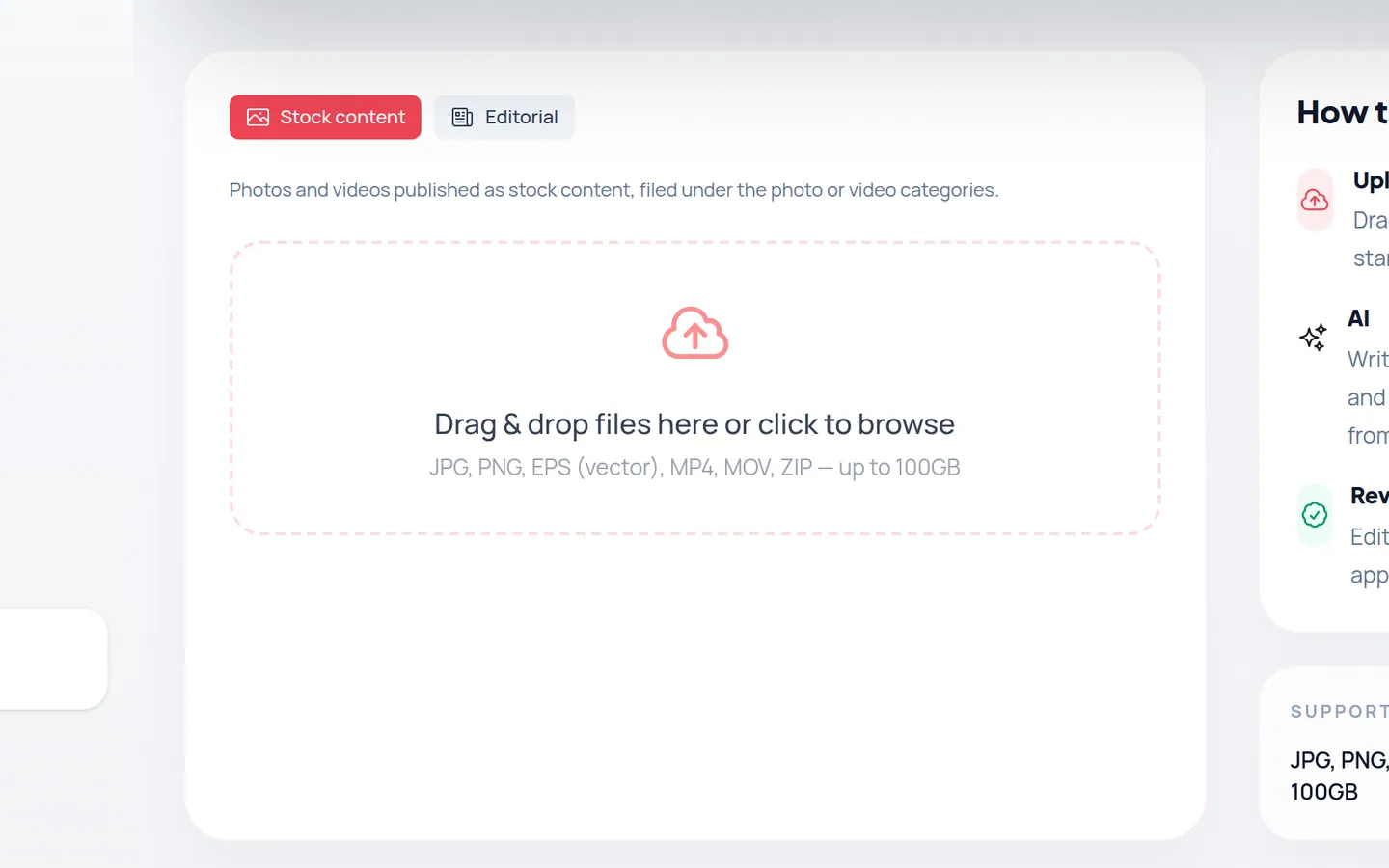
On the Upload Content page choose Stock content for commercial photos and video, or Editorial for news content you can link to an event or collection.
Add your files
Drag your files onto the drop area, or click it to choose files from your device. You can upload several files at once.
Wait for processing
When the upload finishes, a message shows how many files were uploaded and that the AI is processing them, with Review images and Review videos buttons.
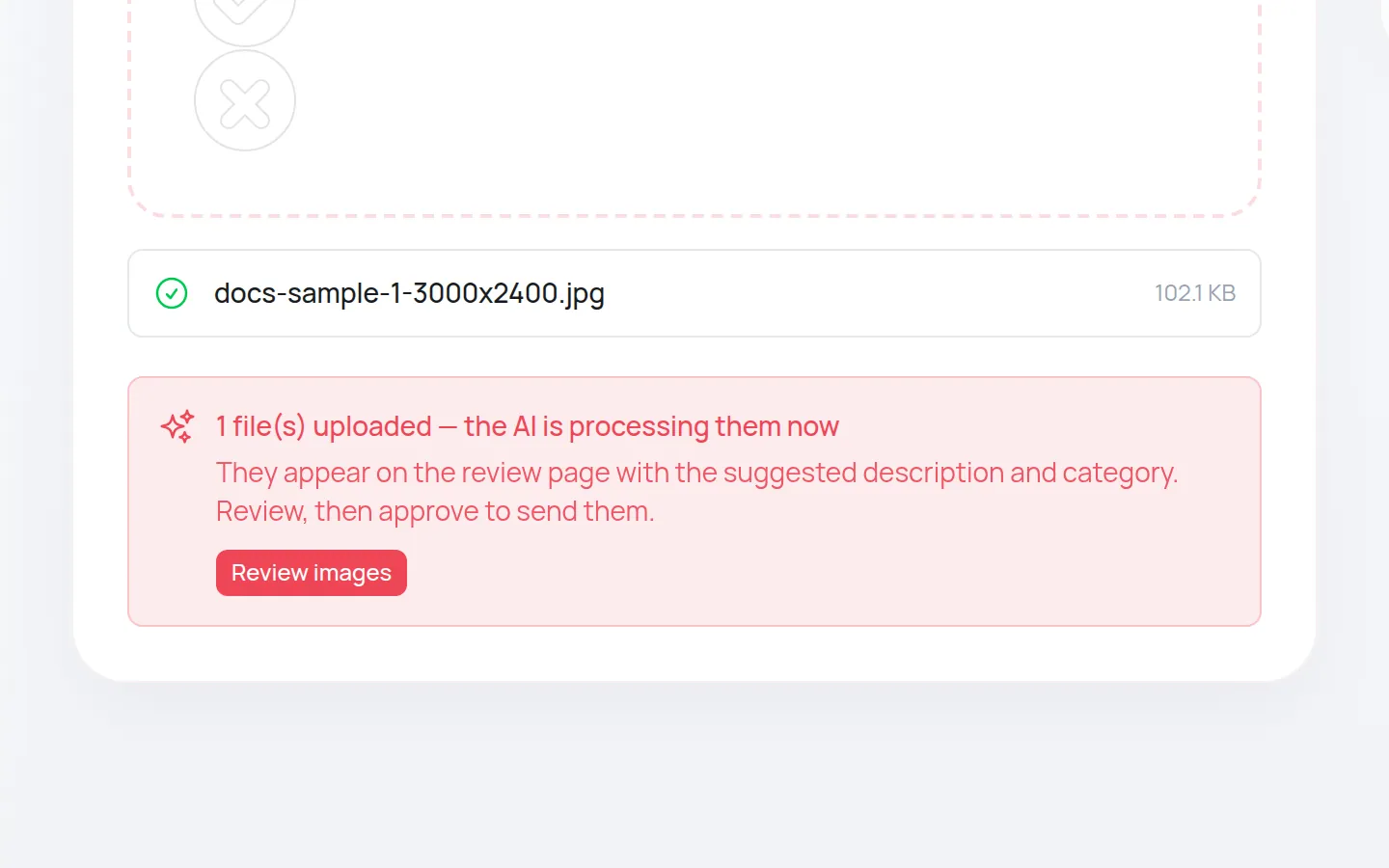
The kind you choose applies to files that finish uploading after you choose it, and you can change it for each file later on its review card.
Formats and limits
| Kind | Formats | Notes |
|---|---|---|
| Photos | JPG, PNG, TIFF | A TIFF must be single-layer; it is converted to JPEG for display and the original is kept. Minimum size 2000×2000 pixels for stock content. Up to 100MB per photo. |
| Vectors | EPS | Always treated as Vector (EPS), whichever kind is chosen. Up to 100MB. If the file version or bounding box looks unusual, a warning appears; it does not block the upload. |
| Video | MP4, MOV | Needs the video feature in your plan, except editorial content. Between 5 and 60 seconds and at least 1280×720 (long side 1280+, short side 720+), up to 10GB. |
| Archive | ZIP only | Unpacked automatically; the photos and videos inside are processed. EPS files inside are not processed: upload them separately. |
Maximum file sizes: video 10GB, image 100MB, EPS 100MB. Large files upload in parts, so if the connection drops for a moment, the affected part is retried automatically.
Reviewing what the AI wrote
Open Images or Videos from the menu. Each file has a card with the AI’s suggestions, and the page updates on its own while processing runs.
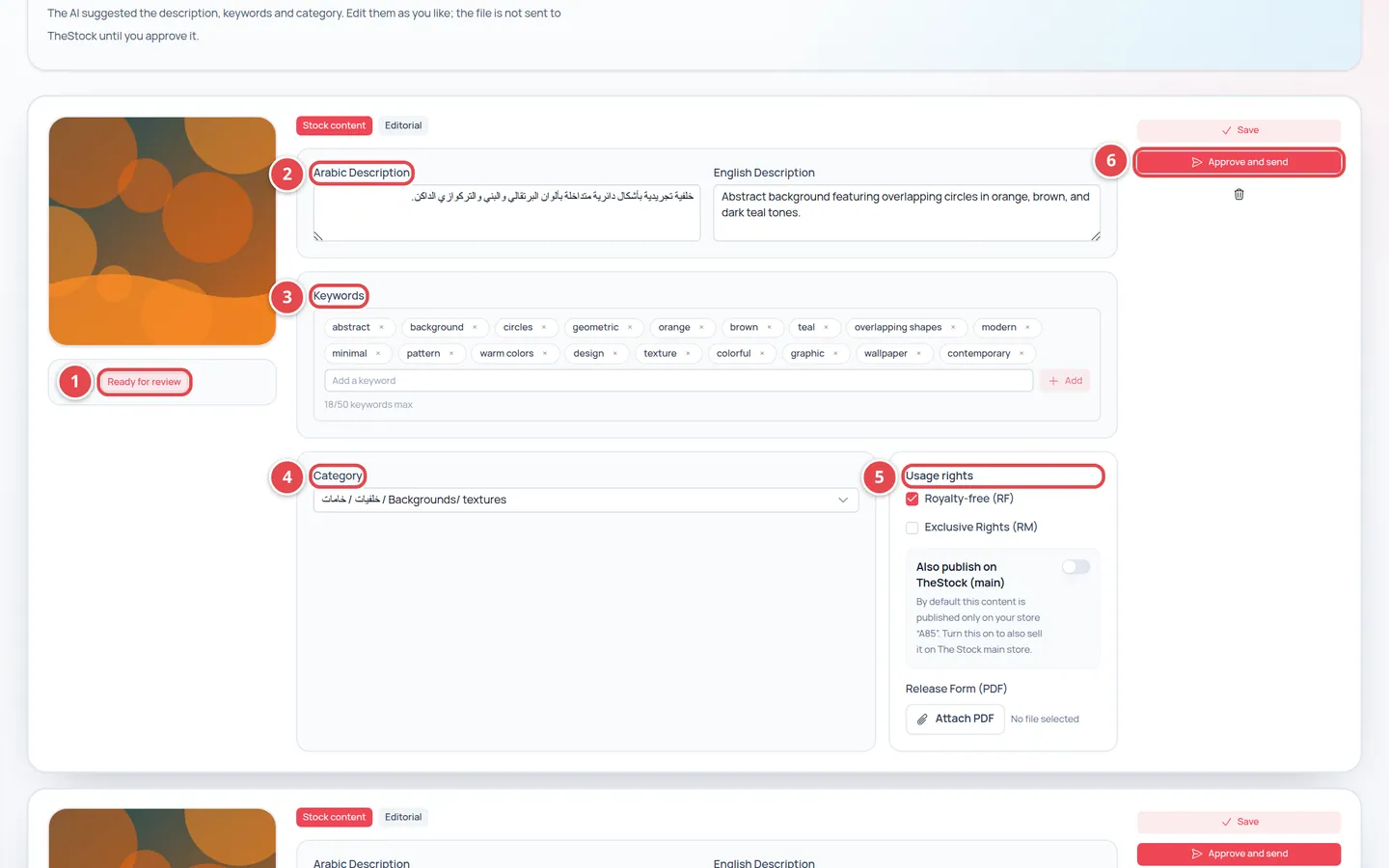
- The card state.
- Arabic Description and English Description.
- Keywords.
- Category: from your store’s categories.
- Usage rights and Release Form (PDF).
- Approve and send.
| Field | What you do |
|---|---|
| Arabic Description and English Description | Check the description and correct it. It is what your customers and search engines read. |
| Keywords | Add or remove words that help customers find the file. |
| Category | Check the category; it decides where the file sits in your store and its price. |
| Usage rights | Royalty-free (RF) is selected by default. Add Exclusive Rights (RM) if you want to sell it exclusively. |
| Release Form (PDF) | If recognisable people appear in the file, press Attach PDF and upload their release. |
| Event (optional) and Collection (optional) | Editorial content only: link the file to an event or collection. |
Required before approving: both descriptions, keywords, a category and at least one kind of rights. Press Save to keep your edits without approving.
Card states
| State | What it means | What you do |
|---|---|---|
| Processing | The AI is working on the file. | Wait a moment; the suggestions will appear. |
| Ready for review | The suggestions are ready. | Review and edit, then approve. |
| Processing failed | Something went wrong while processing. | Press Retry processing. |
| Sending | You approved it and we are sending it now. | Nothing; wait. |
| Sent | Sending is complete and the file is published. | Nothing. |
| Refused | The file was refused; the reason shows under the state. | Fix it as the reason says, then approve again. |
You can only edit a card while it is Ready for review or Refused.
Approve and send
When you are happy with the card, press Approve and send. You see Approved — sending now, and the card changes to Sending and then Sent.
Once sent, the file is published in your store as a new product, without waiting for any platform review. You find it in Categories and products.
Also publishing on The Stock
The review card has an Also publish on TheStock (main) switch. It is off by default, so the file is published in your store only.
If you turn it on, the file is also offered for sale on The Stock’s main marketplace, after the platform team reviews and approves it. Publishing in your store does not wait for that review.
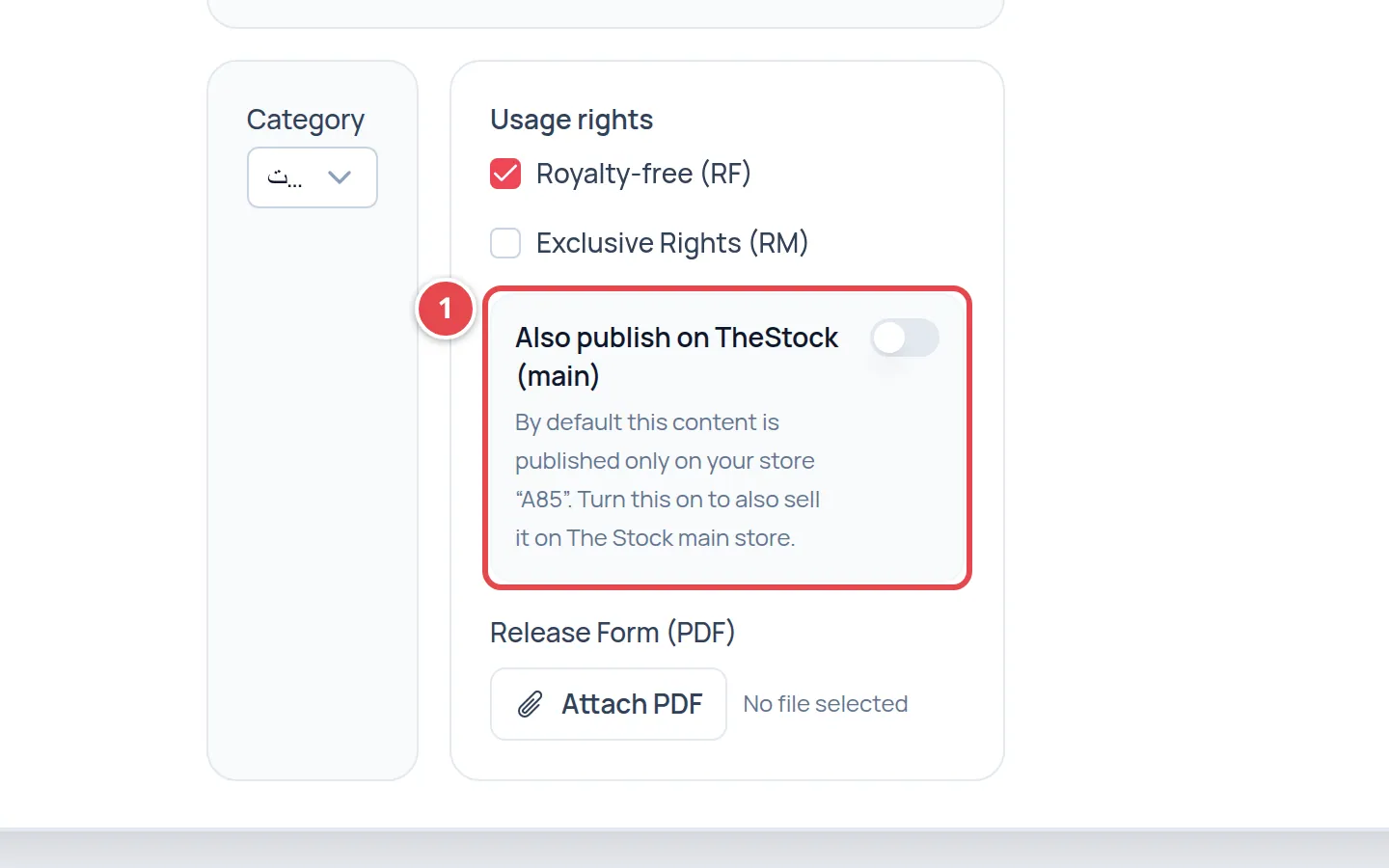
- Also publish on TheStock (main): off by default.
Audio files in review
When your store has audio enabled (and your plan includes it), contributors upload WAV, AIFF and FLAC files, and the Review audio page shows one card per track with a watermarked preview, a waveform and technical details. The AI does not describe audio for now, so the file owner writes the title, description and keywords and answers the originality, AI and Content ID declarations before Approve and send. Details in Uploading audio.
The only licence available for audio is the standard licence for now. If your store plan does not include audio, the upload is refused with a message saying so; upgrade your plan from the Subscription page.
The monthly AI limit
Each plan sets how many files the AI describes per month. Each file counts once, and the count starts again each month.
When you reach the limit, uploading still works as usual, but new files arrive at Ready for review with empty fields and a message that your store has reached this month’s AI limit. Write the description and keywords and choose the category yourself, then approve as usual.
My photo was refused for being too small.
Upload a version of at least 2000×2000 pixels. If it came inside a ZIP file, delete its card, or make it Editorial.
My video was refused as soon as I chose it.
Your store’s plan does not include video. Press Upgrade plan under the file name, or upload it as Editorial.
A card is stuck on "Processing".
Processing usually takes a moment, longer for video. If it changes to Processing failed, press Retry processing.
Can I change the publish-on-The-Stock choice later?
The switch is on the card before you approve. To change it after publishing, contact us.
Can I upload a RAR or 7z file?
No. The only archive accepted is ZIP.