
Creating your store, step by step
The store creation wizard from start to finish: choosing a plan, your account, the verification code, business details, your store name and address, then the free trial or payment, and finally the "Your platform is ready" screen.
You create your store with the store creation wizard on the sign-up site. The wizard has seven steps, shown in the bar at the top of the page: Plan, Account, Verify, Identity, Platform, Payment, Ready. It usually takes a few minutes.
Before you start
Have these details ready so you do not stop halfway through:
| What you need | Where it is used |
|---|---|
| An email address you can open now | Your verification code goes there, then the temporary password for the dashboard |
| A Saudi mobile number | The Account step, in the form 5xxxxxxxx |
| For a company: company name, commercial registration number and tax number | The Identity step |
| For a company: the company representative's national ID number | The Identity step |
| For a company: the company's national address (six fields) | The Identity step |
| For a Saudi individual: your national ID number and the link to your Freelance Document page | The Identity step |
| Your store name and the address you want | The Platform step |
| A payment card | The Payment step: to pay, or to verify it when you start the free trial |
Plan
Choose the plan and how you pay (monthly or yearly).
Account and verification
Name, email and mobile, then a 4-digit code sent to your email.
Identity
A company: business details and national address. A Saudi individual: national ID and Freelance Document link.
Platform
Your store name and address.
Payment
The free trial if it is open to you, or paying by card.
Ready
One button to visit your store and one to open the dashboard.
1. Choose your plan
Start from the pricing section on the home page. If Monthly and Yearly buttons appear above the cards, pick the cycle first, then press the plan's button: Start free trial if the plan offers a trial, or Get started. The button takes you to the wizard with the plan already chosen.
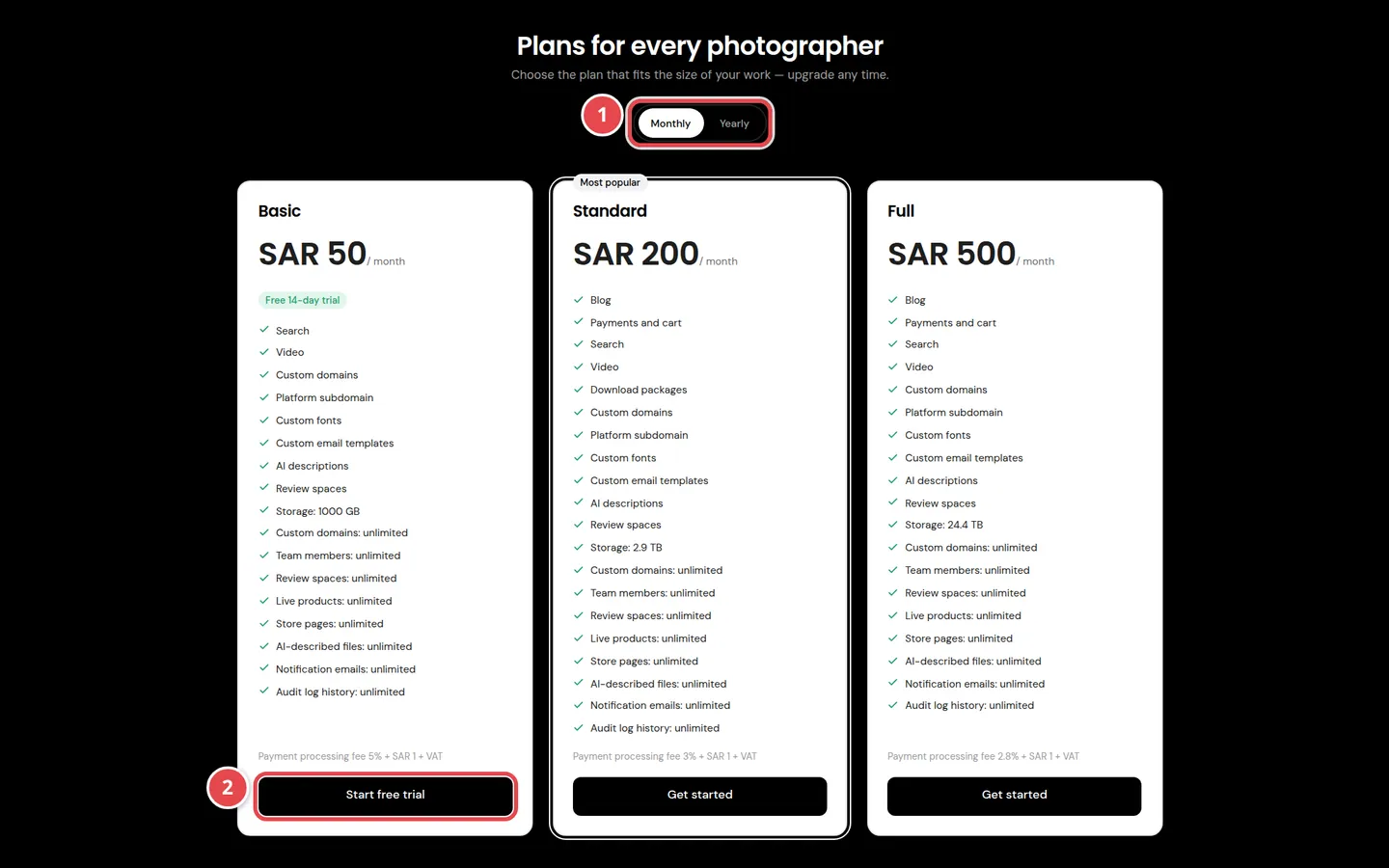
- The cycle: Monthly or Yearly. Shown only when every plan has a yearly price.
- The plan button: opens the wizard on this plan, with the cycle you chose.
If you open the wizard directly (for example from Get started at the top of the site) you see the Choose your plan step with monthly prices. If Monthly and Yearly buttons appear above the cards, pick the cycle there, then press the card you want to continue.
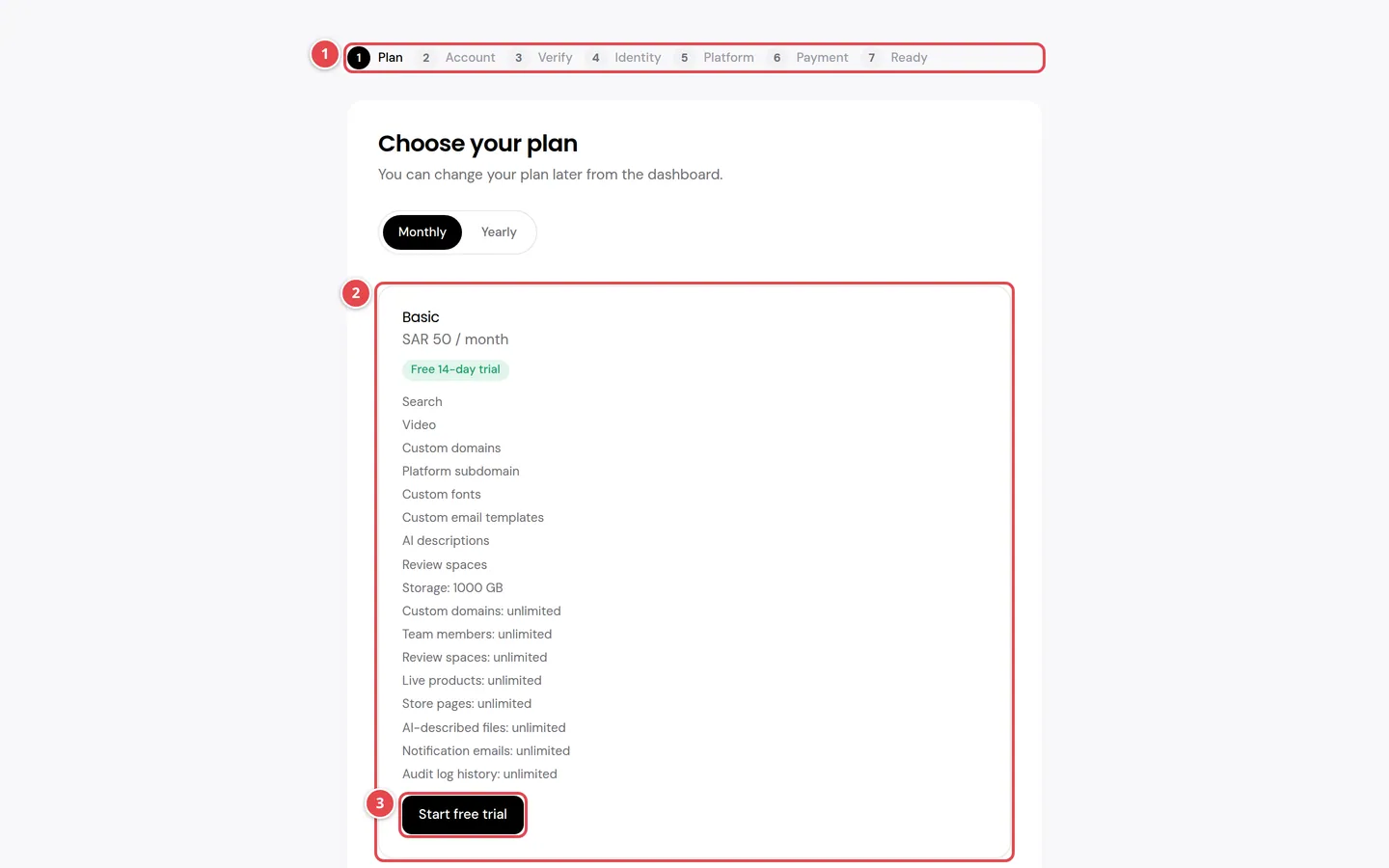
- The step bar: shows where you are in the wizard.
- A plan card: the monthly or yearly price for the chosen cycle, an offer or free-trial badge if there is one, and what the plan includes.
- The card button: chooses the plan and takes you to the account step.
2. Create your account
The Create your account window opens. Fill in Name, Email and Phone number (nine digits starting with 5), tick I agree to the Terms & Conditions and Privacy Policy, then press Create account.
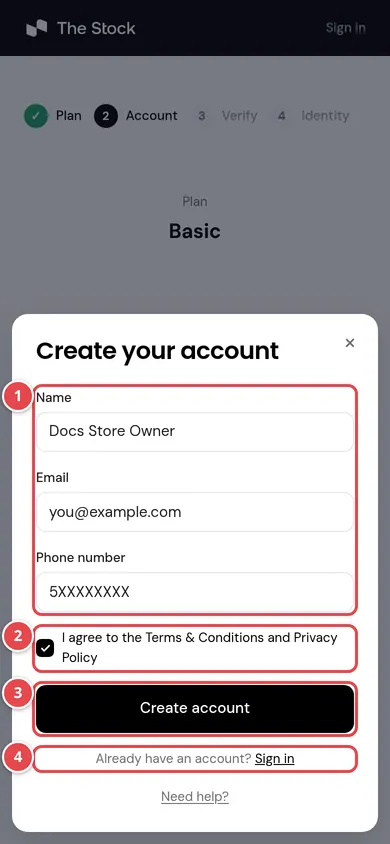
- Name, email and phone number.
- The box to agree to the Terms & Conditions and Privacy Policy.
- The Create account button.
- The Sign in link if you already have an account.
Why is there no password? You sign in to the sign-up site with a code sent to your email each time. Your dashboard password is emailed to you later, when your store is ready, and you change it the first time you sign in.
Closing this window takes you back to Choose your plan and clears the plan you picked, so you choose it again.
3. Verify your email
We send a 4-digit code to your email. Type it in Verification code and press Verify. If the code does not arrive, wait for the countdown to finish (60 seconds), press Resend, and check your spam folder.
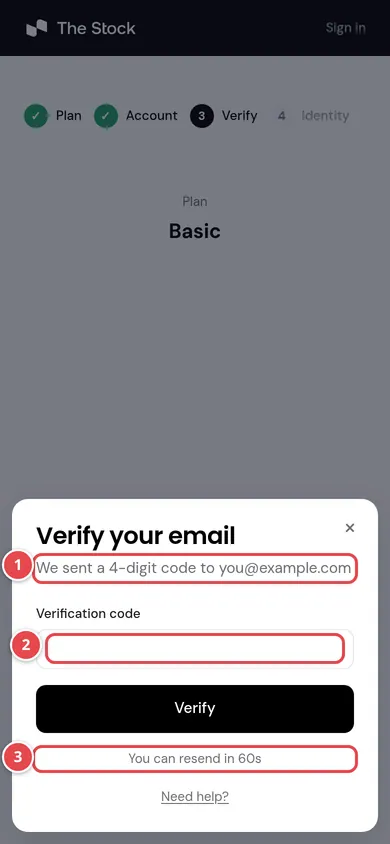
- The email the code was sent to.
- The Verification code field (4 digits).
- The countdown, then the Resend link once it ends.
4. Identity: company or individual
Choose the Applicant type: Company (selected for you) or Individual. Individual sign-up is open to Saudi citizens only for now; Resident and Non-resident carry a Not available yet badge and cannot be chosen — a resident can sign up as a company.
If you are a company
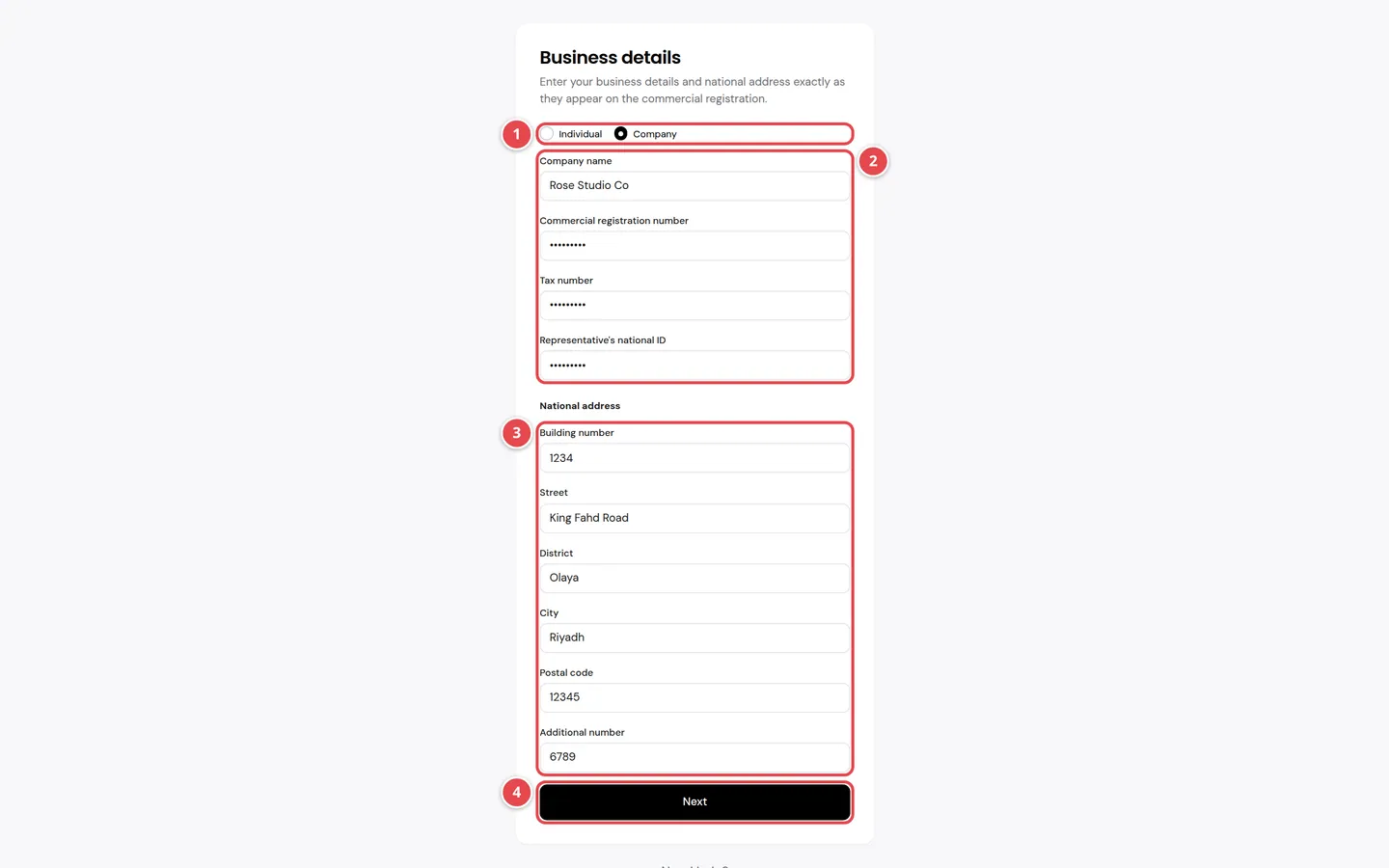
- Applicant type: Company or Individual.
- Company details: name, commercial registration, tax number and the representative's ID.
- The six National address fields.
- The Next button.
| Field | What to enter |
|---|---|
| Company name | As it appears on the commercial registration |
| Commercial registration number | Your business registration number |
| Tax number | Your VAT registration number |
| Representative's national ID | The national ID number of the person representing the company |
| Building number, Street, District, City, Postal code and Additional number | The company's national address, as on the commercial registration. Every field is required |
Press Next. A company application is usually accepted at once and you move on to the next step.
If you are a Saudi individual
Choose Individual, then Saudi. The step is titled Applicant details and has two fields only:
| Field | What to enter |
|---|---|
| National ID | Your ID number: 10 digits starting with 1 |
| Freelance Document page link | Open your document page on the Freelance platform (freelance.sa), copy its link from the address bar and paste it here. The link starts with https:// |
Press Next. There is no Nafath step: your application is accepted at once and you carry on with the same steps as a company (store name, then the free trial or payment).
5. Your store name and address
On the Your platform name & domain step, type the Platform name as you want your customers to see it. It can be in Arabic.
Then type the Platform address, the first part of your store link. The full link appears under it as it will be, for example salem-studio.thestock.cloud. The wizard suggests an address from the store name in Latin letters, and an Arabic name is transliterated into Latin letters. Check the suggested address, and edit it if you want another.
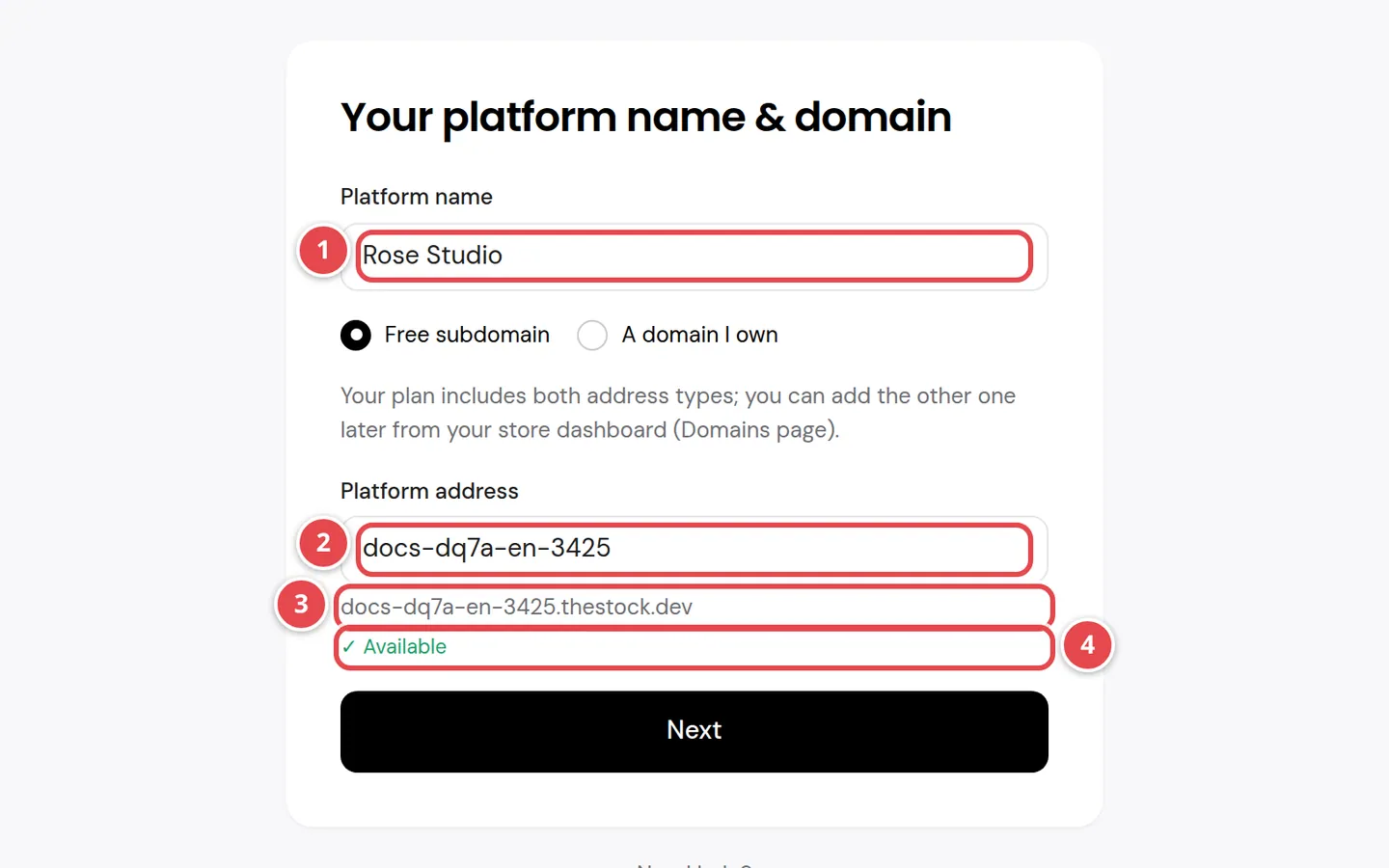
- Platform name: the name your customers see.
- Platform address: lowercase English letters, numbers and hyphens.
- The full link of your store as it will be.
- The check result: Available. Next does not work before it.
We check the address automatically once you stop typing. If it is not available, you see one of these messages:
| Message | What it means and what to do |
|---|---|
| Must be lowercase English letters, numbers, and hyphens only | Use only a-z, 0-9 and the hyphen (-), no spaces, not starting or ending with a hyphen, up to 63 characters |
| This name is reserved | Names such as www, api, docs and help are kept for the platform. Choose another name |
| This name is already taken | Another store uses it. Try adding a word or a number |
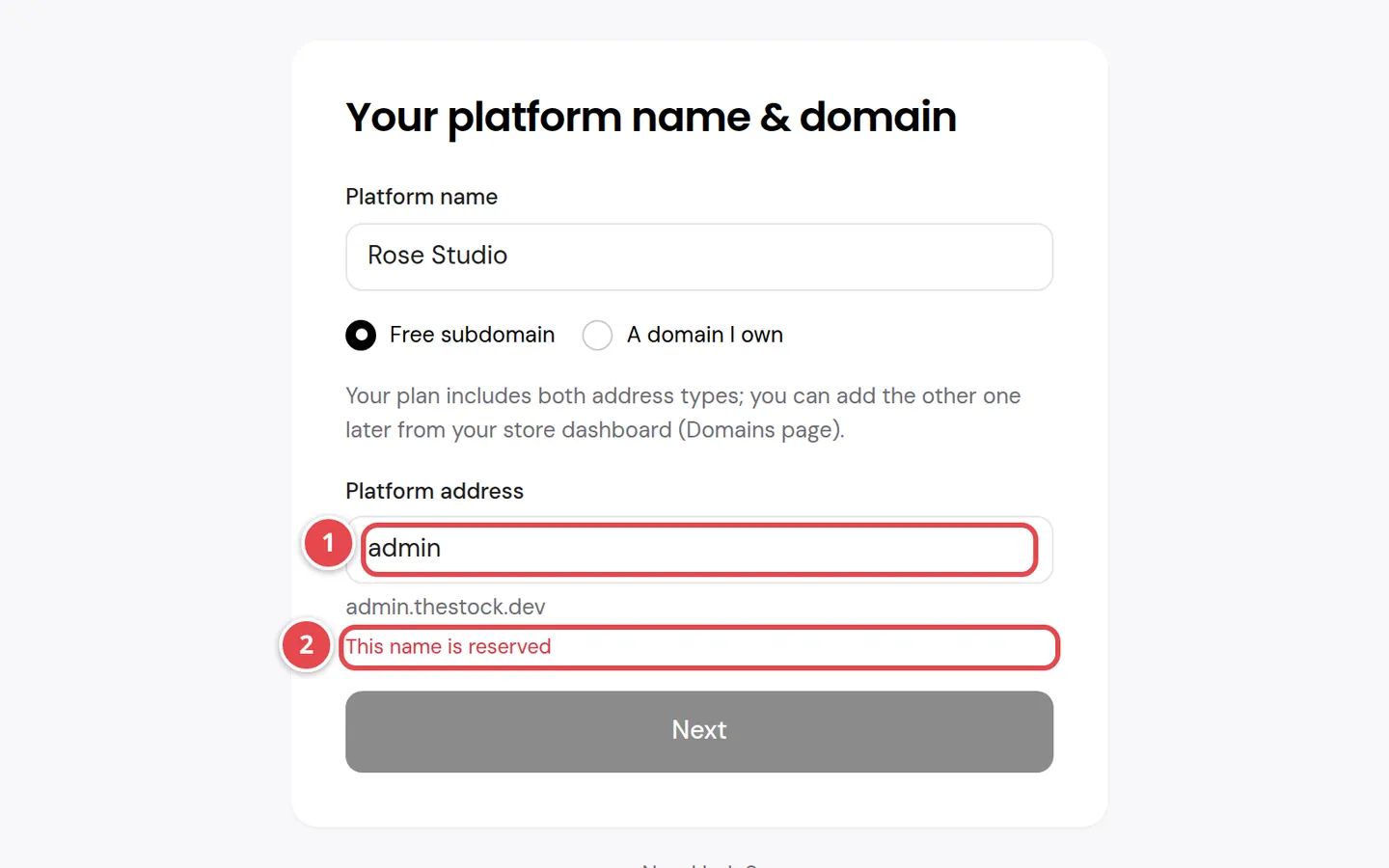
- The address typed.
- Why it is not available.
If your plan includes both the subdomain and your own domain, you see two choices: Free subdomain and A domain I own. Sign-up takes one address; you add the other kind later from the Domains page in your dashboard.
If you choose A domain I own, type the domain in Domain (for example shop.example.com). After you subscribe, you add DNS records at your domain provider, and your store does not open on it before you do. The full guide is in Managing your store domains.
6. The free trial or payment
If your plan offers a free trial and your application is eligible, a Try it free card appears at the top of the Payment step. The card explains that we hold 1 SAR to verify your card and release it at once, and gives the date the trial ends and the amount charged automatically then, unless you cancel before. Tick the box to agree to the automatic charge, then press the button that starts with Start my. You see Taking you to verify your card... and move to the secure payment page: enter your card details and confirm with your bank's code (3D Secure).
You then come back to the wizard and see Verifying your card for a few seconds. When it succeeds, your store is created on its trial and you reach the Your platform is ready screen with a note that your card is verified. If the card is not verified you see Card not verified with the reason and a Try again button. If the check was not completed in time you see The card check expired and Start again. In both cases no store is created and nothing is charged. If your bank is slow to answer you see Still verifying your card and a Check again button.
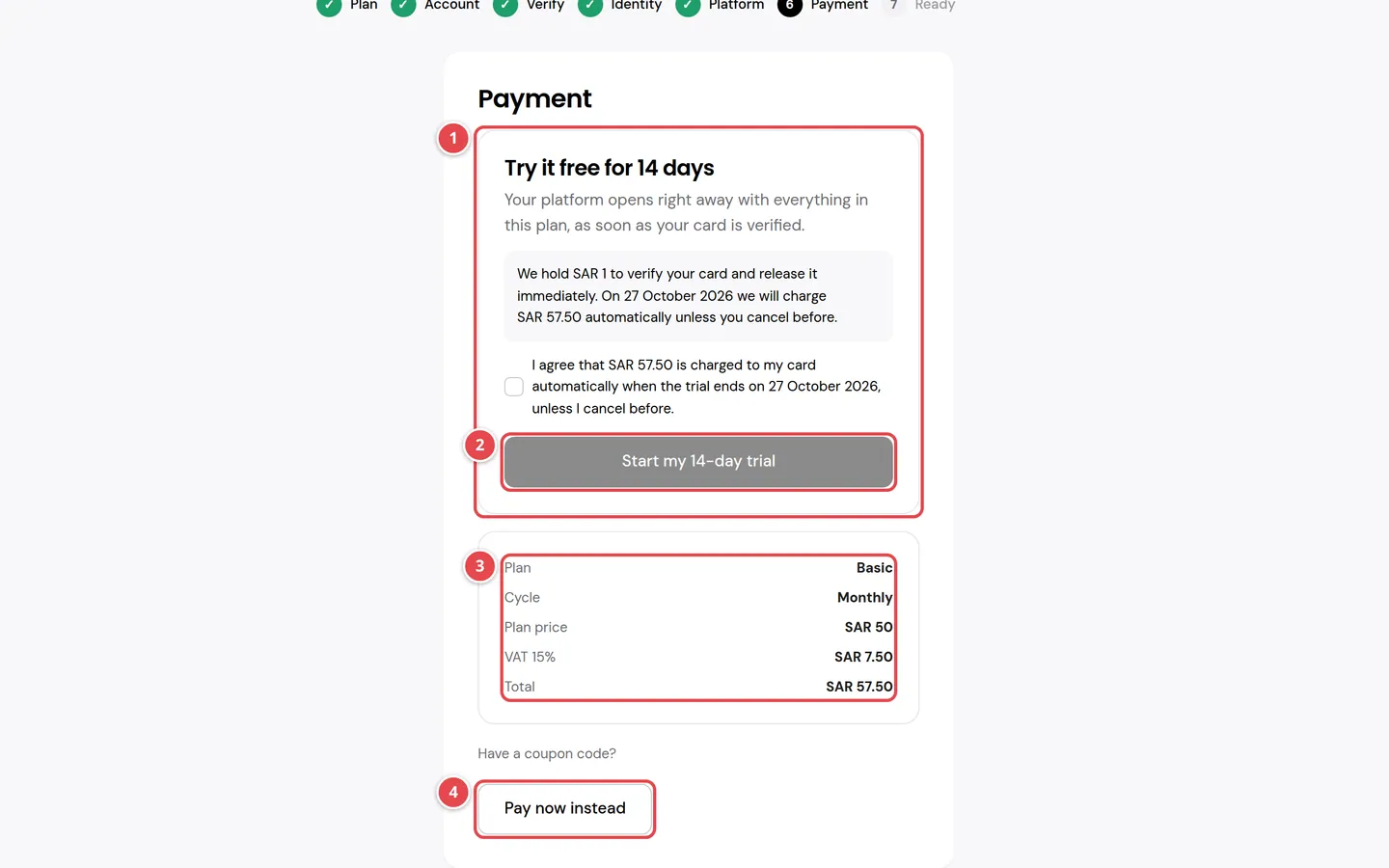
- The free-trial card and how many days it lasts.
- The button that starts the trial.
- The summary of the plan, cycle and price.
- The Pay now instead button if you want to pay straight away.
The free trial is once per company (or per national ID for an individual) and once per card. If your company or your ID has used it before, or the plan no longer offers it, a message says so and payment stays available. If your card was already used for a trial, you are told after the card check: try another card, or pay for the plan.
The amount summary
The summary shows the Plan, the Cycle, the Plan price, VAT and the Total that will be charged. If the plan has an offer, you see the Original price struck through, then the Discount with the offer's name, then the Price after discount and how long the offer lasts.
Coupon code
Press Have a coupon code?, type the code in Coupon code, then press Apply. If it is accepted, the summary updates with the discount, and you can take it off with Remove. The code applies to the free trial and to payment: with a trial, its discount is kept for your first payment after it.
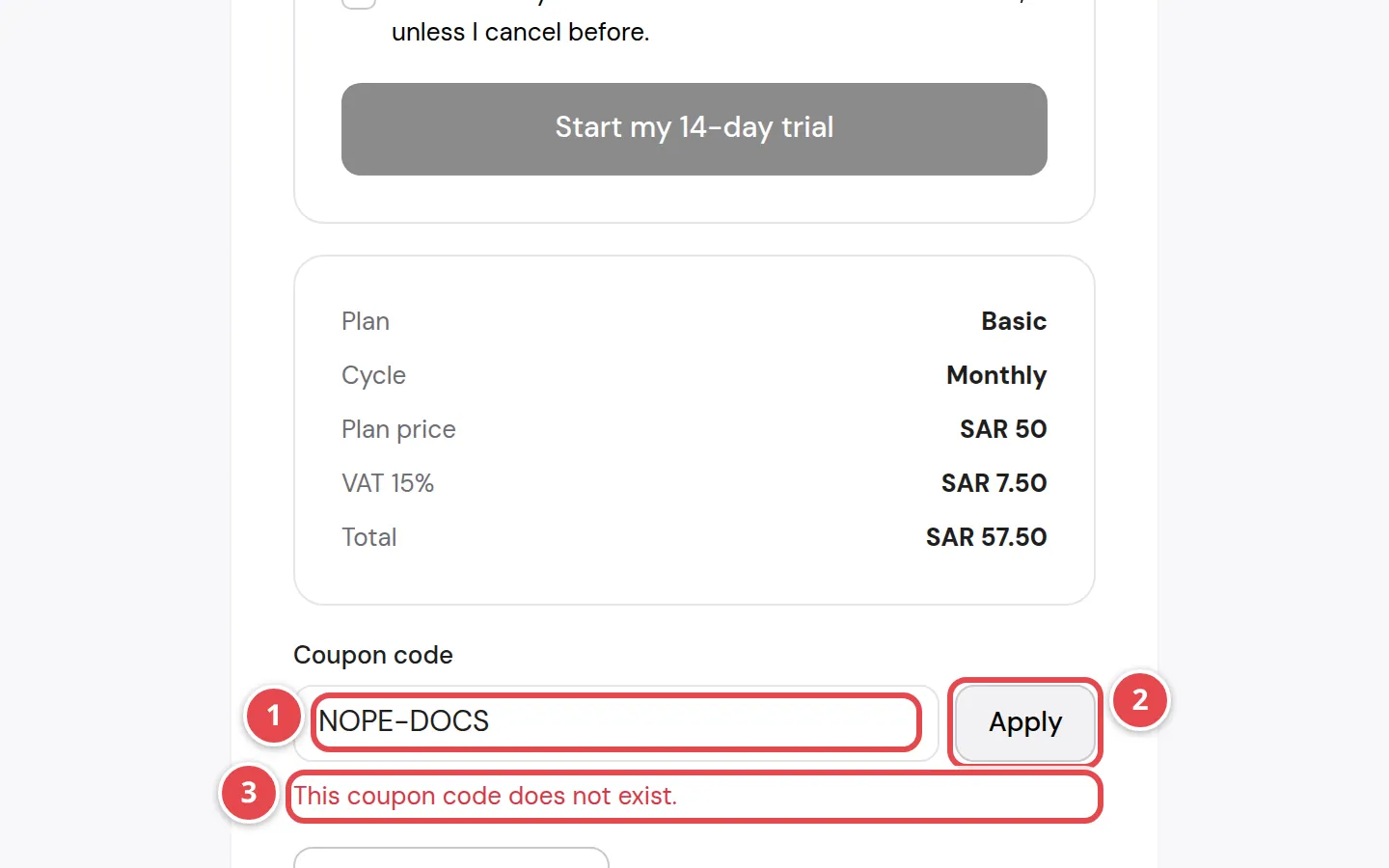
- The Coupon code field.
- The Apply button.
- Why the code was refused.
| Coupon message | What it means |
|---|---|
| This coupon code does not exist. | Check you typed the code exactly as you received it |
| This coupon is not active. | The coupon is switched off for now |
| This coupon is not valid yet. | Try it after its start date |
| This coupon has expired. | Its period is over |
| This coupon does not apply to this plan. | The coupon is for other plans |
| This coupon does not apply to this billing cycle. | The coupon is for monthly only or yearly only |
| This coupon has reached its usage limit. | It has been used as many times as allowed |
| You have already used this coupon. | Each coupon is used once per customer |
| The plan offer is better, so it is applied instead of your coupon. | The code is valid, but the plan's offer gives you a bigger discount, so the offer is applied |
Paying by card
Press Pay now (or Pay now instead if the trial is shown). You see Redirecting you to secure checkout... and move to the secure payment page. Enter your card details; your bank may ask you to confirm with a code it sends you (3D Secure). You then come back to the wizard automatically.
Processing payment may show for a few seconds until your bank's confirmation reaches us. If the payment does not go through, you see Payment not completed: you were not charged, and Try again lets you pay for the same store without repeating the steps.
7. Your platform is ready
When your store is ready you see the Your platform is ready screen, and you get an email titled "Your store is ready on TheStock" with the dashboard link and a temporary password (if your account is new).
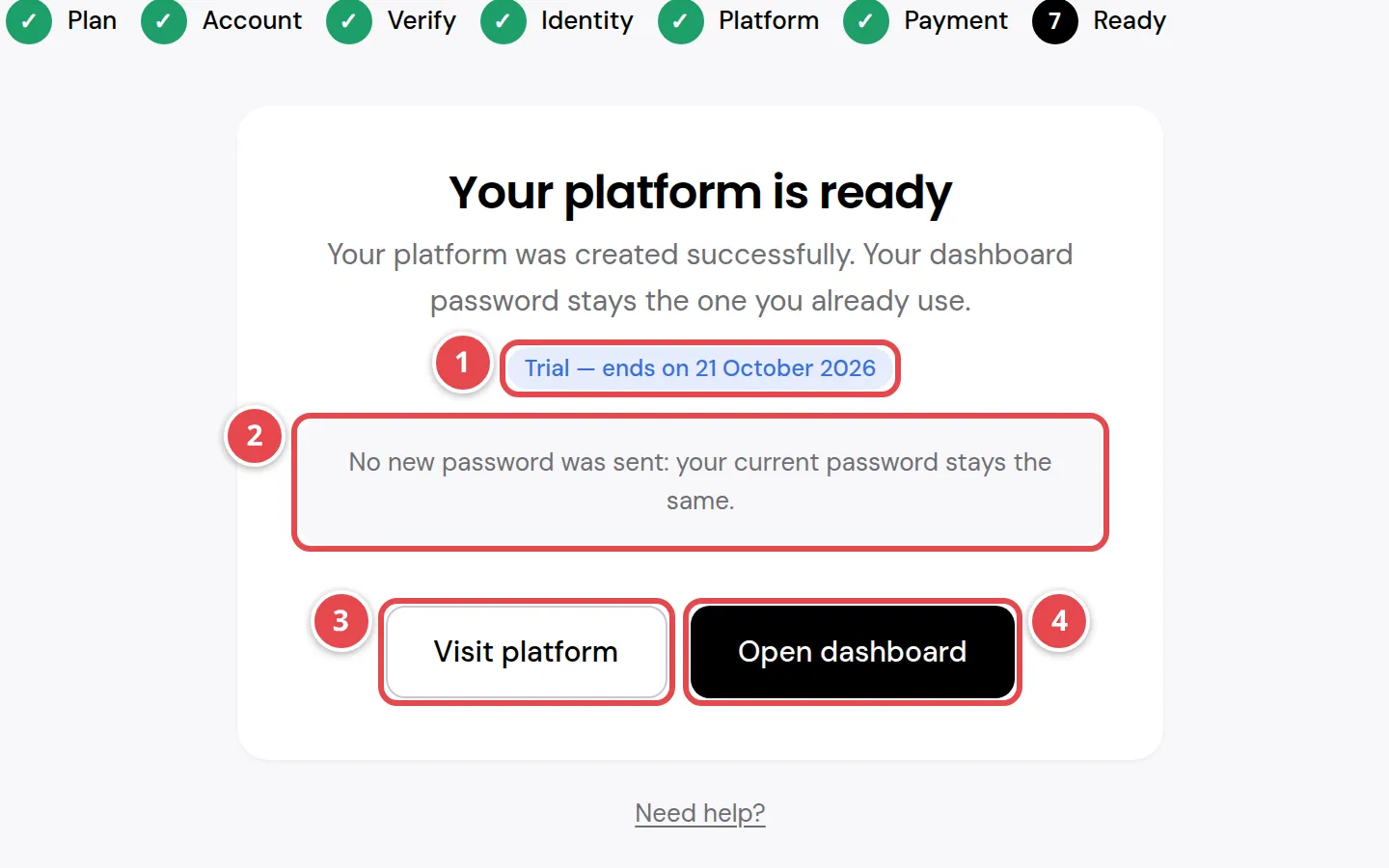
- The free-trial badge and its end date (only during a trial).
- A reminder that the temporary password was emailed to you, or that your current password stays the same if you already had one.
- The Visit platform button: opens your public store.
- The Open dashboard button: takes you into your dashboard without typing a password.
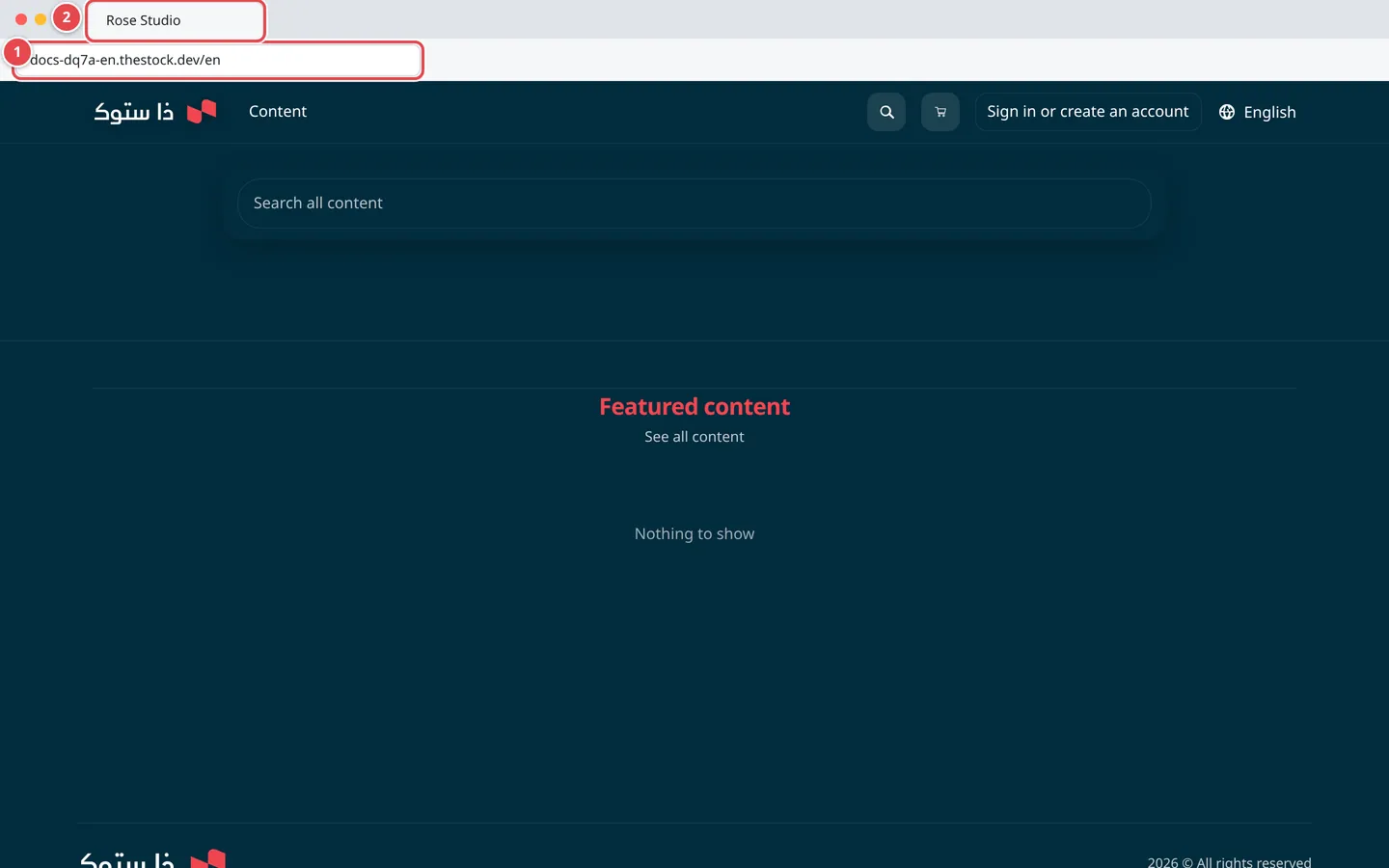
- Your store address in the browser bar.
- Your store name as you typed it in the Platform step.
If you signed up with a domain you own, there is no Visit platform button. Instead you see One last step: connect your domain with the CNAME record you need. Your store does not open on your domain before you add the records. See Managing your store domains.
Press Open dashboard to go to your dashboard. What happens next is in Signing in to your dashboard for the first time.
If you close the page before you finish
You do not lose what you have done: every step you complete is saved with us. Open the sign-up site, press Sign in at the top, type your email and press Send verification code, then enter the code and press Verify & sign in. The site takes you to the wizard: if you had not finished, choose the same plan again and it carries on from the first step not yet done; if your store is ready, the Your platform is ready screen opens straight away.
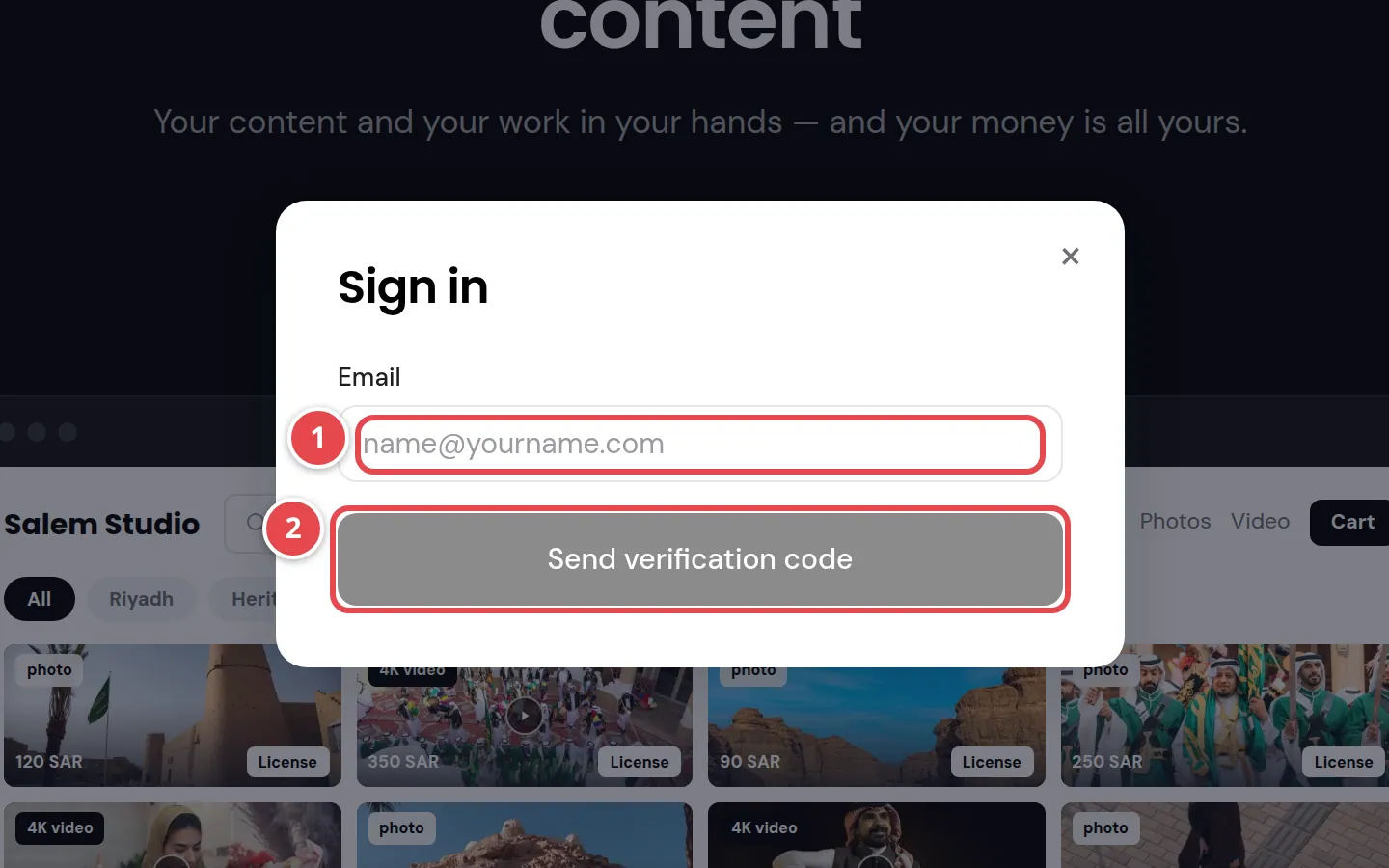
- The Email field.
- The Send verification code button.
Common questions
My payment did not go through. Was I charged?
No. The Payment not completed screen means the payment did not happen. Press Try again to pay for the same store. If Processing payment stays for a long time, we email you a confirmation once it completes.
I closed the page halfway through. Do I start again?
No. Sign in at the top of the sign-up site with a code sent to your email, choose the same plan, and the wizard carries on where you stopped. Details in If you close the page.
I typed my email and a sign-in window opened. Why?
Because your email is already registered with us. Enter the verification code sent to it and carry on.
My coupon code was refused. What do I do?
Read the message under the field; what each message means is in the Coupon code table. You can carry on and pay without a coupon.
Can I create more than one store with the same account?
No. Each account has one store, and trying to create another shows You already have a platform.
Can I change my store address after signing up?
Yes, from the Domains page in your dashboard. See Your subdomain and store address.