
Share files with clients
Creating a link for a review project or a file, permissions, password and expiry, what the client sees on your store's domain, the client's decision, managing links and guests, and notifications.
You can share a whole review project, or one file in it, with your client by link. The client opens the link on your store's domain with its logo and colours, without an account, to view the files, comment, and approve or request changes, as you allow. Their comments reach your team in Review spaces.
Creating a link
Choose what to share
On the Review Assets page press Share with client at the top to share The whole project, or the same button on a file card or inside the viewer to share that file only.
Set the permissions
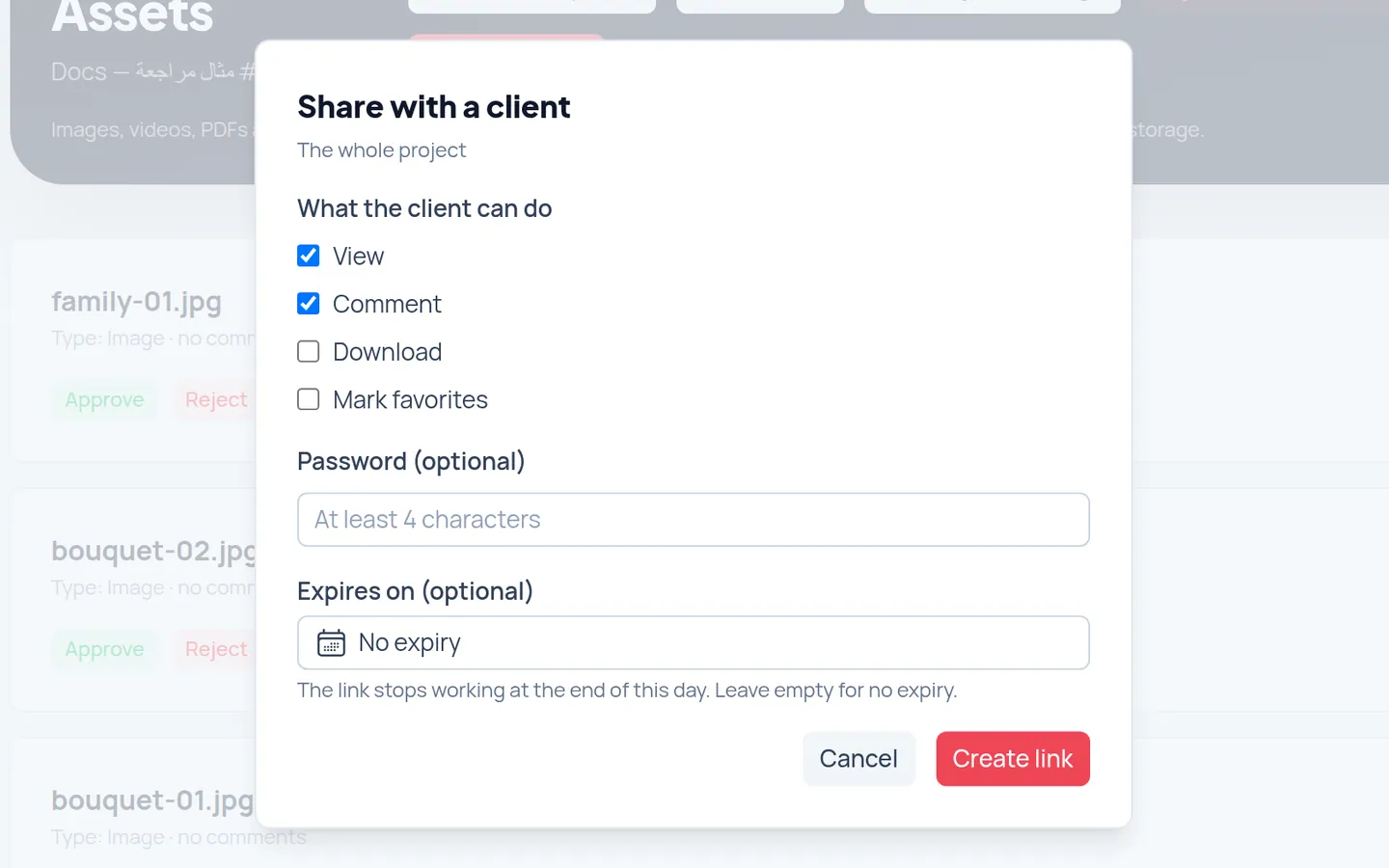
Under What the client can do choose: View (required), Comment, Download, Mark favorites. View and comment are on by default.
Password (optional)
In Password (optional) enter at least 4 characters if you want the client to type it before seeing the files. Send it to them some other way than the link.
Expiry (optional)
In Expires on (optional) pick a date after today. The link stops working at the end of that day. Leave it empty for no expiry.
Create the link
Press Create link. You see The link is ready. Send it to your client.
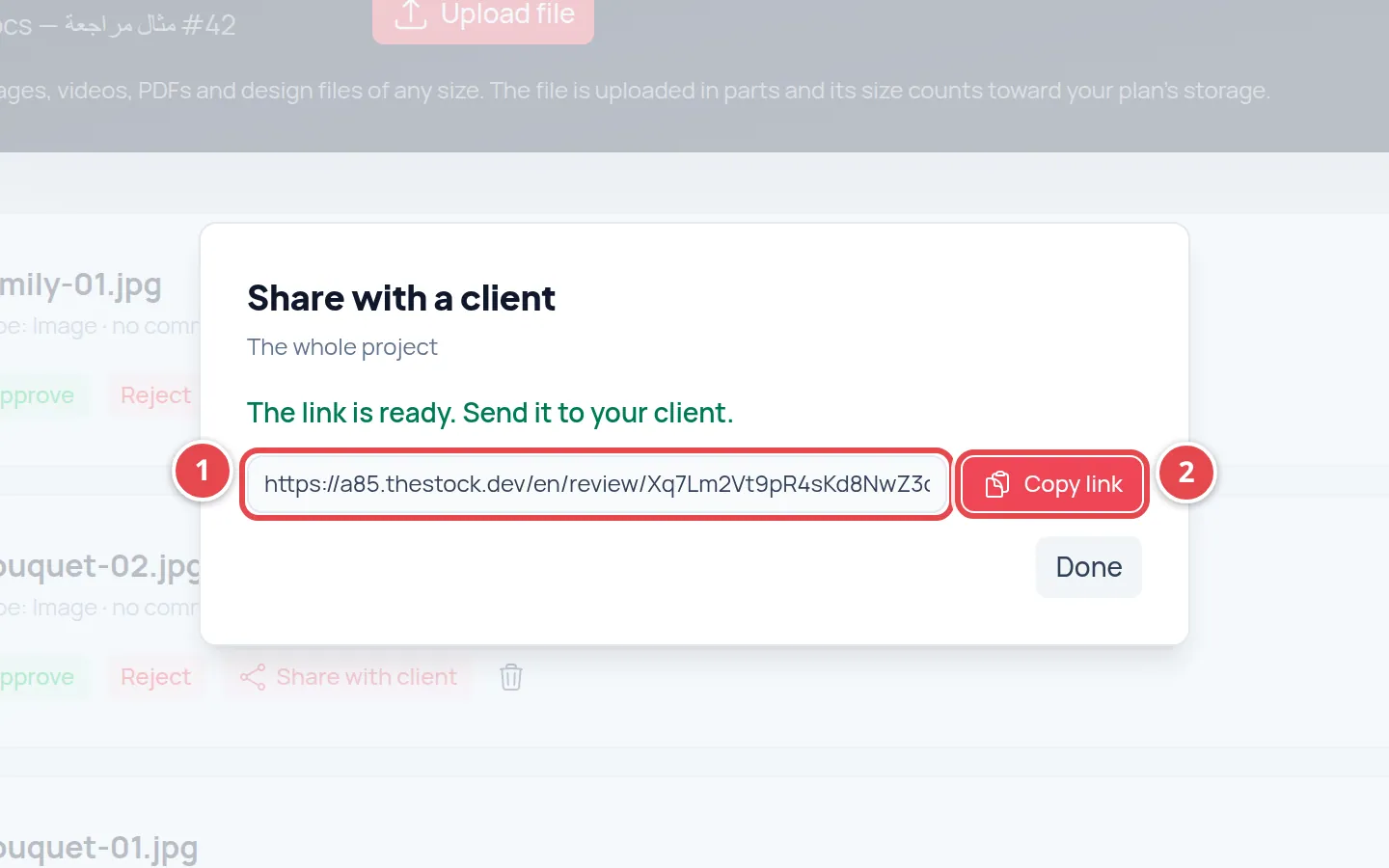
- The link address on your store's domain.
- The Copy link button.
Press Copy link and send it to your client by email or however you like. The link is on your store's primary domain, like shop.example.com/ar/review/…, so the client sees your store's name, not the platform's.
What the client sees
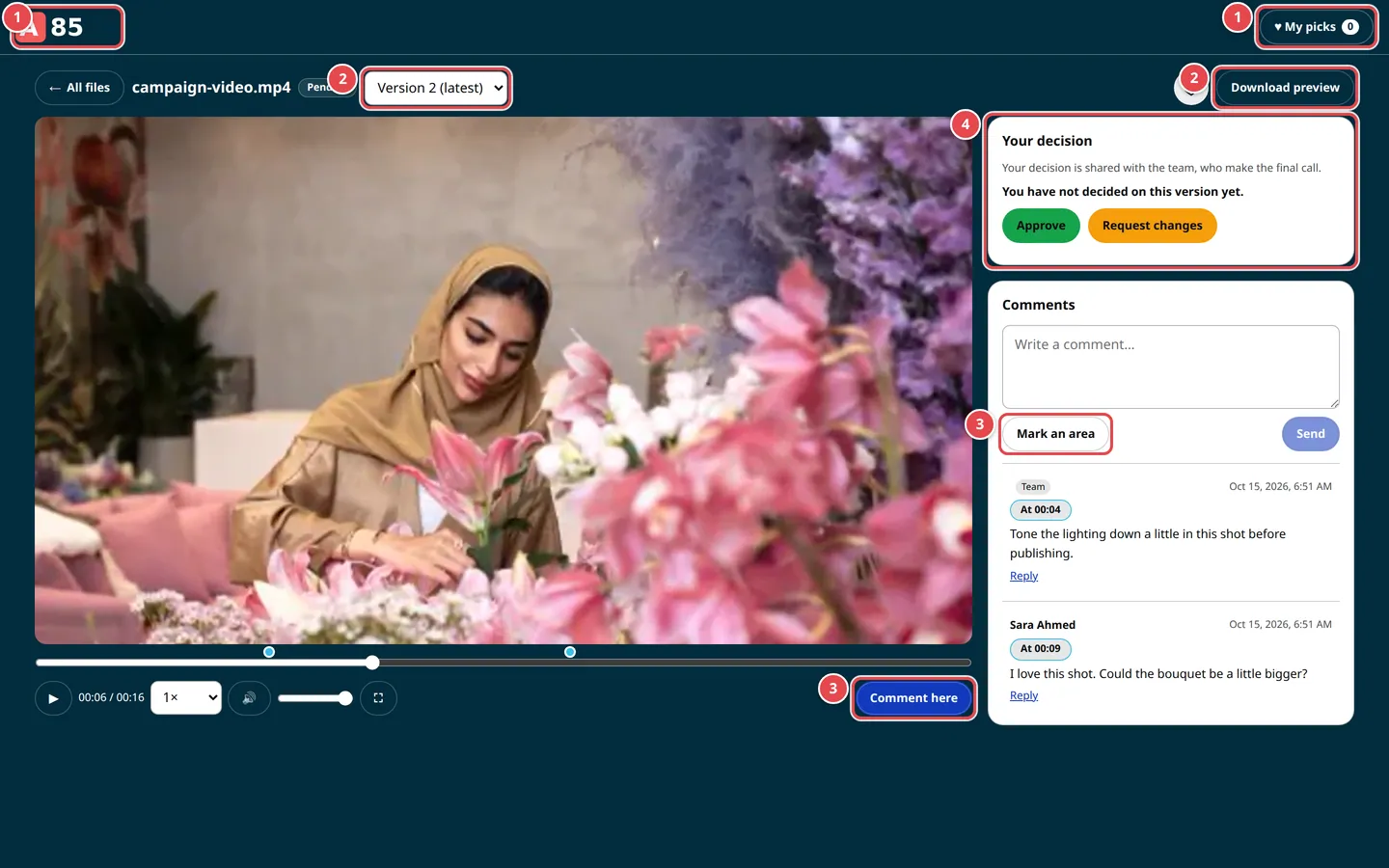
- Your store's logo, and My picks when favorites are allowed.
- The version, and the download buttons when allowed.
- Comment here and Mark an area.
- Your decision: Approve or Request changes.
| What the client does | How it works |
|---|---|
| Opens the link | A focused page with your store's logo and colours, without the store menu. If the link has a password, This link is protected comes first. A project link shows the Files grid; a file link opens that file directly. |
| Says who they are | At their first comment, decision or favorite, Who is commenting? asks for their Name and Email, with no account and no verification code. If they are signed in to your store, these are filled in. Their first comment, decision or favorite ties their email to that browser, so they edit their comments and decision from the same browser only; from another browser they are told the email is already used from another browser. Not me clears them from that browser, to enter another name and email. |
| Comments | They write a comment, or press Comment here at a second in a video, or Mark an area on a picture. They see your team's comments (marked Team) and those of others on the same link, and reply. They can edit or delete their own comment for 15 minutes after writing it, from the same browser. |
| Decides | Under Your decision they press Approve or Request changes, then Send decision. A note is optional to approve and required to request changes. A new decision on the same version replaces their earlier one, which stays in the history. |
| Picks favorites | A heart on each file (Add to my picks), and My picks shows only what they picked. |
| Downloads | Per the Client download setting: Download preview for the shown copy (watermarked when the watermark is on), and Download original only when you allow The original file. A PDF shows in full only with The original file and the watermark off; otherwise the client sees its first page alone, with First page only. |
A client's email is shown to your team only. Other clients see their name with their comment, never their email.
Client decision: final or opinion?
You choose this per project in Project settings → Client decision, and the client sees it above the decision buttons:
| Mode | What happens | What the client reads |
|---|---|---|
| Final (changes the file's status) | The client's decision changes the file's status to approved or changes requested. If several clients decide, the last decision sets the status, and your team sees every decision with its author's name. A decision on an older version is recorded but does not change the status. | Your decision sets the status of this file. |
| Opinion only (the team decides) | The decision is recorded and shown to your team under Decisions, without changing the file's status. Your team approves or rejects. This is the default. | Your decision is shared with the team, who make the final call. |
Managing links
The whole project's links are behind the Client links button at the top of the assets page, and a file's links in the Client links tab inside the viewer. Each link shows its scope (Project or File), its permissions, a Password badge when it has one, Expires, Last opened and how many times it was opened, and its status:
| Status | What it means |
|---|---|
| Active | The link works. |
| Expired | The expiry date has passed. You can Edit the link and pick a new date. |
| Revoked | You revoked it. It shows Revoked on with the date. It no longer works and cannot be copied or edited, and it stays in the list as a record. To share again, create a new link. |
| Paused (plan) | Your store's plan no longer includes client links. The links are kept, not deleted, but do not open for clients. They stay in Client links read-only: you see their status and guests and can Revoke them, but you cannot copy, edit or create links while the feature is out of your plan. If the feature returns, the links work again at the same addresses. |
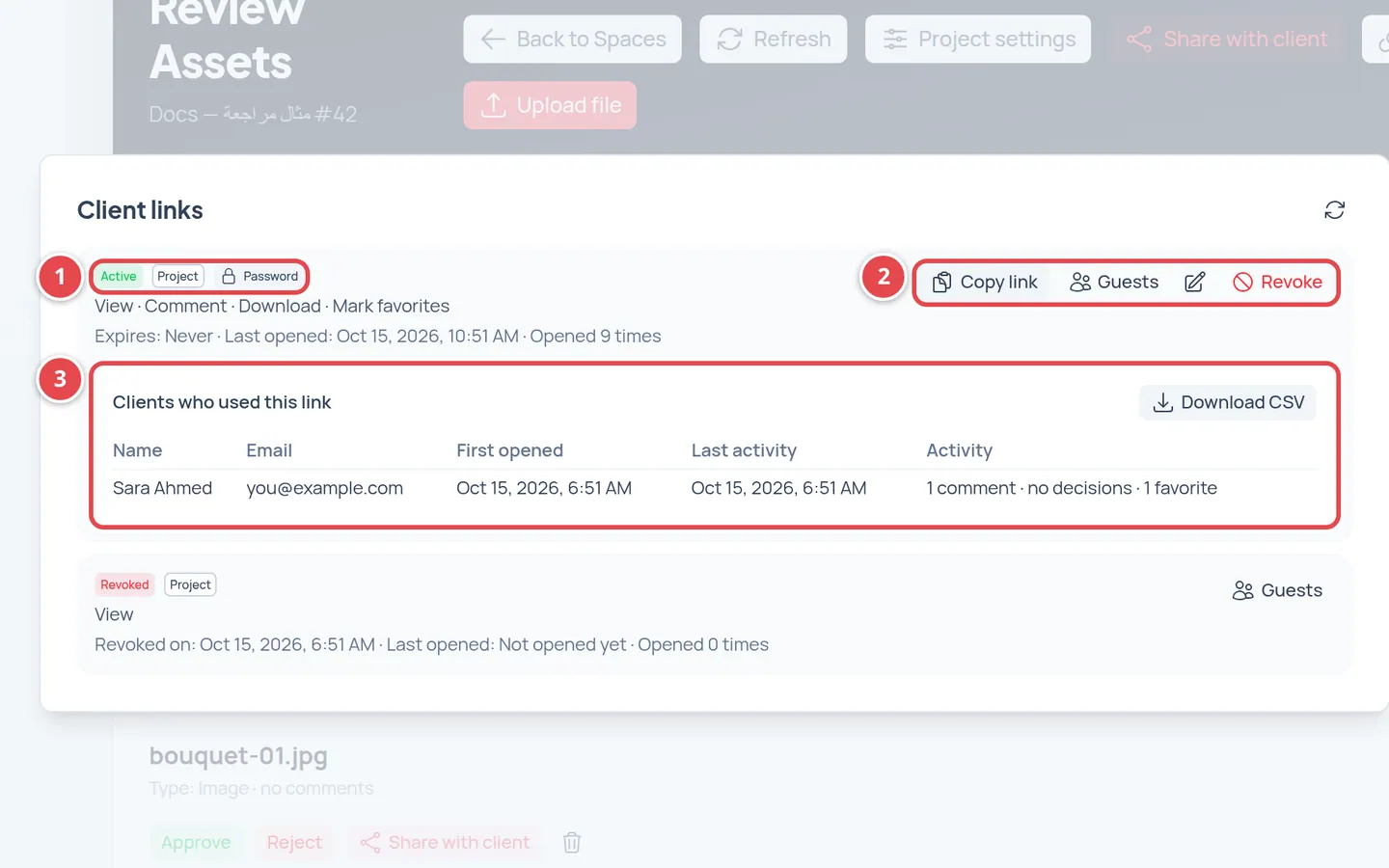
- The status, the scope and the Password badge.
- Copy link, Guests, edit and Revoke.
- The Clients who used this link table and the Download CSV button.
| Button | What it does |
|---|---|
| Copy link | Copies the address so you can send it again. It shows on active links only. |
| Edit (pencil icon) | Changes the permissions and expiry, and adds, changes or removes a password. An expiry cannot be removed once set; revoke the link and create a new one. |
| Revoke | After you confirm, the client loses access at once, and the link stays in the list. |
| Guests | Who used the link: Name, Email, First opened, Last activity and Activity (comments, decisions and favorites). Download CSV saves the table as a file. |
Notifications
| Who | What they get |
|---|---|
| Your team | When a client comments or decides, the space's creator and participants get a dashboard notification and an email summarising what happened: at most one per space every 10 minutes. The link in the email opens the file and the comment directly. Each member can turn these off in Notifications → Settings → Review emails, see Email templates and notifications. |
| The client | An email in your store's name when you upload a new version of a file they commented on or picked, or when your team replies to their comment, batched at most every 10 minutes. Each email has a link to stop these emails in one click, without signing in. No emails go out for a revoked, expired or plan-paused link. |
Both emails are in Email Templates, where you can customise them in Arabic and English. These emails do not count toward your plan's monthly email limit.
Security and privacy
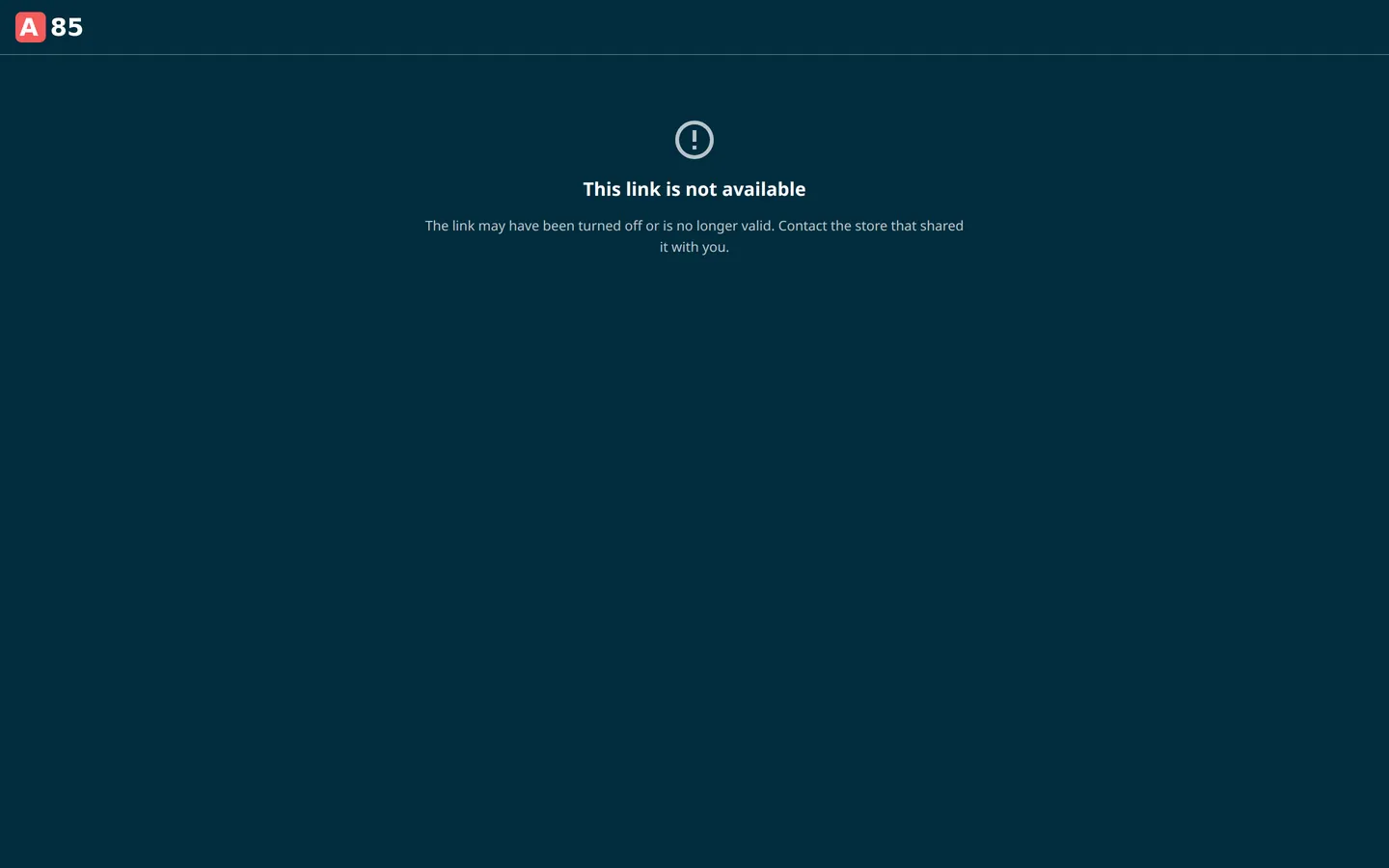
A link that does not exist, is revoked, expired or paused by the plan, or is opened on another store's domain all show the same page: This link is not available, without the reason. So someone trying links cannot tell whether a link exists at all.
After 5 wrong passwords the link is locked for 15 minutes for whoever tried. After the right password, the link stays open for the client for two hours, then asks again. A link to one file never reveals the project's other files.
The client says the download or comment button is missing?
The action needs both the link's permission and the file's setting. Edit the link in Client links if needed, then check Client download or Client comments in the settings.
The client sees This link is not available?
Check the link's status in Client links: expired, revoked or paused (plan). Also make sure they open the link exactly as you copied it, on your store's domain.
Does the client need an account?
No. They only enter their name and email at their first comment or decision.
Does the client see the original file?
For images and videos they see the viewing copy only (watermarked when you turn that on), and the original is given for download only when you choose The original file under Client download. A PDF is shown in full, as it is, only when the watermark is off and Client download is The original file; otherwise the client sees an image of its first page alone (watermarked when that is on), with First page only.