
Reviewing the AI text and submitting
Every field on the review card — descriptions, keywords, category, rights and release file — the states, and "Approve and submit".
After you upload, the AI suggests the details of each file. Your job is to review them, correct them and then approve. Good details help buyers find your work, so take your time.
You find the cards on the Images page (Edit Images) and the Videos page (Edit Videos). The list refreshes automatically every few seconds, and your edits stay in the card while it does.
The review card
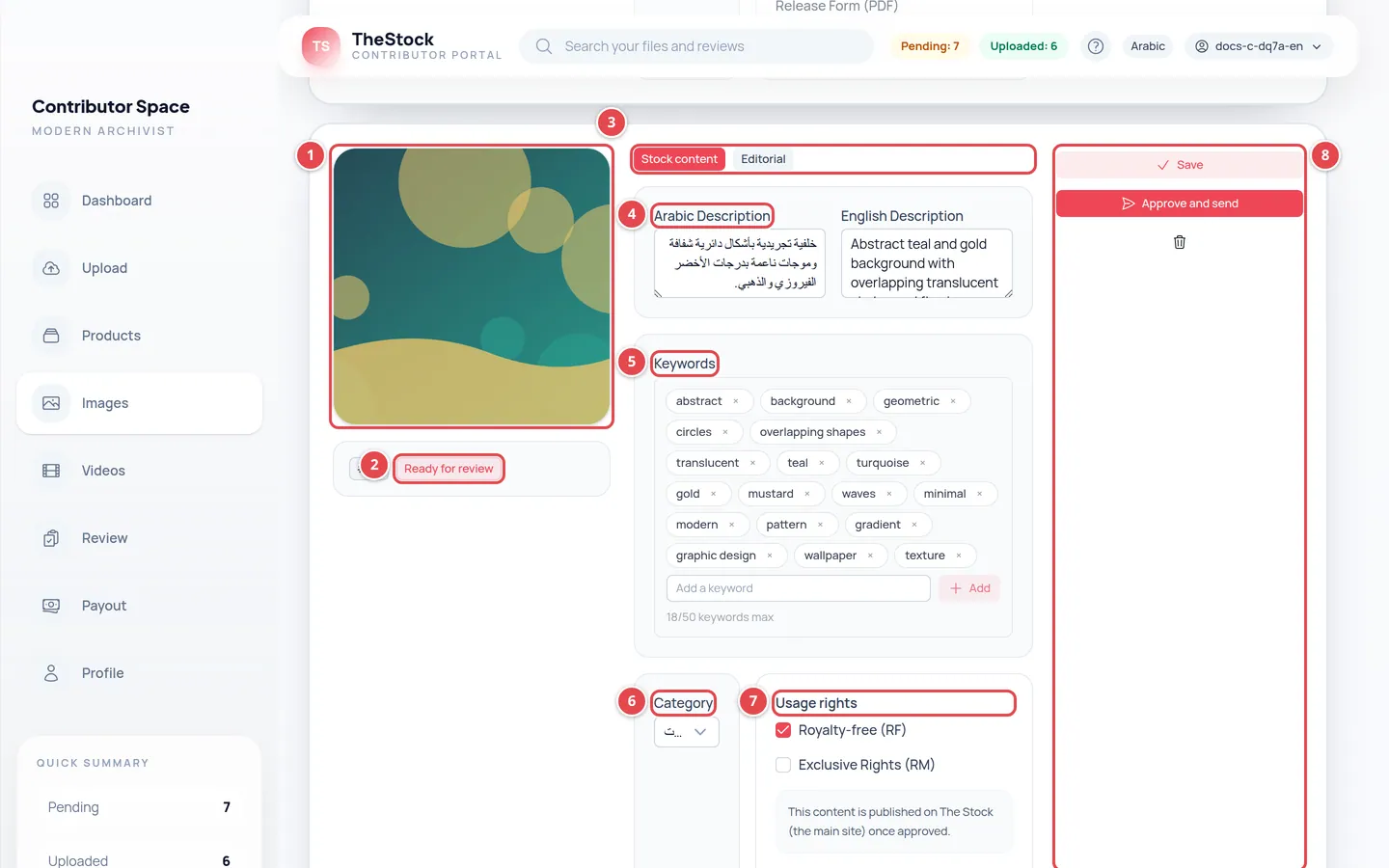
- The preview: click it to enlarge the photo.
- The file number and its state.
- The content type: Stock content or Editorial.
- Arabic Description and English Description.
- Keywords.
- Category.
- Usage rights and Release Form (PDF).
- The Save, Approve and send and delete buttons.
The fields, one by one
The two descriptions
The Arabic Description and English Description are what buyers read and search with. Describe what is actually there: the place, the people, the event, the mood. Fix any wrong names or places; the AI can get these wrong.
Keywords
Up to 50 per file; the count shows under the field. Type a keyword and press Add, and remove one with the close mark next to it. Remove keywords that have nothing to do with the file; misleading keywords hurt how your work shows up.
Category
Pick the most accurate Category for your file. The category decides where the file appears in the store, and it also sets its price.
Content type
Switch between Stock content and Editorial if you chose the wrong type when uploading. For editorial content, the Event (optional) and Collection (optional) fields appear so you can link it to an event or collection. EPS files show a Vector (EPS) badge and their type does not change.
Usage rights
| Box | What it means |
|---|---|
| Royalty-free (RF) | Always included in every file. Leave it ticked. |
| Exclusive Rights (RM) | Optional. Lets one customer buy exclusive rights; after that purchase the file is withdrawn from sale for good. |
Below the rights you see the note This content is published on The Stock (the main site) once approved.
Release Form (PDF)
If an identifiable person or private property appears in the file, attach the signed release form as a PDF (up to 10MB): press Attach PDF and choose the file. To change it, press Replace PDF. See Release forms.
Saving and approving
Check every field
Make sure the two descriptions, the keywords, the category and the rights are right.
Save if you want to come back later
The Save button keeps your edits without sending the file. You see Saved successfully.
Press “Approve and send”
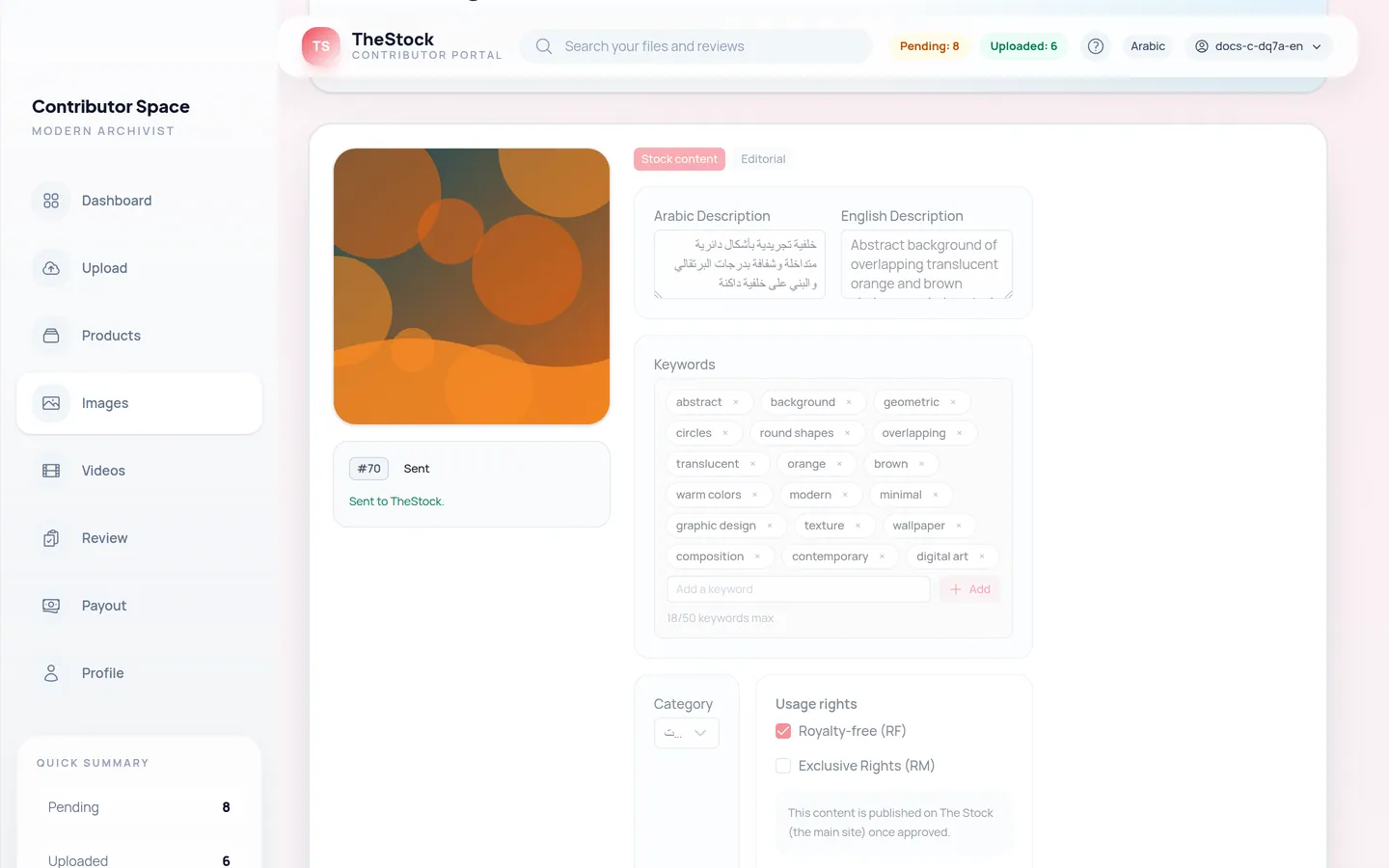
The button saves your edits first, then sends the file. You see Approved — sending now and the state changes to Sending, then Sent.
Wait for the platform team’s review
Once sent, the platform team reviews the file. Follow the result on the Products page. See Tracking your content.
The six states
| State | Meaning | What to do |
|---|---|---|
| Processing (grey) | The AI is working on the file. The fields are locked. | Wait a moment. |
| Processing failed (red) | Processing did not complete. | Press Retry processing. |
| Ready for review (brand colour) | The details are ready for you to review. | Review, then Approve and send. |
| Sending (blue) | You approved it and it is on its way to The Stock. | Nothing. |
| Sent (green) | It reached The Stock and is waiting for the platform team’s review. | Follow it on the Products page. |
| Refused (red) | The Stock did not accept it; the reason follows TheStock refused it; fix it and approve again: | Fix the problem, then approve it again. |
Retrying and deleting
Retry processing appears only for Processing failed and starts processing again. The delete button (bin) deletes the file after you confirm Are you sure you want to delete this image?, and it is not shown once the file is sent.
When the AI does not write the details
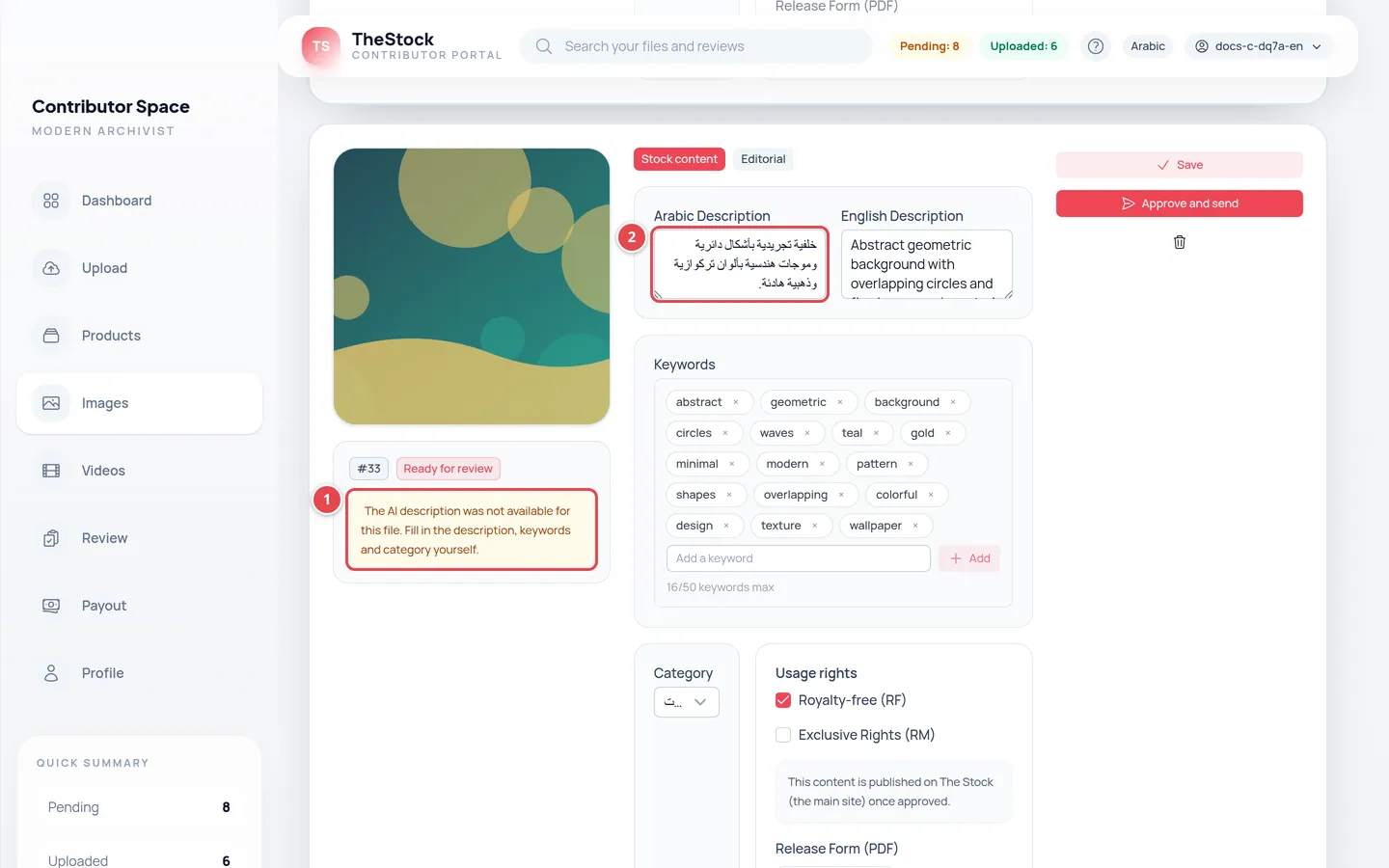
- The notice text.
- The fields you fill in yourself.
Sometimes no automatic description is available for a file, and you see a notice such as The AI description was not available for this file. Fill in the description, keywords and category yourself. Fill in the fields yourself, then approve the file as usual.
Can I edit the details after sending?
Not from the review card, which locks once the file is sent. But you can edit both descriptions on the Products page with the Edit button.
What is the difference between “Refused” here and the platform team rejecting a file?
Refused on the review card means The Stock did not take the file in, for a technical reason or because something is wrong with it (such as a duplicate file). A rejection by the platform team after review shows on the Products page.