
Managing your store domains
Adding a subdomain or a domain you own from your dashboard, DNS records, verification, choosing the primary domain, and what your plan allows.
On the Domains page in your dashboard you manage every address your store opens on: the subdomain on the platform, and your own domains such as shop.example.com. Open it from the side menu, or from the Manage domains link in Tenant Settings.
The Domains page
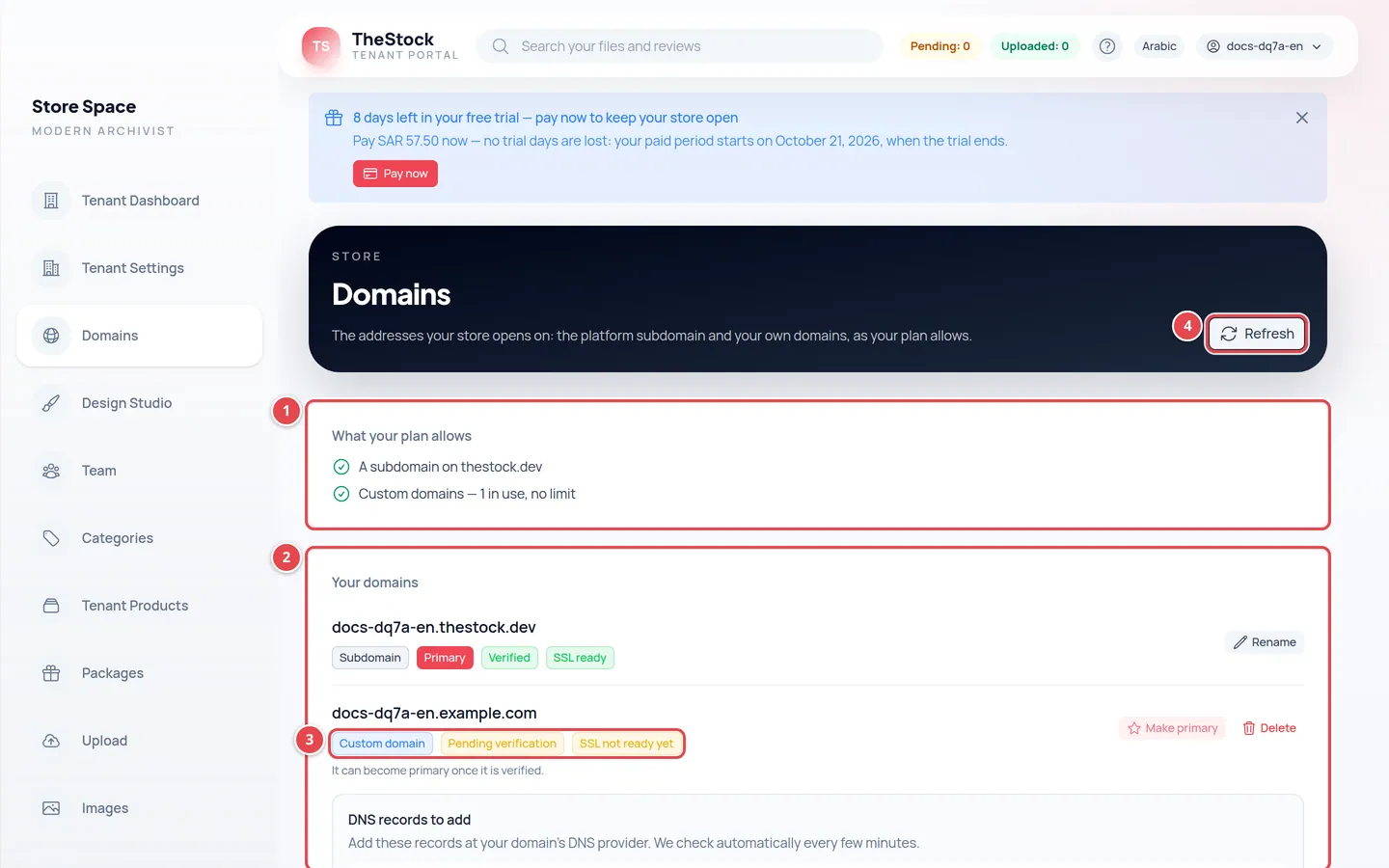
- What your plan allows: whether your plan includes a subdomain, and how many custom domains you use out of those allowed.
- Your domains: every address of your store, the primary first.
- Each domain's badges: the kind, Primary, the verification status and the SSL status.
- The Refresh button reloads the status.
| Badge | What it means |
|---|---|
| Subdomain / Custom domain | The kind of address: on the platform, or a domain you own |
| Primary | Your store's main address. The other addresses redirect to it |
| Verified | We confirmed you own the domain |
| Pending verification | We have not found the TXT record yet. We keep checking automatically |
| Verification expired | 14 days passed without the TXT record being found |
| SSL ready / SSL not ready yet | Whether the domain opens securely over https |
Adding a domain you own
You need a domain bought from any domain provider, and access to its DNS settings. We recommend a subdomain of it such as shop or www (like shop.example.com).
Type the domain
In the Add a custom domain card at the bottom of the page, type the domain, for example shop.example.com, without https.
Press Add
Press Add. The domain appears in the list as Pending verification, with a DNS records to add box under it.
Add the records at your domain provider
Copy each record with its copy button and add it exactly as shown. Details in DNS records.
Wait for verification
We check automatically every few minutes. Once verification succeeds, the status turns to Verified and we email you.
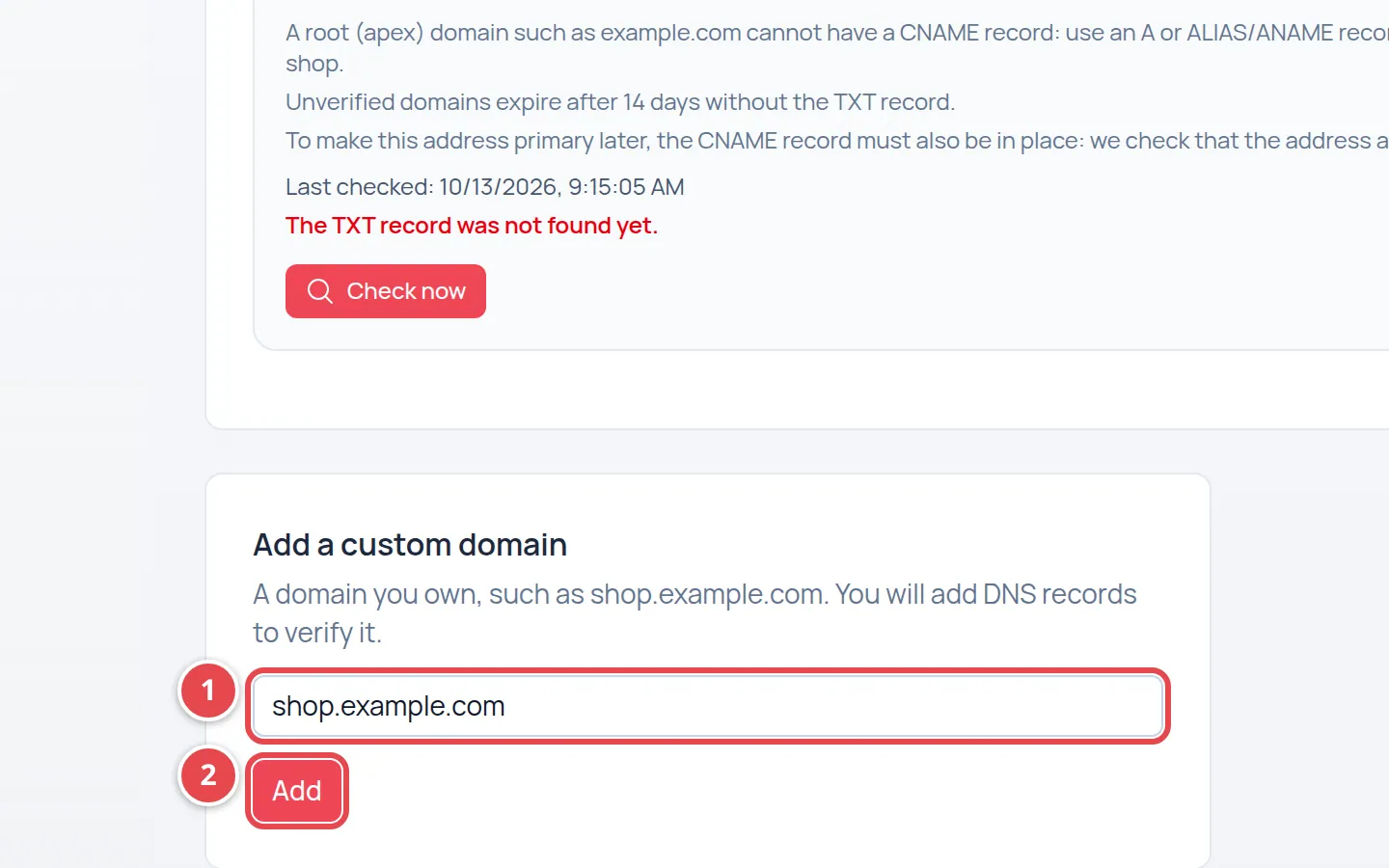
- The domain field.
- The Add button.
DNS records
The DNS records to add box shows each record with its type, Name and Value. Add them all at your domain's DNS provider:
| Type | Why |
|---|---|
| CNAME | Points your domain at your store. The name is your domain, and the value is the platform address shown in the box |
| TXT | Proves you own the domain. Its name starts with _thestock-verify |
| Extra records (TXT or CNAME) | May appear to issue your domain's SSL certificate. Add them too: without them the certificate never becomes ready |
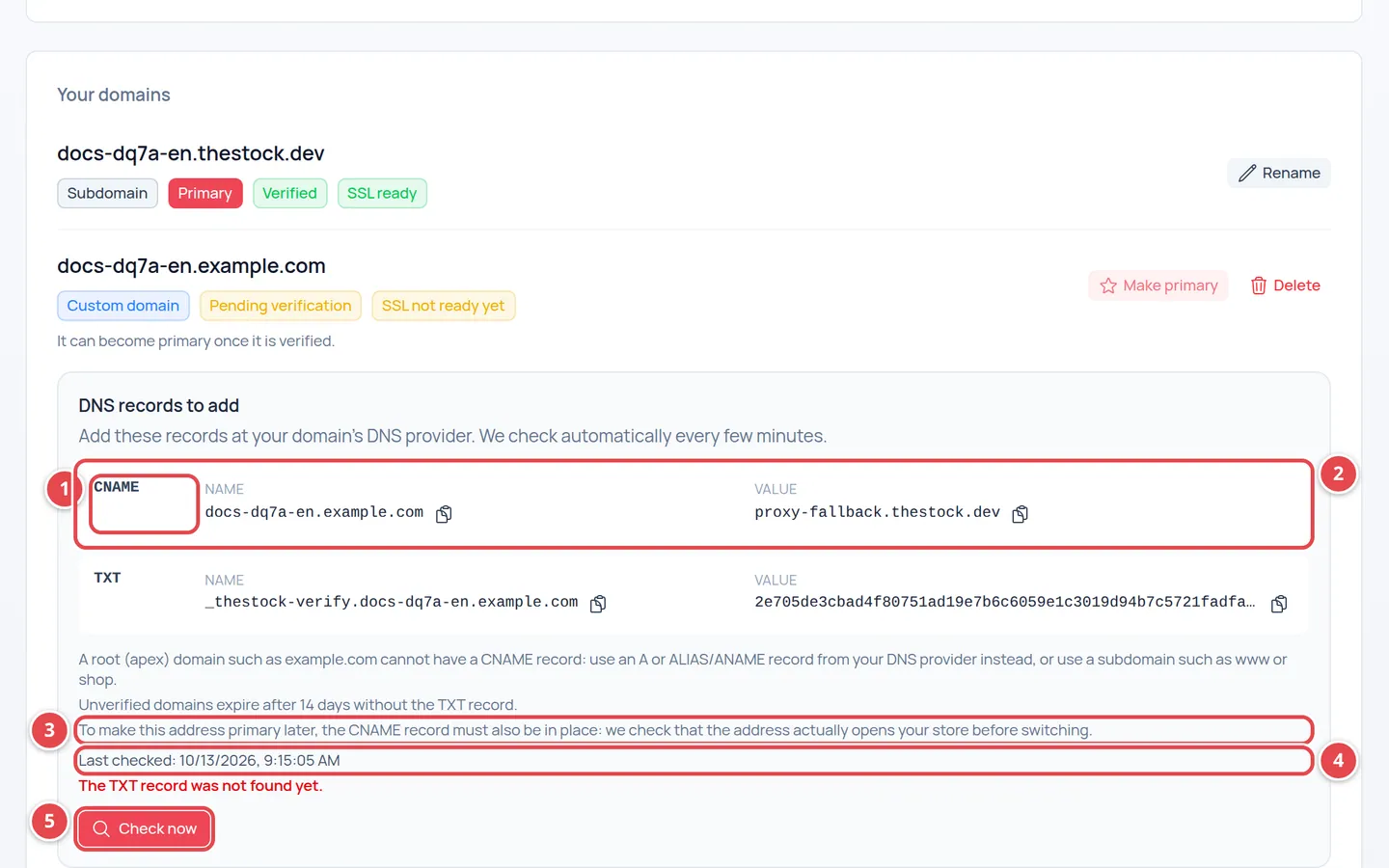
- The record type.
- The Name and Value, each with a copy button.
- The notes about root domains, the 14-day limit, and the CNAME record needed to make it primary.
- Last checked and why the domain is not verified yet, if known.
- The Check now button.
Verification and checks
DNS records can take from minutes to hours to spread, depending on your provider. We check your domain automatically every few minutes; you see the Last checked time in the box. Do not want to wait? Press Check now. If the records are not found yet you see The records were not found yet. and the automatic checks carry on.
| Message | What to do |
|---|---|
| The TXT record was not found yet. | Make sure you added the TXT record with the name and value exactly as shown, and wait a little |
| The TXT record was found but its value does not match. | Copy the value from the box again and replace the current one with it |
| Verification expired: the TXT record was not found within 14 days. Delete the domain and add it again. | Delete the domain, then add it again; new records will be shown |
After verification the box may stay visible until SSL ready shows. Keep the records as they are and do not delete them after verification. The CNAME record is also needed to make the domain primary later: we check that the address actually opens your store before switching.
Making a domain the primary address
The Primary address is the one your customers see in links. To make your own domain primary, press Make primary next to it, then confirm. This button is active only when:
| Condition | If it is not met |
|---|---|
| The domain is Verified | You see It can become primary once it is verified. under it |
| SSL ready | You see It can become primary once its SSL certificate is active. under it |
| The CNAME record actually points the domain at your store | We check this when you press the button. If the domain does not reach your store yet, the primary stays as it was and an explanation of what to do appears under the domain (see below) |
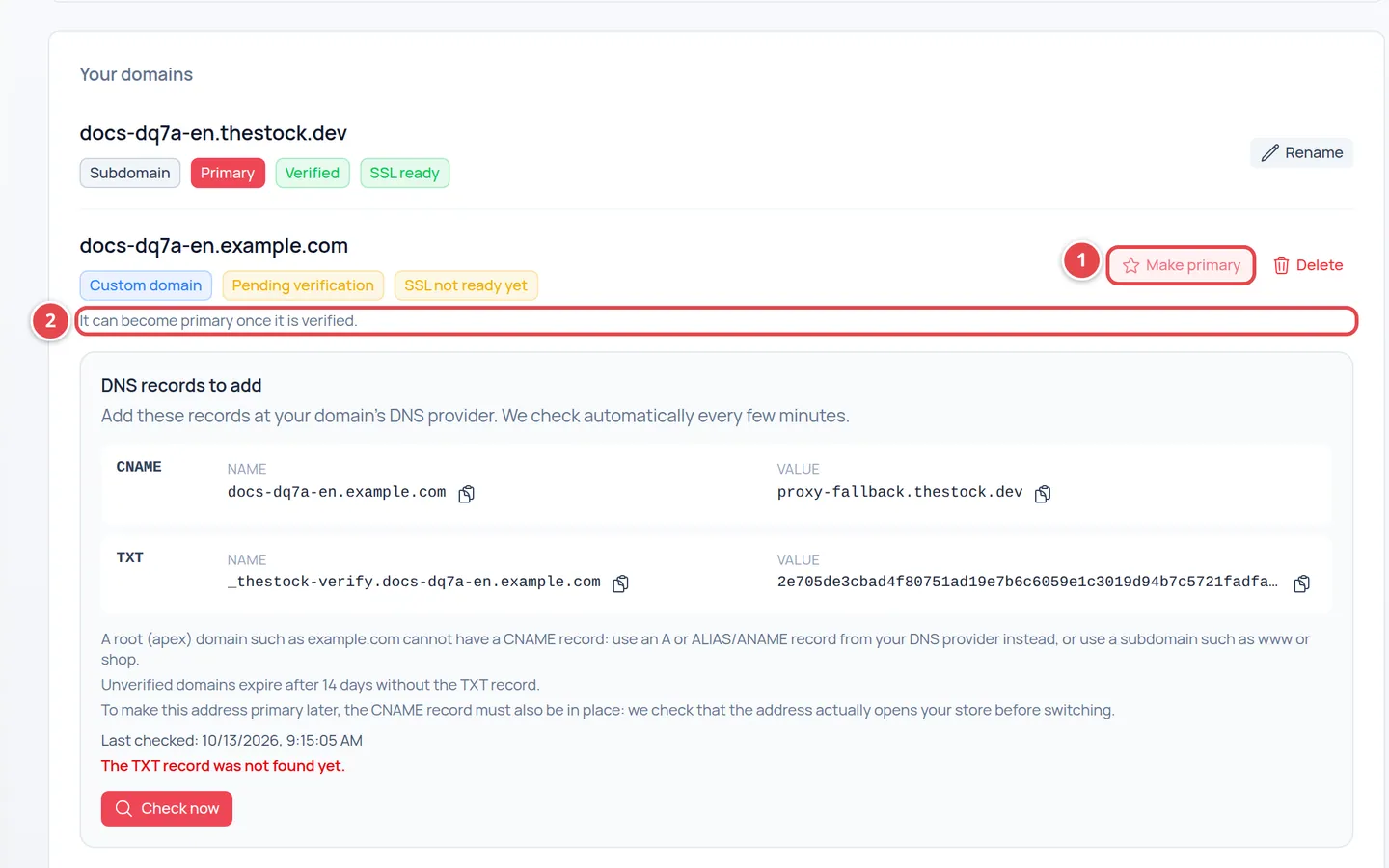
- The Make primary button, disabled.
- Why it is not available.
If the address does not reach your store yet
If the domain is verified and its certificate is ready but visiting it does not open your store yet, a box appears under it starting with www.example.com does not reach your store yet, so it cannot become primary. The usual reason is that its CNAME record is missing or still points somewhere else.
Fix the CNAME record
At your DNS provider, point the CNAME record of this address to the address shown in the box after At your DNS provider, point the CNAME record of this address to:
Wait for it to spread
DNS changes can take from a few minutes to a few hours to spread.
Try again
Press Try again in the box, then confirm. Once the address reaches your store it becomes primary and the box disappears.
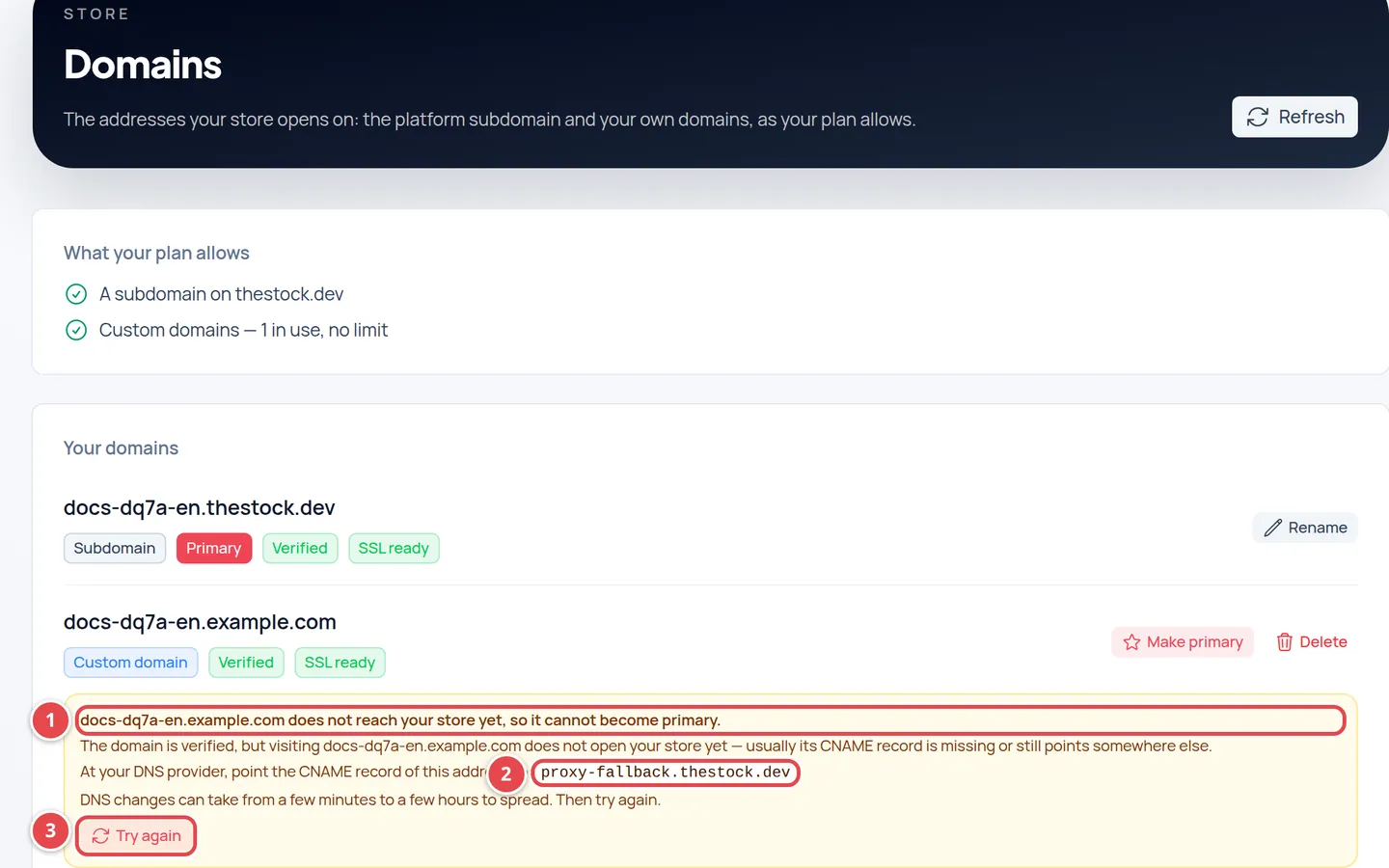
- Why it cannot become primary.
- The value the CNAME record must point to.
- The Try again button.
After the change, the new domain is primary, and anyone visiting your other addresses (the subdomain included) is redirected to it automatically with a permanent (301) redirect. Your old links keep working.
Deleting a domain
Press Delete next to the domain, then confirm. Your store stops opening on it at once. The Primary address cannot be deleted: make another domain primary first. To rename the subdomain instead of deleting it, see Changing the subdomain name.
When you change plan
If you try to move to a plan that does not allow an address type your store uses (for example a plan without custom domains while you have one), the change is refused on the Subscription page with Change the store's domains first, listing the domains concerned, and a Go to domains button.
Make an allowed domain primary
On the Domains page, press Make primary on a domain the new plan allows.
Delete the domains not allowed
Press Delete on each domain the message listed.
Change plan again
Go back to Subscription and change the plan again.
If you have a scheduled plan change, the top of the Domains page shows Your scheduled plan does not allow these domains: with a View subscription button. Adjust your domains before the change date.
I added the records but the domain is not verified. Why?
Records can take time to spread. Check the Name and Value character by character, then press Check now. We keep checking automatically for 14 days.
Can I connect example.com without www?
Yes, but a root domain cannot take a CNAME. Use an A or ALIAS/ANAME record if your provider supports it, or use www.example.com.
The "Check now" button does not respond.
It can be used only a few times a minute. Wait a minute and try again; the automatic check runs in the background anyway.
Does the subdomain stop if I make my own domain primary?
No. It keeps working, and its visitors are redirected to your primary domain.