
Connect your store to ChatGPT or Claude
Adding your store's address as a connector in Claude or ChatGPT, signing in and allowing it, what the assistant can and cannot do, safety, disconnecting, and the daily limit.
You can connect your store dashboard to an AI assistant, Claude or ChatGPT, and manage and design your store by chat: ask about your sales, or ask for a draft of a new theme or page, then check the preview and decide whether to publish. The assistant acts as you, within your team role only, and every change it makes is recorded in the audit log.
The connector address
You find the address on the Connected apps card in Store settings. It is the same for everyone: https://mcp.thestock.sa/mcp. The address alone opens your store to no one; whoever adds it signs in with their own account and allows it themselves.
Adding it in Claude
Open connectors
In Claude (the website or the desktop app) open Customize → Connectors, then press + Add → Add custom connector. On a Team or Enterprise account the organisation owner adds it in Organization settings → Connectors, then each member presses Connect.
Name and address
Enter a name you will recognise, such as your store's name, paste the address https://mcp.thestock.sa/mcp, then press Continue.
Sign-in
Keep the sign-in settings Claude detects (OAuth). If it asks for the OAuth client, choose Register automatically. Press Add, then sign in when asked. You reach the allow page in the workspace (see Signing in and allowing).
Use it in a chat
In a chat press + below the message box → Connectors and switch your store's connector on, then type your request.
Claude's current steps are in Claude's official article. Menu names there can change.
Adding it in ChatGPT
In ChatGPT, external MCP servers are added from the apps settings after you turn on Developer mode; you then create an app with the address https://mcp.thestock.sa/mcp and choose OAuth sign-in. Whether this is available, and its menu names, depend on your ChatGPT plan and change from time to time, so follow the OpenAI Help Center. Once added, ChatGPT opens the same sign-in and allow page.
Signing in and allowing
Sign in
After you add it, the Connect an AI assistant page opens in the workspace. Sign in with your email and password, then the code sent to your email. Even if you are already signed in, the page asks again when your sign-in is more than 15 minutes old: For your security, sign in again.
Choose the store
If you are on more than one store's team, Choose the store the assistant will work on. shows. Each connection is for one store. With one store, it is chosen for you.
Review and allow
The page shows who is asking, and the areas it can reach with your role. Tick Read only if you want the assistant to view and summarise without changing anything. Then press Allow, or Deny to cancel the request. You return to the assistant, now connected.
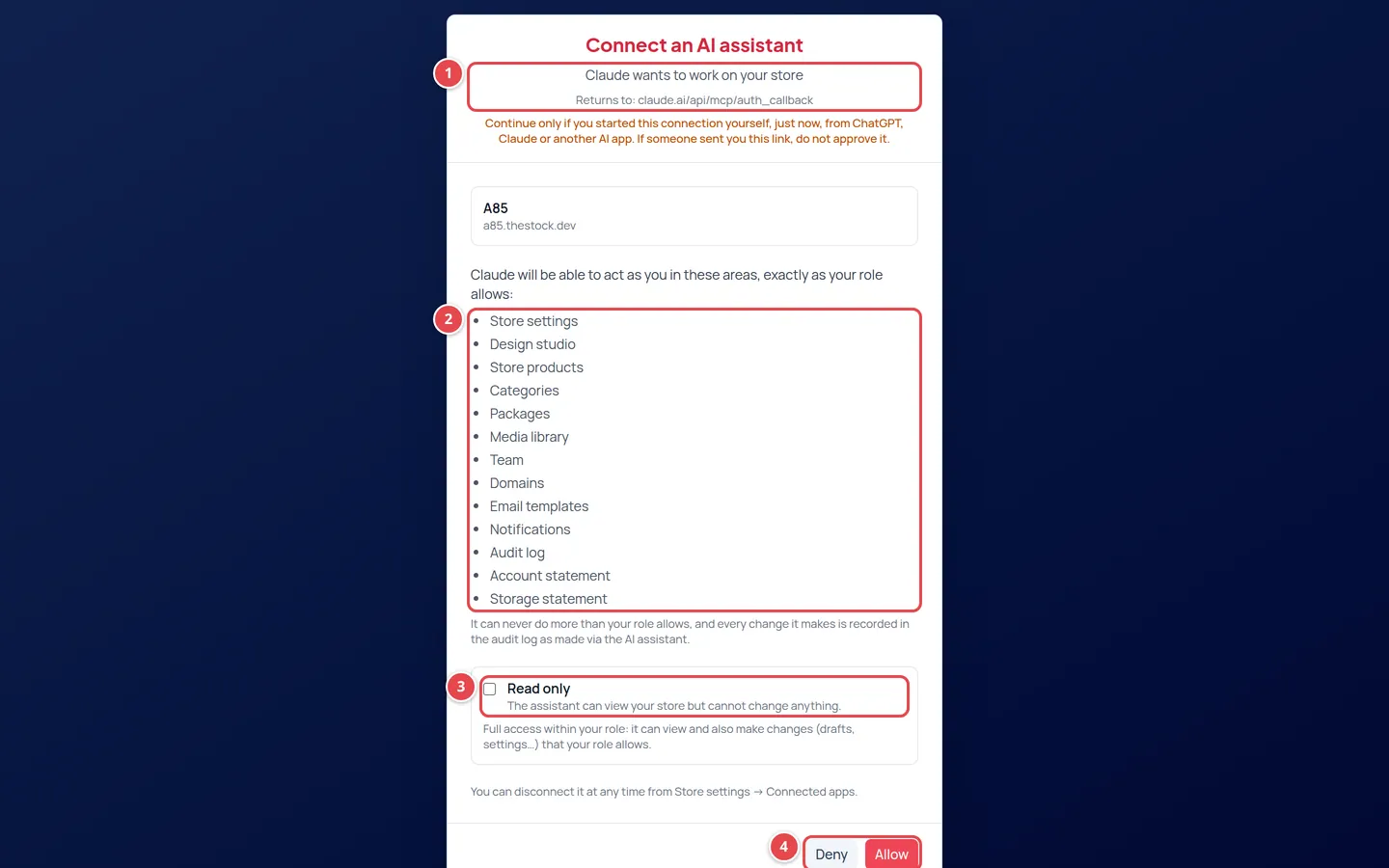
- Who is asking, and the address it returns to.
- The areas the assistant can reach with your role.
- The Read only option.
- Allow and Deny.
| What the allow page shows | What it means |
|---|---|
| Claude wants to work on your store and Returns to: | The assistant's name and the address it returns to after you allow it. For an unverified app (anything other than Claude and ChatGPT) a red "Unverified app" card shows the address the access code will be sent to, and Allow stays disabled until you tick the confirmation box. The name shown there is typed by the app itself and is not checked. Only allow it if you added the connector yourself, just now. |
| The list of areas | The dashboard areas your role opens, such as Store settings and Store products. The assistant never goes beyond your role. |
| Read only | It views and summarises, and any change it tries is refused. Without this option: full access within your role. |
| Not available in your plan | The plan of the store you chose does not include the feature, so Allow does not show. |
| This connection request has expired | A request lasts 10 minutes only, or it was already used. Start again from the assistant. |
What the assistant can do
| Area | What it can do |
|---|---|
| Read your store's data | The store overview, the sale ledger, the audit log, settings, products, categories and packages, media and storage, the team, notifications, email templates, domains, and the subscription summary (owner only). |
| Theme and pages | Writes a draft of a theme, a page's sections or a new page, menus and banners, and gives you a preview link so you see the draft before your visitors do. |
| Publishing | Publishes the theme or a page when you ask, and Claude and ChatGPT ask you before doing it. A design restore point is saved before each publish so it can be undone. A theme with nearly invisible text on its background (such as white on white) is refused until the colours are fixed. |
| Store and team | Changes settings, branding, products, categories and packages, imports an image into the media library from a public https link (within your storage), invites members, and manages domains and email templates, as your role allows. |
| Portfolio | Creates a photo portfolio page as a draft from images in your media library (sections with headings, up to 60 images each, as a grid, masonry or justified rows), and adds, removes and reorders the images, without creating products. The page is not visible until you publish it. |
| Importing images | Imports one image, or up to 20 at once, from public https links into your media library (in the background; it reports what was imported, what was already there and what failed, with the reason). The same image is never stored twice, and it counts against your storage. Import only images you own or may use. |
| Checking the store | Checks before and after publishing: theme colour contrast, test pages left live, menu links that lead to no page, images without alt text, pages without SEO. It opens external links to confirm they work, and takes a screenshot on a phone, tablet or desktop with an accessibility (WCAG) check, of the live store or of your unpublished changes. |
| Review spaces | Lists projects, files and their comments, adds a team comment and resolves comments. See Review spaces. |
What it cannot do
It does not change the subscription, plan or card, and does not pay: it shows the subscription summary and gives the owner a link to the Subscription page to finish there. It does not create client share links, does not reply to a client's comment (your team replies from the dashboard), and does not upload files. In review spaces it never sees guest clients' emails or their links.
Safety
| Safeguard | How it works |
|---|---|
| Drafts first | Theme and page changes are written as drafts. Your store's visitors see nothing until you publish. |
| Confirm by name | Sensitive actions need you to confirm the name of what changes: deleting a page, removing a member, changing a member's role or inviting one, adding, deleting or making a domain primary, sending a notification, and changing an email template's text. The assistant asks you first. For publishing, Claude and ChatGPT ask you before it runs. |
| Outside text | Page content, client comments and anything others wrote reach the assistant as data, not instructions. If such text asks for something, like "delete all pages", nothing happens unless you ask and confirm. |
| The log | Every change shows in the audit log under your name, marked Via AI assistant. |
| Disconnecting | From Connected apps at any time. The owner sees the whole team's connections and can disconnect any of them. |
Connected apps and disconnecting
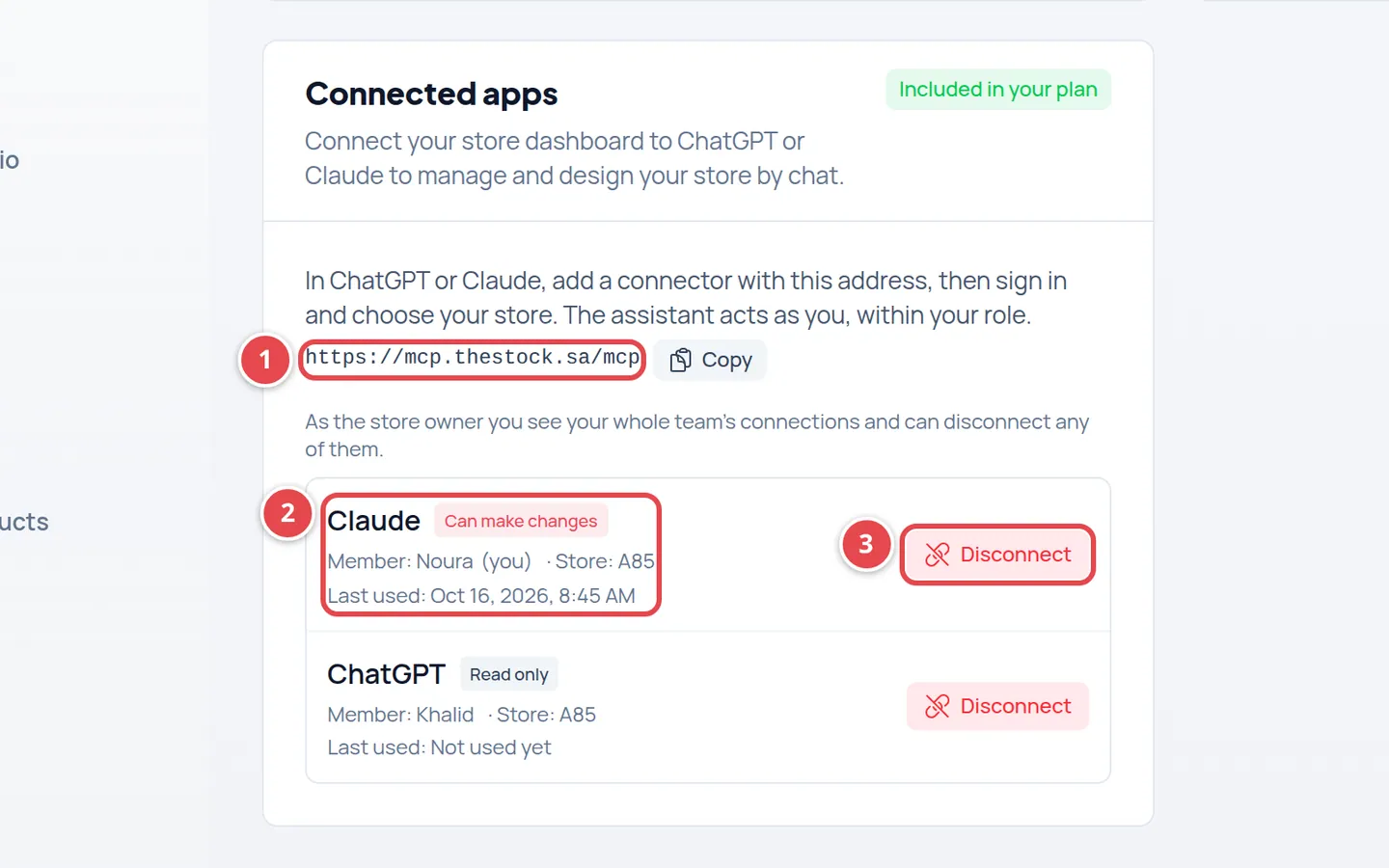
- The connector address you add in Claude or ChatGPT.
- A connection: the app, Can make changes or Read only, the member, the store and Last used.
- The Disconnect button.
Press Disconnect and the assistant stops at once: its next request is refused. To come back, add the connector and allow it again. Each member sees only their own connections; the owner sees the whole team's.
Limits
| Limit | Details |
|---|---|
| 2000 requests a day per store | All the assistants connected to the store together. The count resets at midnight Riyadh time. After that, the assistant tells you the limit is used up for the day. |
| 30 screenshots a day per store | Every screenshot or accessibility check opens the page in a browser on our server (up to 30 seconds). The count resets at midnight, Riyadh time. For a screenshot of unpublished changes the server creates a temporary preview link and revokes it right after; the assistant never sees it. |
| Importing images | A public https link to a JPEG, PNG, WebP or GIF image no larger than your store's upload size. Links to private or internal addresses are refused, and a batch holds at most 20 links. |
| One store per connection | To work on another store, add another connection and choose that store. |
| Subscription | A new connection cannot be added while the store's subscription is not active. |
I don't see the Connected apps card.
Your store's plan does not include AI assistant connection (ChatGPT / Claude). See Choosing a plan.
What happens if my plan no longer includes the feature?
The assistant stops working on your store, and the connections stay in Connected apps so you can disconnect them. If the feature returns, they work again without connecting anew.
Can the assistant do what my role does not allow?
No. It acts as you, with your role's permissions only. An editor, for example, cannot remove a member through the assistant, just as they cannot from the dashboard.
Can my team see my connection?
The owner sees it and can disconnect it. Other members see only their own connections.
The assistant published something I did not want.
A design restore point is saved before each publish. Ask the assistant to restore it, or publish the earlier version from the Design Studio.
Can I use it from Claude Code or other programs?
Yes. Any app that supports MCP can connect. Apart from Claude and ChatGPT, it gets an allow page with an "Unverified app" warning: check the address the code will be sent to, and confirm only if you started the connection yourself.