
Categories and products
The category tree and its prices, activating and pausing products, the active-products limit, and store-only categories.
Categories organise the products in your store, and they set prices too. The Categories page manages the category tree, and the Tenant Products page decides which products show in your store.
Categories
The categories on this page belong to your store and do not affect The Stock’s categories or any other store. The tree has two levels: main categories, and subcategories under each.
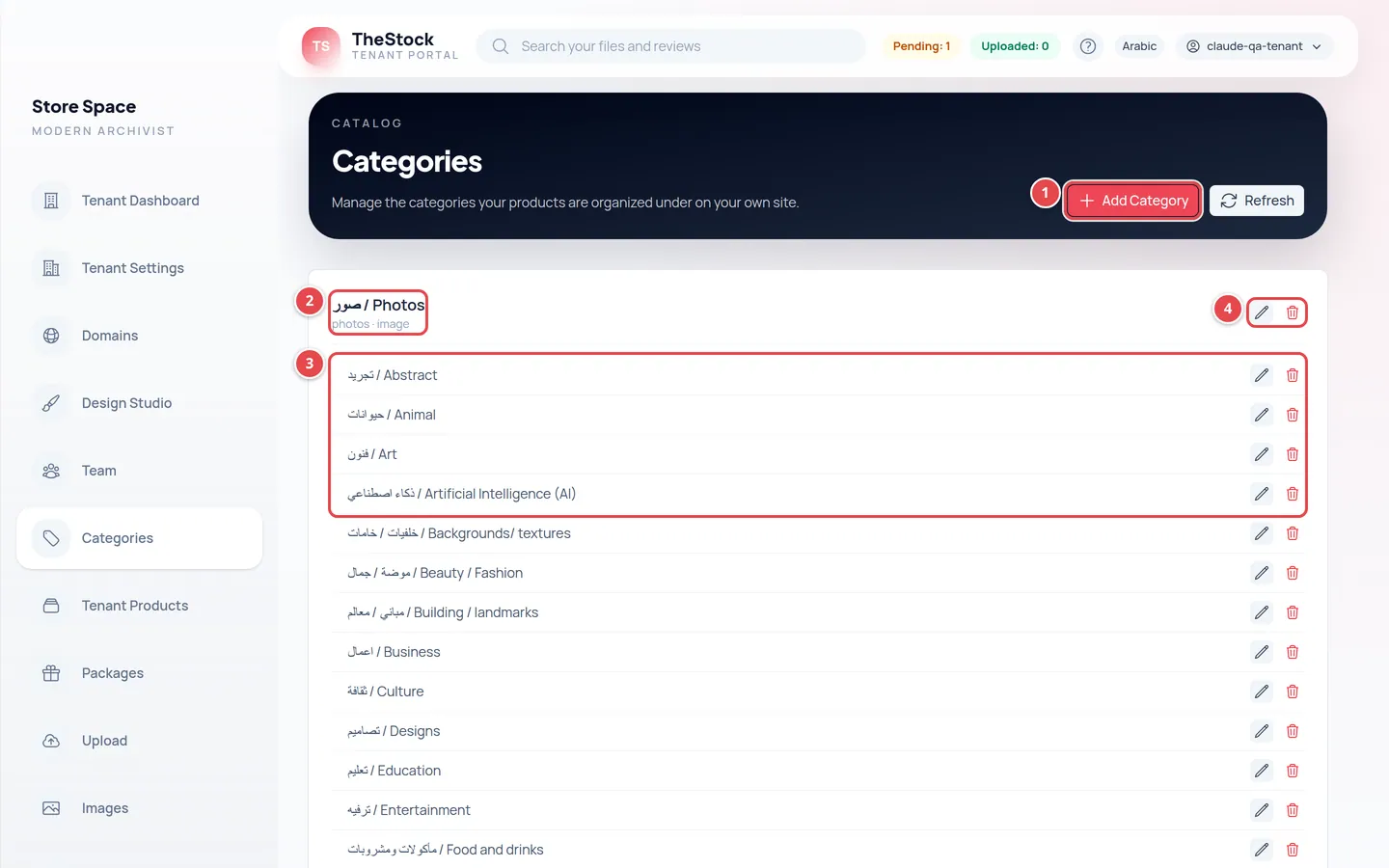
- Add Category.
- A main category, with its Arabic and English names.
- Its subcategories.
- The edit and delete buttons.
Adding or editing a category
Press Add Category, or the edit button next to an existing category.
Type the Title (Arabic) and Title (English), and choose the Type: Image, Video, Vector or Editorial.
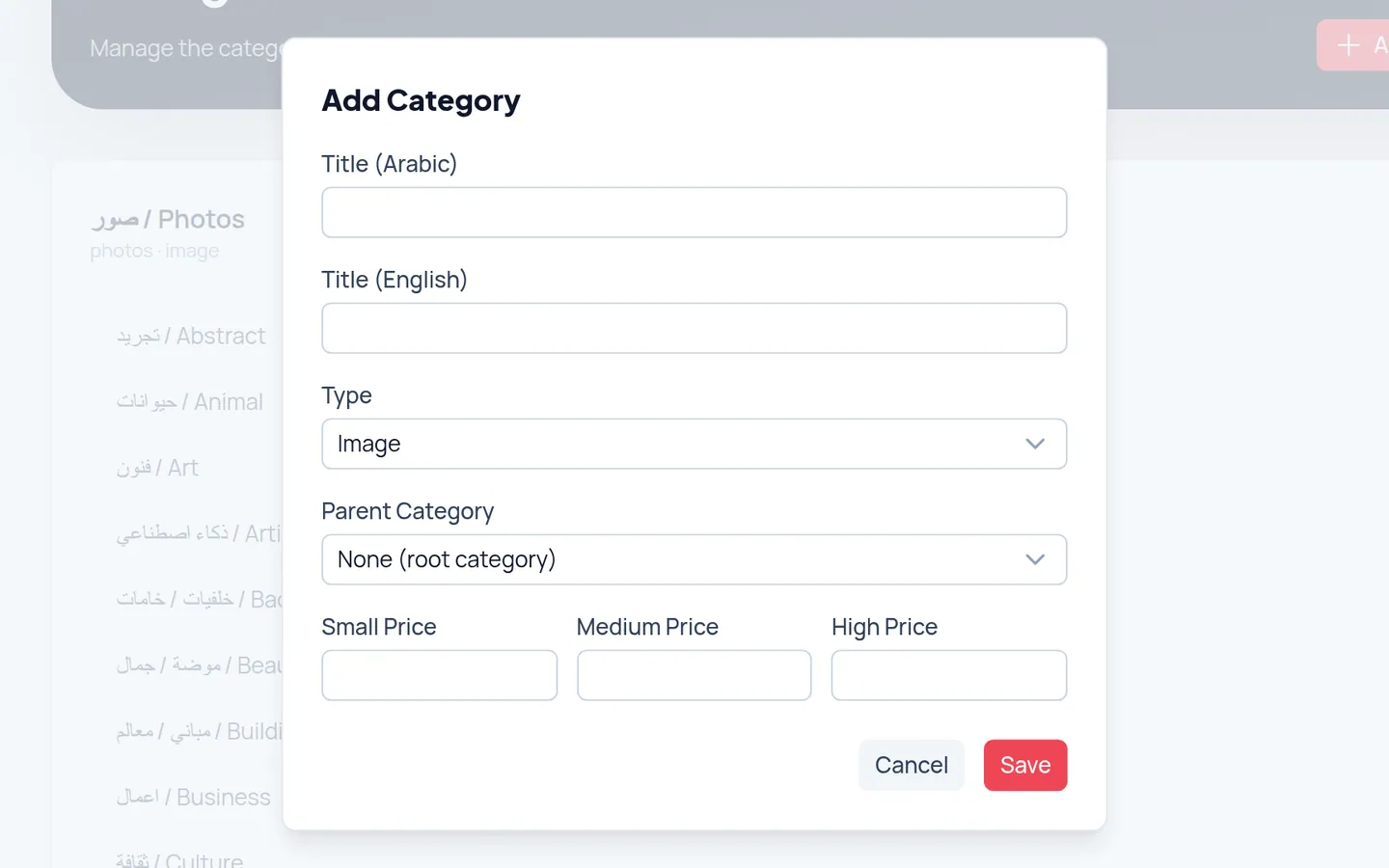
In Parent Category choose None (root category) for a new main category, or choose a main category to make this a subcategory under it.
Type the prices, then press Save. You see Category saved.
Prices
Each category has three prices, by the size of the file the customer buys:
| Price | When it is used |
|---|---|
| Small Price | The small version of the file. |
| Medium Price | The medium version. |
| High Price | The large version, at the highest resolution. |
Vector categories have a single price, the High Price, because a vector file is not sold in sizes. Required prices cannot be left empty, and the lowest value is zero.
Deleting a category
The delete button deletes the category straight away, with no confirmation, so be sure before you press it.
| You delete… | What happens |
|---|---|
| A subcategory | It is deleted, and its products stay under the main category. |
| A main category with subcategories | The delete is refused. Delete or move the subcategories first. |
| A main category with products | The delete is refused, and the message tells you how many files. Re-categorise or delete them first. |
Products
The Tenant Products page shows the products linked to your store. Each card has the product name and type, and an Active or Inactive badge.
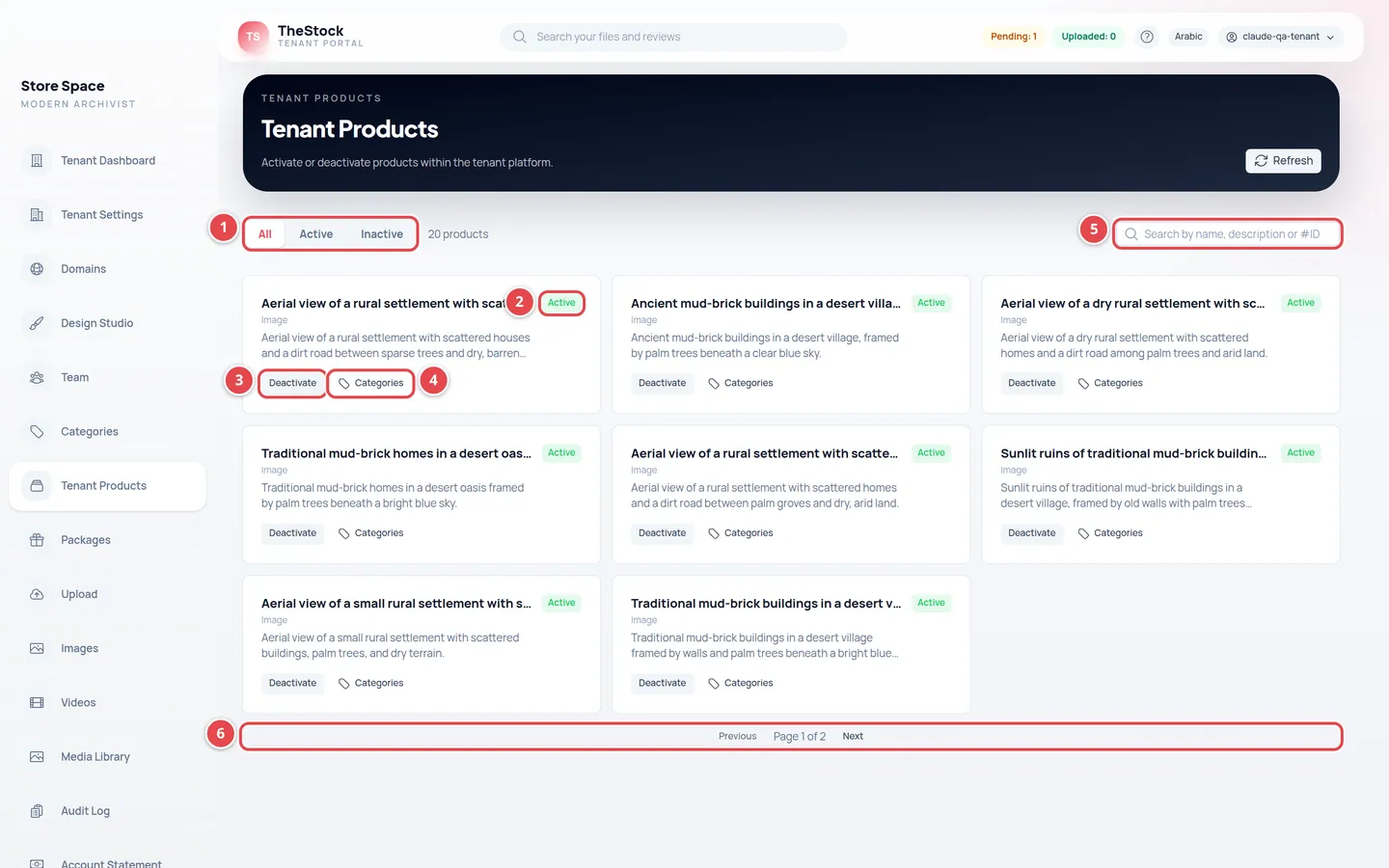
- The filters: All, Active and Inactive.
- The product’s status badge in your store.
- Activate or Deactivate.
- Categories: the product’s category inside your store.
- The search box: by name, description or #ID.
- Previous and Next between pages.
Activating and deactivating a product
Activate makes the product visible and for sale in your store, and you see Product activated. Deactivate hides it from your store only; it does not delete it.
Activating an image needs free storage, because we prepare a display copy for your store. Activating a video needs a conversion that takes a while: you see The video is being prepared for your store, its badge becomes Preparing, and its card says The video is being prepared for your store; it goes live automatically when ready. You do not need to press Activate again.
A product’s category in your store
The Categories button on a product card opens the Categories in your store window. Choose the Category and any Subcategories under it, then save.
This applies to your store only and does not change the product’s categories in other stores. You choose from your store’s categories, and only of the same type as the product.
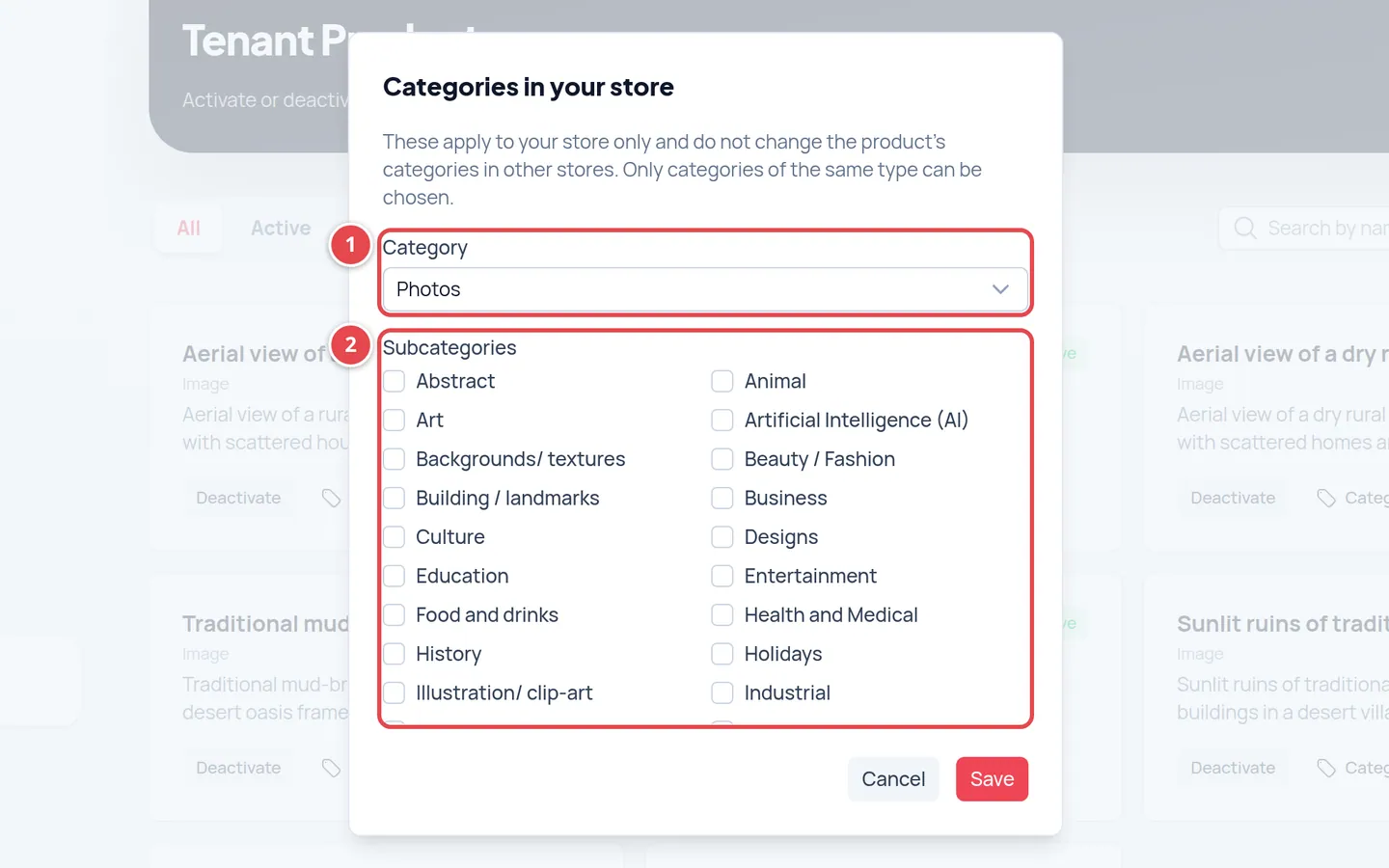
- Category: one category of the same type as the product.
- Subcategories: choose one or more.
Where do products come from?
New products come from your uploads. When you upload a file and approve it, it is published in your store automatically if your plan has room. If the limit is full, the product is added to the list as Inactive and you activate it later. Details in Uploading content with AI.
I uploaded and approved a file and it is not on my store.
Open Tenant Products and choose Inactive, or search for it by name or ID, and read its card. Preparing means the video is being prepared and goes live by itself. If the plan-limit notice appears, deactivate another product or upgrade, then press Activate.
Why can’t I delete a category?
It still has subcategories or products. Move or delete them first.
Do I set a price for each product?
No. The price comes from the product’s category. Change the category price to change its products’ prices.