
Prepaid download packages
Creating download package groups and packages your customers buy in advance, the pricing rule, and making a package public or private.
Download packages let your customers buy a number of files at once, for less than buying them one by one. The customer pays by card, then downloads the files they choose from your store until the package runs out.
Groups and packages
You find the page in the side menu as Packages. It is organised in two levels:
| Level | What it is | What it sets |
|---|---|---|
| Group | One group per top-level category in your store | The file type, and the Single file price (the category's high price) |
| Package | An offer inside the group | The Files count, the Price, the colour, and whether it is public |
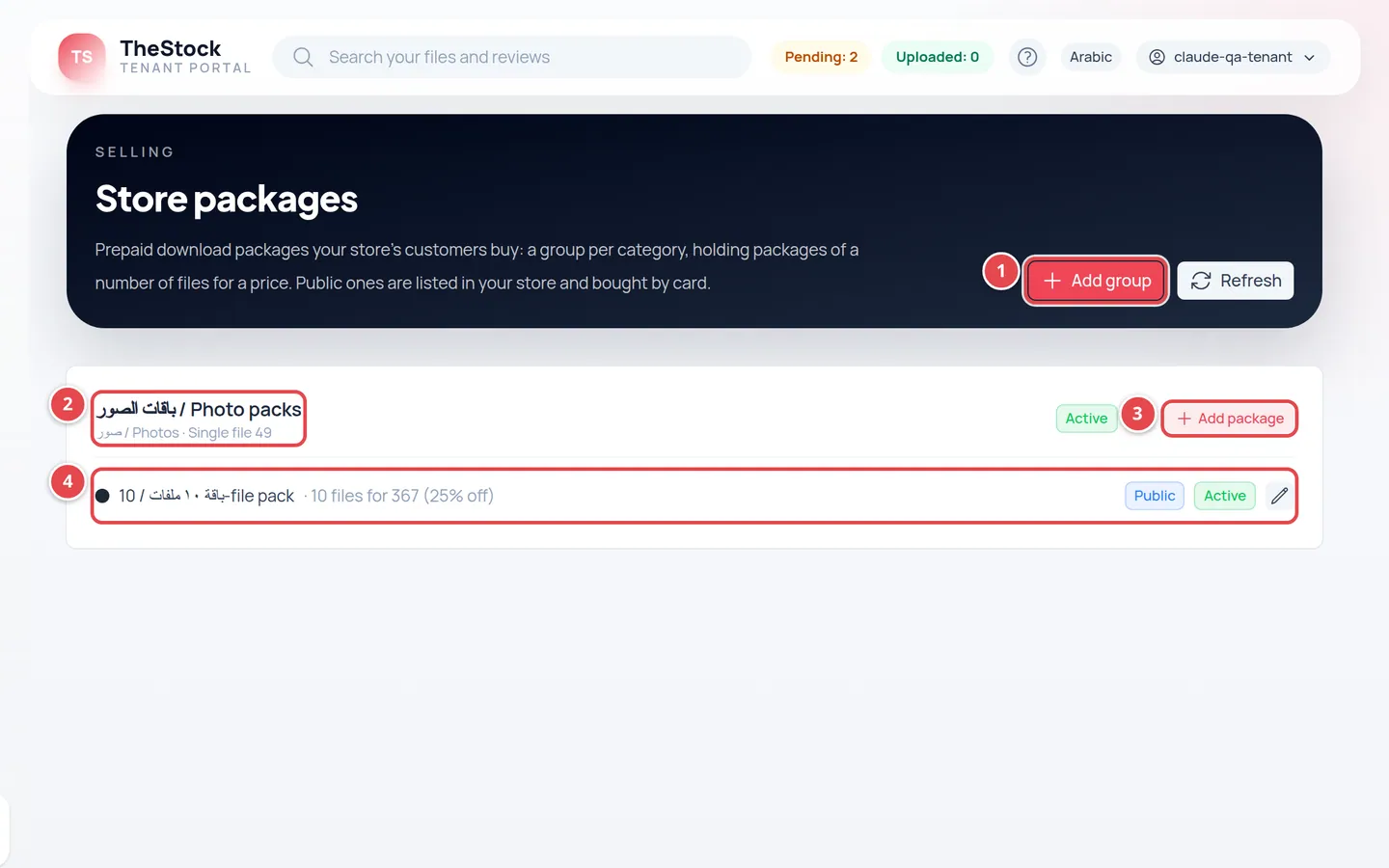
- The Add group button.
- The group name, its category and the Single file price.
- The Add package button inside the group.
- A package line: file count, price and discount, with the Public and Active badges.
Creating a group and a package
Add a group
Press Add group, choose the Category, enter the Arabic and English titles, then Save. A group's category cannot be changed after it is created.
Add a package
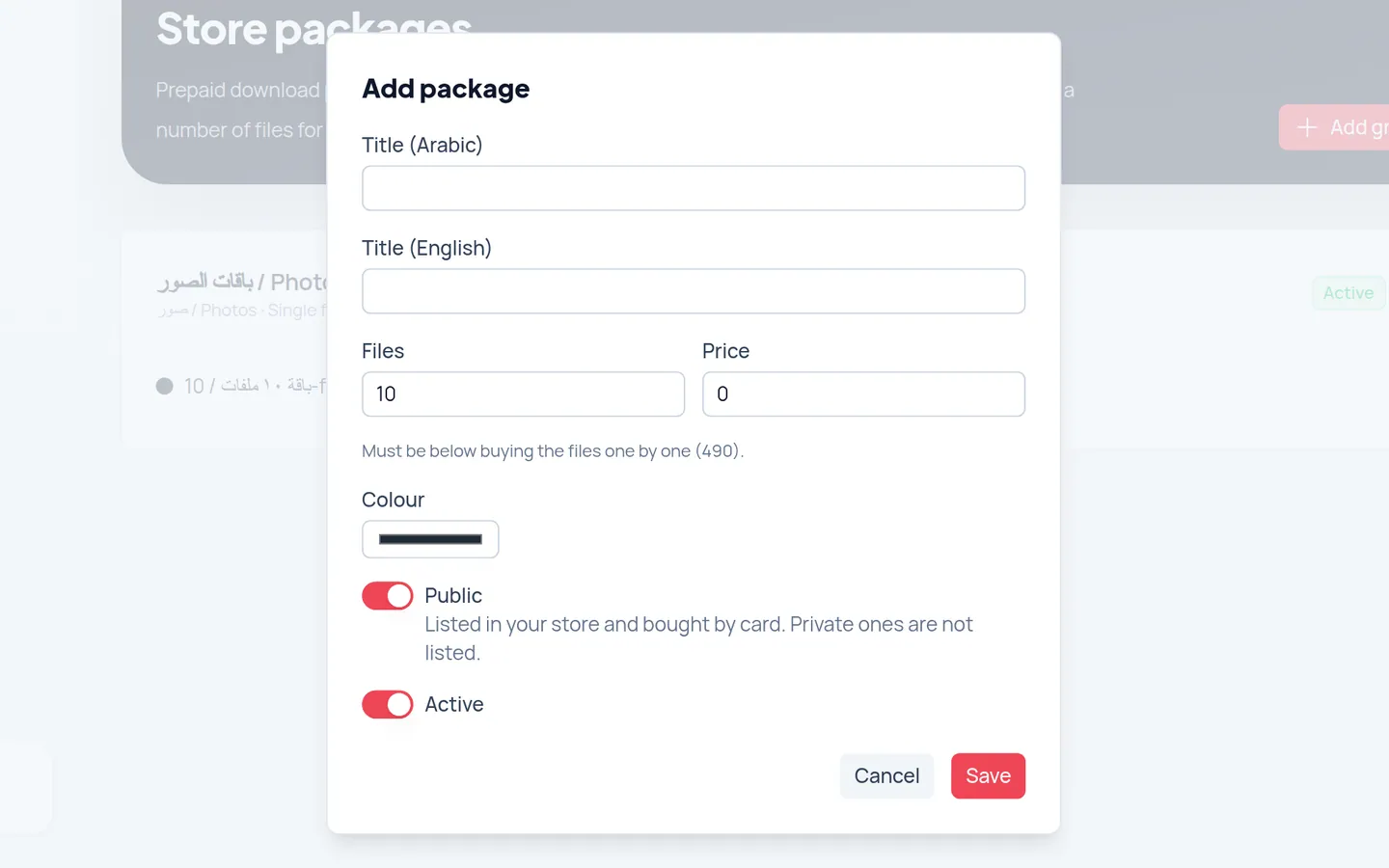
Inside the group press Add package, enter both titles, the Files count and the Price, and pick a Colour.
Check the price
Under the price you see the highest price allowed: Must be below buying the files one by one. The discount is worked out for you and shown on the package line.
Set visibility and save
Turn on Public to list the package in your store, turn on Active, then press Save.
The pricing rule
A package's price must be lower than the single file price × the number of files. For example, if a single file costs 20 SAR and the package has 10 files, the price must be below 200 SAR. If you enter an equal or higher price, saving is refused and the message tells you the limit.
If you later change the file count or the price, the change applies to new purchases only. Customers who bought the package before keep what they bought.
Public or private
| State | What happens |
|---|---|
| Public | Listed in your store and bought by card. |
| Private | Not listed in your store. |
| Off | You switched the package or group off with Active, so it is not offered for sale. |
Where do I see package sales?
Every package sold shows in the Account Statement as a Package line with its number, and the payment fee is deducted as for a single file sale. Details in Account statement and VAT.
Who can manage packages?
The owner and admins. Editors and viewers do not see this page. See Team and roles.
Why can't I find the category I want when adding a group?
The list shows your store's top-level categories only. Add the category first on the Categories page, see Categories and products.
Can I delete a package?
There is no delete on this page. Switch the package off with Active and it stops being offered for sale.