
Media library and storage
Uploading and managing the images for your store pages, your storage use against your plan limit and its breakdown, archiving and permanent deletion, and the storage statement.
The Media Library holds the images you use on your store pages, banners and promotions. At the top of the page you see how much of your plan's storage you have used.
The library
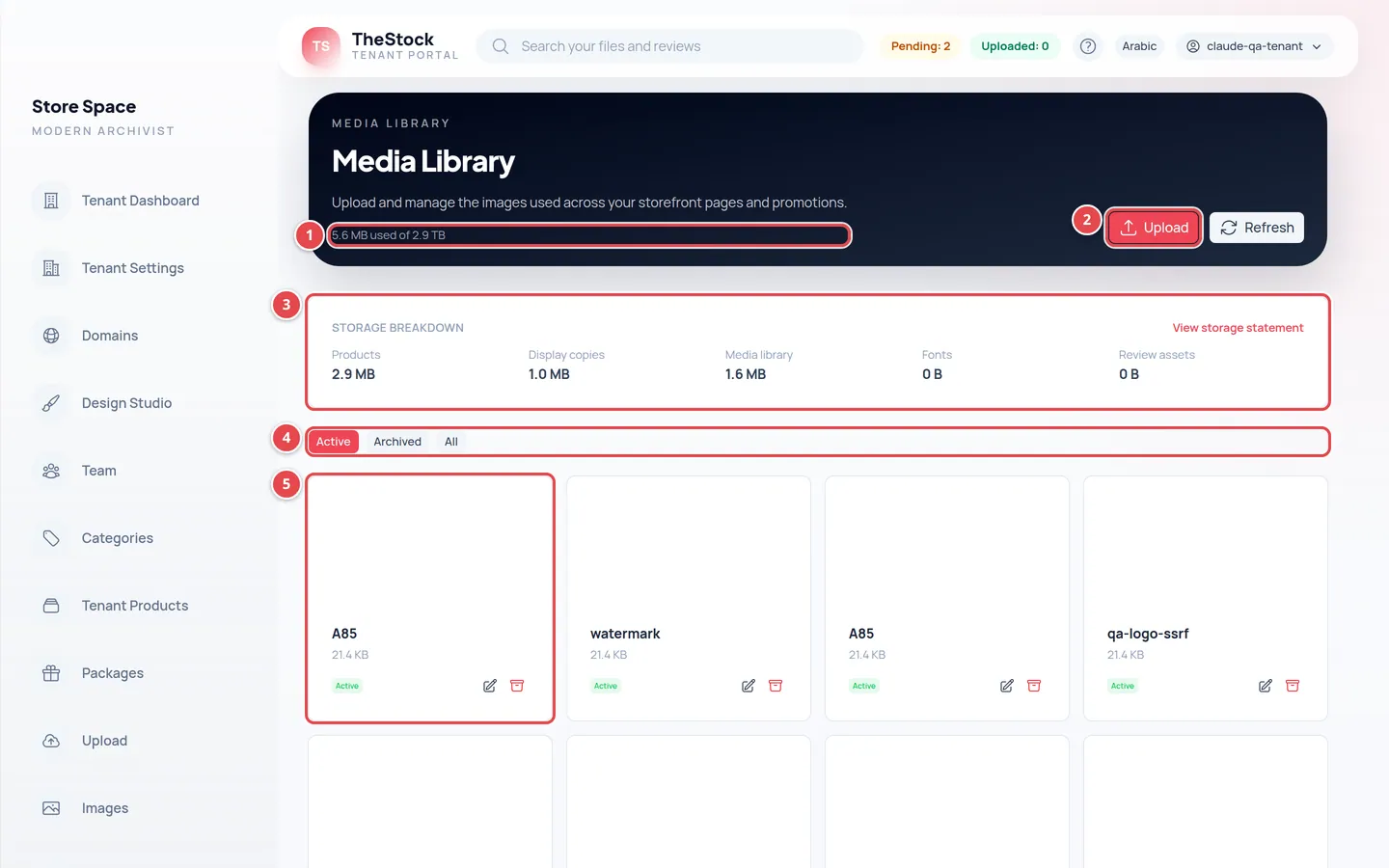
- Storage used of your plan limit, such as 120 MB used of 5000 MB.
- The Upload button.
- The Storage breakdown card and the View storage statement link.
- The filter: Active, Archived or All.
- An image card with the edit and archive buttons.
Uploading an image
Open the upload dialog
Press Upload at the top of the page.
Choose the file
In the File field choose an image from your device. The dialog accepts images only (such as JPG, PNG and WebP).
Add a title and alt text
Enter the Title and the Alt Text. Alt text describes the image for screen-reader users and for search engines.
Upload
Press Upload. You see Media uploaded. and the image appears in the library.
To change the Title, Alt Text or Caption, press the pencil icon on the image card, then Save.
Archiving and restoring
The archive icon on a card moves the image to Archived, so it leaves the active list. To bring it back, choose the Archived filter and press the restore icon.
Deleting permanently
Show the archived images
Choose the Archived filter. You see Archived files still count toward your storage. Delete a file permanently to free its space.
Delete the image
Press the bin icon (Delete permanently) on the image card, then confirm. This icon shows on archived images only.
The storage is free
You see File deleted permanently. Its storage is free again., the storage used goes down, and a Deleted event appears in the storage statement.
If the image is still used, the delete is refused and its card shows This file is still used, so it cannot be deleted. Remove it from these places first: with a list of places, such as a Page, a Hero banner, a Promotional section or the Logo / icon. Remove the image from those places, then delete it again.
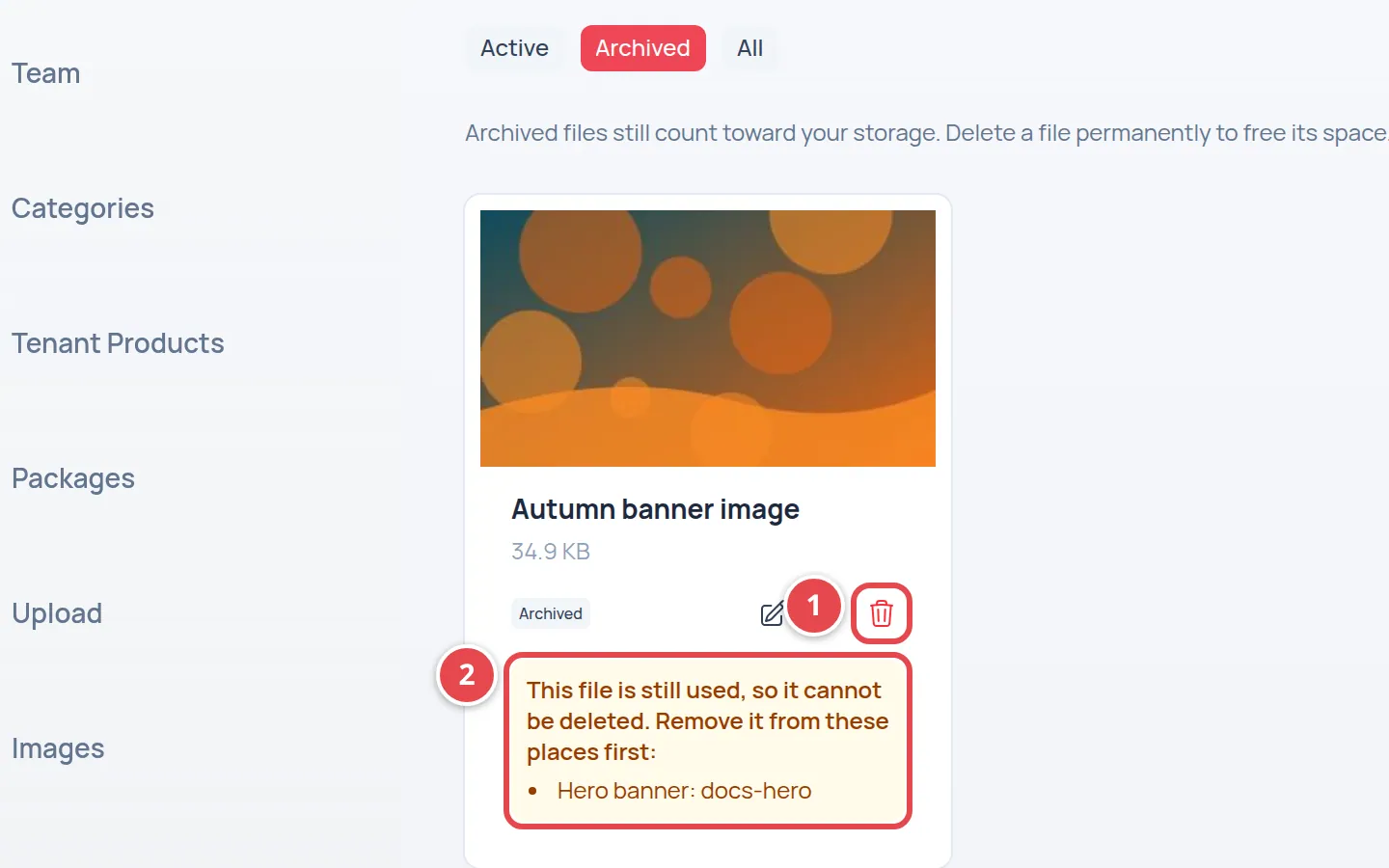
- The Delete permanently icon.
- The places that use the image.
Storage and its breakdown
Everything your store keeps counts toward your plan's storage. The Storage breakdown card splits the use into five kinds:
| Item | What it covers |
|---|---|
| Products | The original files of the photos and videos you uploaded to sell. |
| Display copies | The display copies visitors see in the store. |
| Media library | The images on this page, active and archived. |
| Fonts | Fonts you uploaded for your store design. |
| Review assets | Files and their versions in your review spaces, the viewing copies prepared for them (thumbnail, preview, video poster and watermarked copy), and watermark images. |
A product The Stock approves on the main store stops counting toward your storage. See the publishing switch in Uploading content with AI.
The storage statement
From the View storage statement link, or Storage Statement in the side menu, you see every event that changed your storage use.
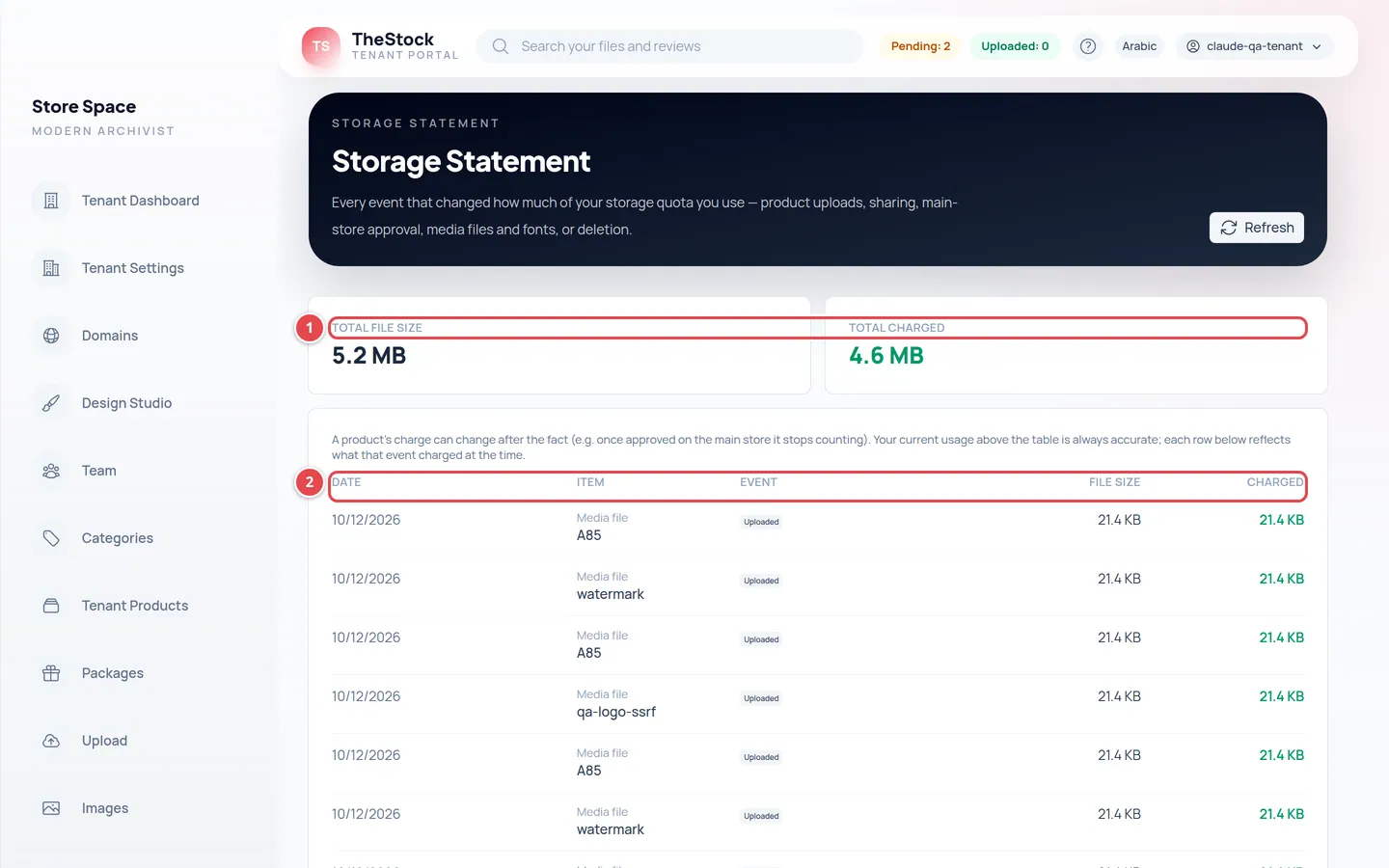
- Total file size and Total charged.
- The columns: Date, Item, Event, File size and Charged.
| Event | What it means |
|---|---|
| Uploaded | You uploaded a new file and its size was added. |
| Shared to site | You shared one of your products on The Stock with your store, so it counts toward its storage. |
| Unshared from site | You stopped sharing the product with your store. |
| Approved on main store | The product was approved on the main store, so it stopped counting toward your storage. |
| Un-approved from main store | The approval was withdrawn, so the product counts toward your storage again. |
| Deleted | A file was deleted and its size removed. |
| Existing file recorded | A file that existed before the statement started, recorded in it. |
| Review file uploaded | A file or version was uploaded to a review space, a viewing or watermarked copy was prepared for it, or a watermark image was uploaded, and its size was added. |
| Review file deleted | A file or version, or one of its copies, was deleted from a review space and its size removed. |
Each line shows what was charged at the time of the event. A file's charge can change later (for example when it is approved on the main store), so the storage used at the top of the Media Library is always the accurate figure.
Who can upload, archive and delete?
The owner, admins and editors. Viewers see the library without the upload, edit and delete buttons.
My subscription ended. Can I still use the library?
After the grace period the dashboard becomes read-only: you can view and download your images, but not upload or edit until you renew. See Subscription and billing.