
The blog
Write, schedule and publish articles for your store, categories, how they appear on the blog page and in the Latest posts section, plan limits and SEO.
The blog lets you publish articles under your store’s name: news, guides and stories that bring visitors from search engines. You write them in your dashboard, and your customers read them on the Blog page (`/blog`) of your store domain.
Creating an article
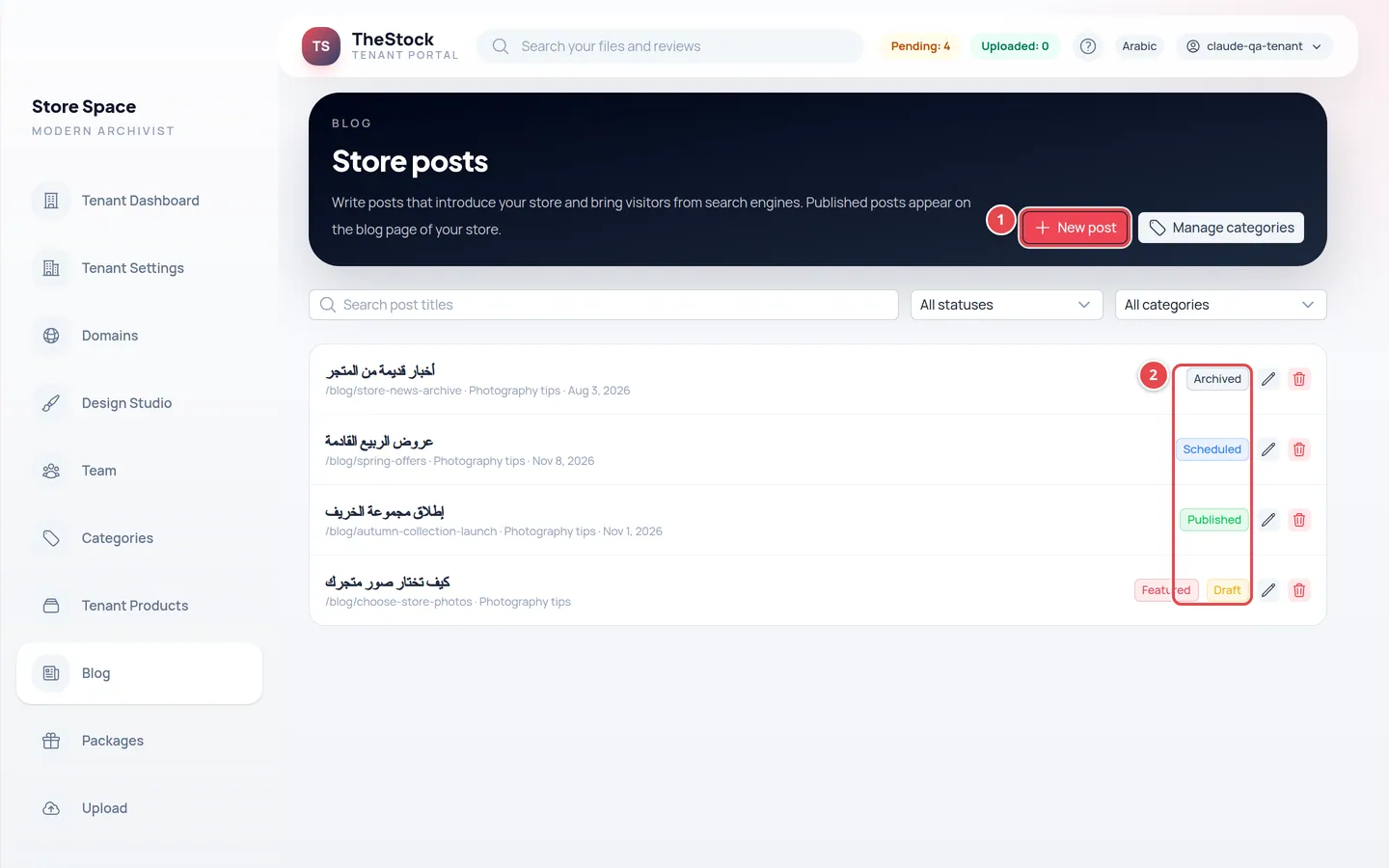
- The button to create a new article.
- The status of each article: draft, scheduled, published or archived.
Open the blog
From the side menu open Blog (the Store posts page) and press New post. The article starts as a draft that customers cannot see. In the list you can search titles and filter by status or category, and each article has Edit and Delete.
Write
Enter the title in Arabic (and in English if you like, for visitors browsing in English), the post link (made from the title; you can edit it), the excerpt (two lines shown in the blog list), then the post content: add text, images, a gallery, buttons and callouts in the order you want. Pick the cover image from your store media library; what you upload counts against your store’s storage.
Categorise
Pick the category, add tags separated by commas, and turn on Featured post if you want it to show in the “Latest posts” section set to featured. If the right category does not exist, press Manage categories and add one: Name in Arabic (English optional), Link, Description and Order, plus the Show this category in the store switch (only visible categories appear). A category that has posts cannot be deleted.
Save
The article is saved as a draft automatically while you write (the status goes “Saving…” then “Saved just now”). Come back and edit it any time. If someone else saved the article after you opened it, you see “This post changed somewhere else” with a Reload button instead of the system overwriting their work. Someone with read-only access can see the article but not edit it.
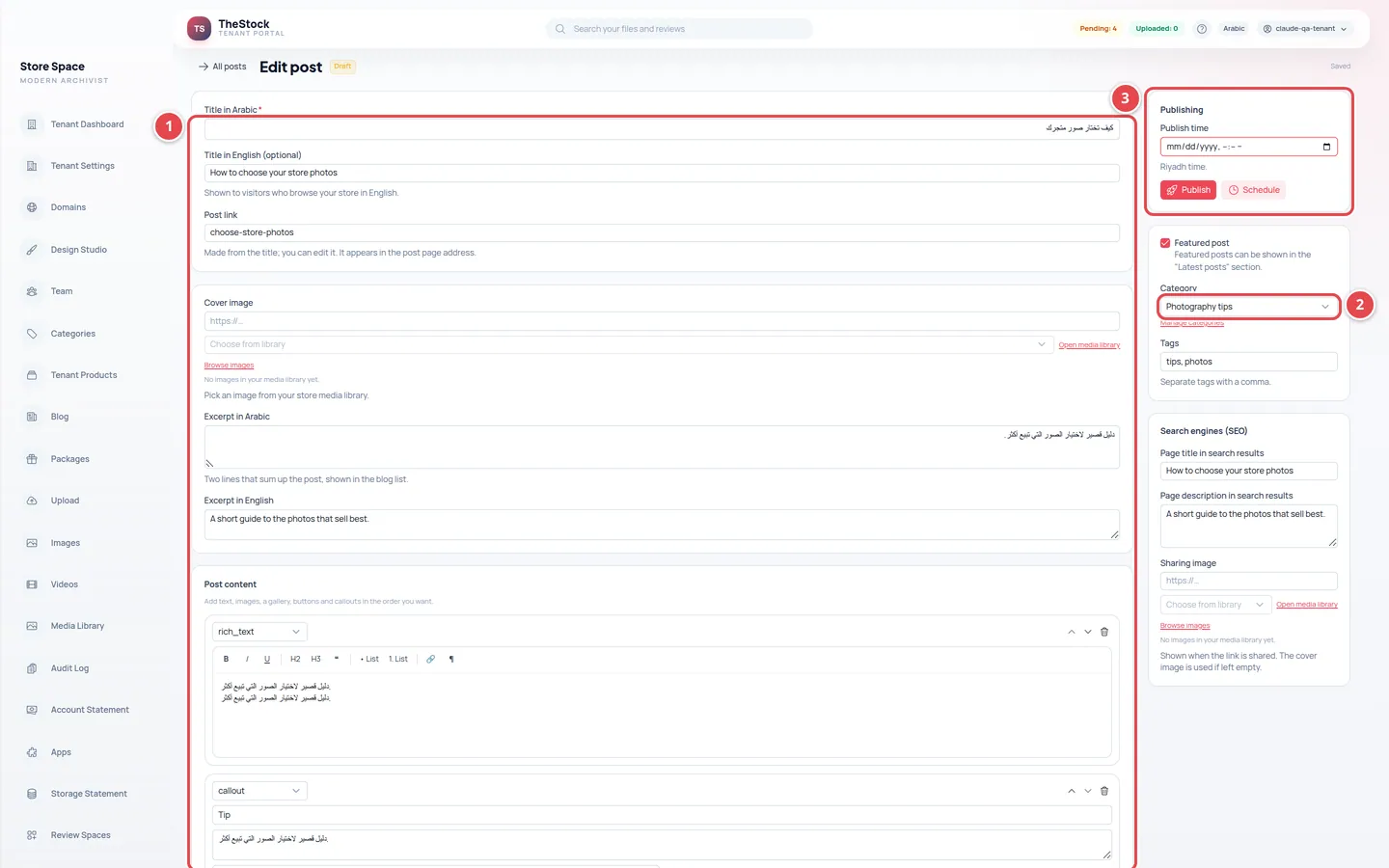
- Title, excerpt and body.
- Cover and category.
- The Publishing section, and the Search engines (SEO) settings.
Publishing and scheduling
| Status | Meaning |
|---|---|
| Draft | Only your team can see it. |
| Scheduled | Will publish by itself at the time you set. Higher plans only. |
| Published | Visible to your customers in the blog and in search results. |
| Archived | Hidden from customers but kept for you. |
In the Publishing section of the editor press Publish now to show the article straight away (after a confirmation), or set the Publish time (Riyadh time, in the future) and press Schedule. To hide a published article press Back to draft. On a published article every save changes what visitors see at once, and the editor asks you to confirm Save changes. Publishing is for the owner and admins; an editor can write and edit but not publish.
Where the article appears on your store
| Page | What it shows |
|---|---|
| `/blog` | All published articles, newest first. |
| `/blog/category/<category>` | The articles of one category. |
| `/blog/<article-link>` | The full article with related articles. |
If the blog is switched off these pages return “not found”. They show only articles that are published and whose publish time has come, in the language your customer is browsing.
The “Latest posts” section in the studio
To show your articles on the homepage or another page, open the Design Studio, press Add section and choose Latest posts. You set the source (latest, featured, or from one category), the count (3 to 12) and the layout (grid or list). It is offered on the home page and pages you build only. Then publish with Publish all changes like any other edit. To design the Blog and Blog post pages themselves, pick Blog or Blog post in the studio page tabs (the post page needs a published post to preview).
How articles appear in search engines
Each article has its own Search engines (SEO) section in the editor: the page title and page description shown in search results and a sharing image. Leave them empty to use the article’s title, excerpt and cover. Published articles join your sitemap automatically, and there is a feed for readers. For the store-wide settings see Store settings.
I published an article and cannot see it on my store.
Check that its status is Published, not Scheduled, and that the blog feature is on in your plan and in Store settings. You may need to refresh the page.
I cannot add a new article.
You may have reached your plan’s article limit (10 on the lowest plans). Archive or delete an old article, or upgrade from Choosing a plan.
I see “The blog is not in your plan”.
The blog feature is not in your plan. Ask the store owner to upgrade the plan, or press View plans if you are the owner.
I do not see the scheduling option.
Scheduling is available on the higher plans only.