
Signing in to your dashboard for the first time
Moving from sign-up to your dashboard, setting a new password, signing in later, and choosing a workspace.
The dashboard (workspace) is where you run your store. This article covers your first sign-in after signing up, then how you sign in every time after that.
From "Your platform is ready" to your dashboard
On the last step of the sign-up wizard, press Open dashboard. We take you to a Continue to the store dashboard page; press متابعة / Continue and we sign you in automatically, without typing your email or a password. (This confirmation step protects you from a link that would sign you in without your knowledge — continue only if you started the process.)
At the same time you get an email titled "Your store is ready on TheStock". It has your store link, the dashboard sign-in link, and a temporary password if your account is new. Keep the email: you need the temporary password in the next step.
Setting your password
If your account is new, the Change password page opens before any other page, with the message You signed in with a temporary password. Choose your own to continue. You cannot open the rest of the dashboard until you change it.
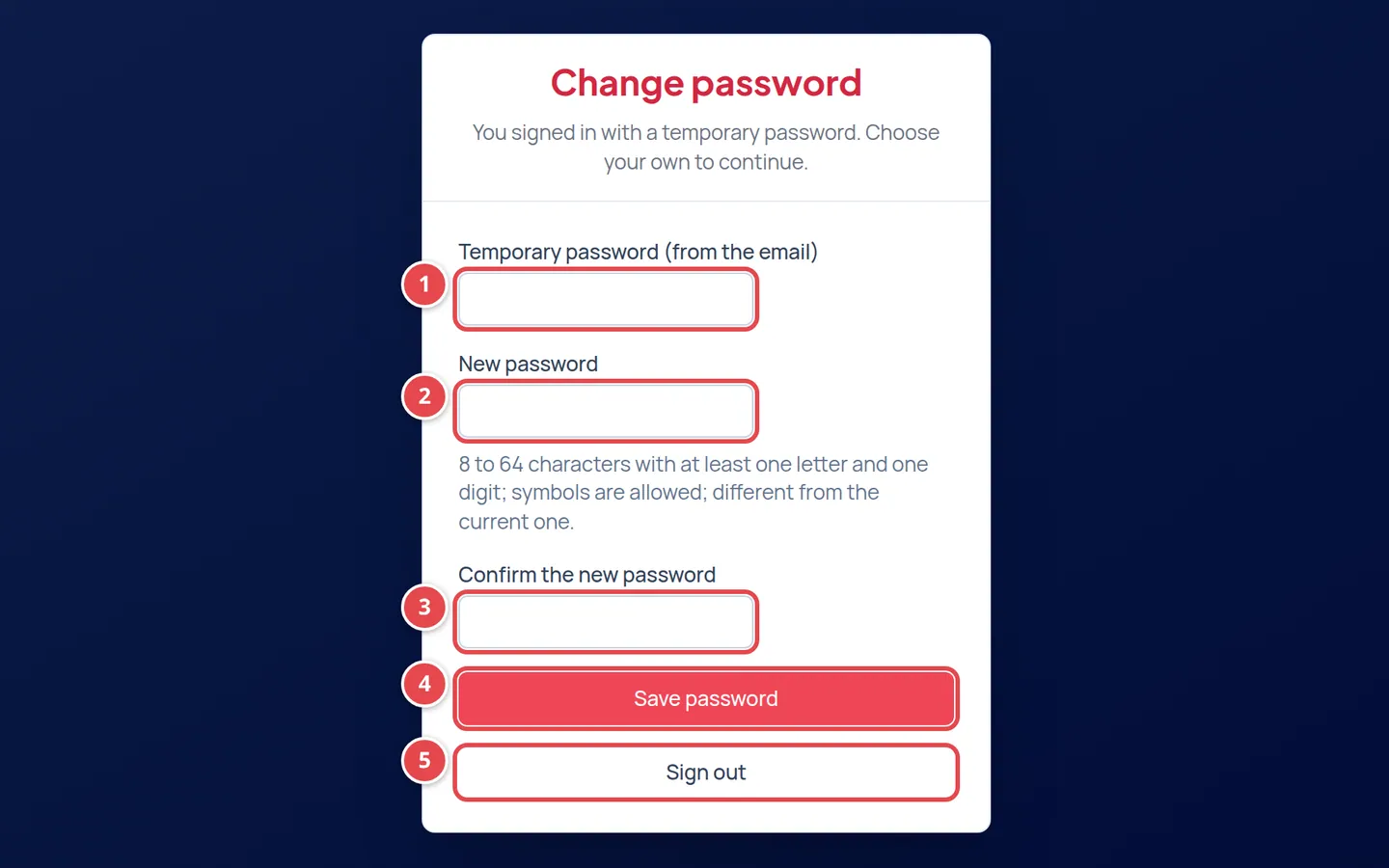
- Temporary password (from the email): copy it from the "Your store is ready on TheStock" email.
- New password, with its rules under it.
- Confirm the new password.
- The Save password button.
- The Sign out button if you want to leave without changing it.
| Password rule | Example |
|---|---|
| 8 to 64 characters | Shorter than 8 characters is refused |
| At least one letter (Arabic or English) | 12345678 is refused |
| At least one digit | abcdefgh is refused |
| Symbols are allowed | !@#$ are fine |
| Different from the current password | Do not reuse the temporary password |
Press Save password. You see Your password was changed. and land on the Tenant Dashboard, the home page of the dashboard.
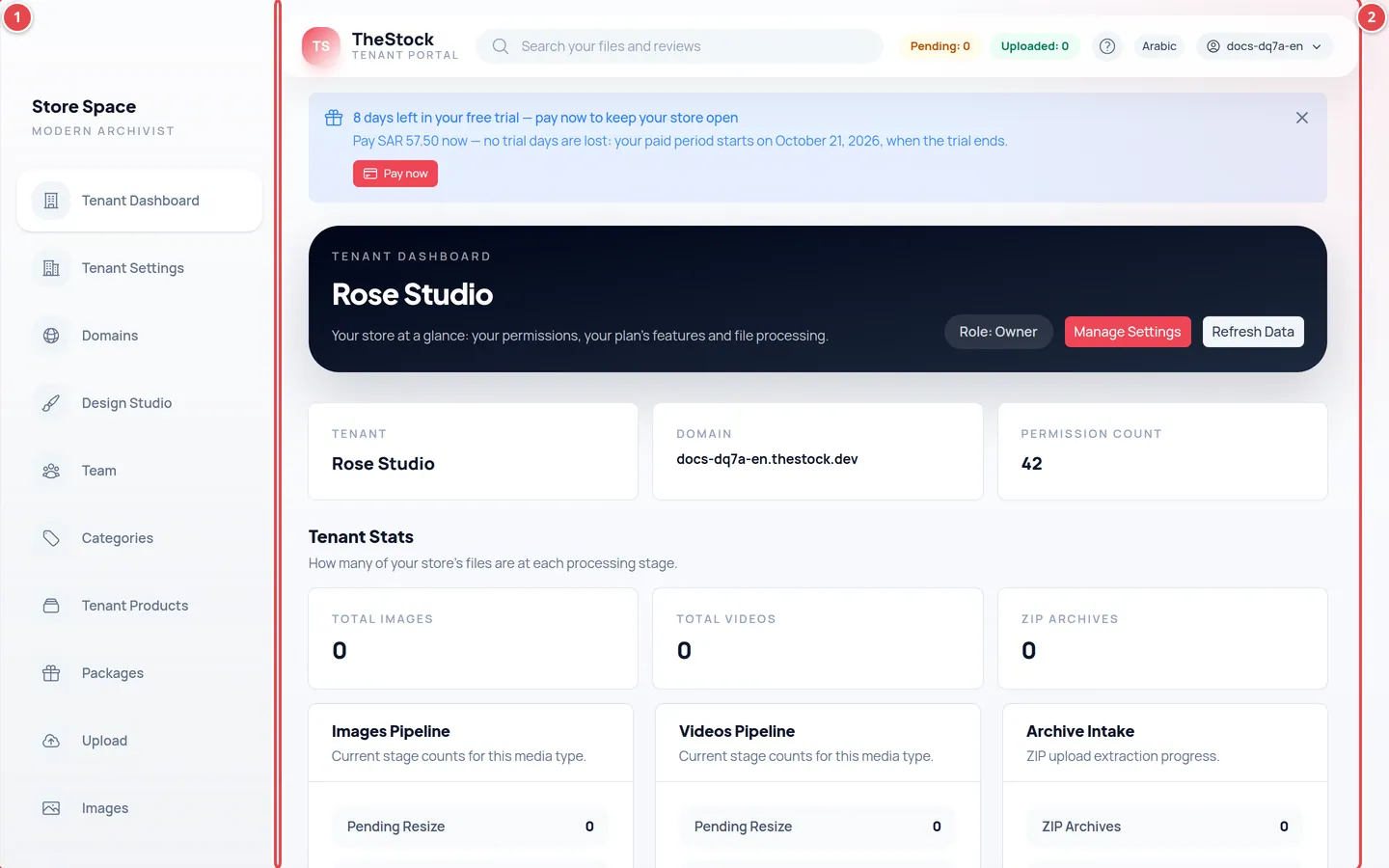
- The side menu: every part of running your store.
- The Tenant Dashboard content.
If you had an account with a password before creating the store (for example as a contributor), you get no temporary password: the email asks you to sign in with your existing password, and the dashboard opens straight away with a Welcome to your new store message and a Customize your site button.
If the automatic sign-in does not work
Rarely, the automatic sign-in fails (for example if the link has expired). The sign-in page then opens with a message starting We could not sign you in automatically from the signup site. Sign in with your email and the temporary password from the "your store is ready" email; you will then be asked to set a new password.
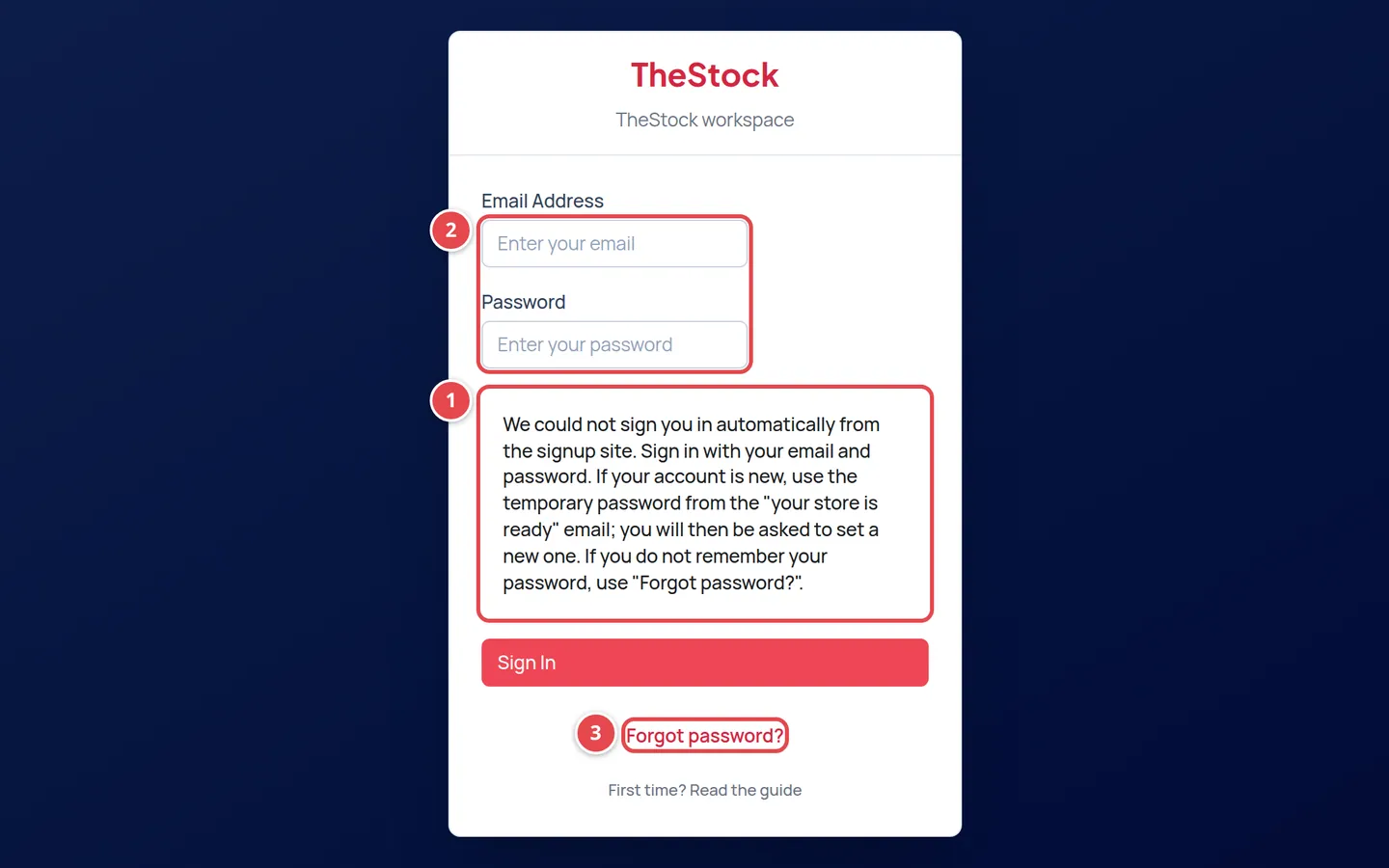
- The message and what to do.
- The email and password fields.
- The Forgot password? link.
You can also go back to the sign-up site, sign in with a code sent to your email, and press Open dashboard again. How to do that is in If you close the page before you finish.
Signing in next time
Open the sign-in link in the "Your store is ready on TheStock" email (bookmark it). The sign-in page is titled TheStock with TheStock workspace under it.
Email and password
Type your Email Address and Password and press Sign In.
Verification code
We send a code to your email. Type it in Verification Code and press Verify. Back takes you back to fix the email or password.
Choose a workspace
If the Choose a workspace page appears, choose your store. We remember your choice for next time. Details in Choosing a workspace.
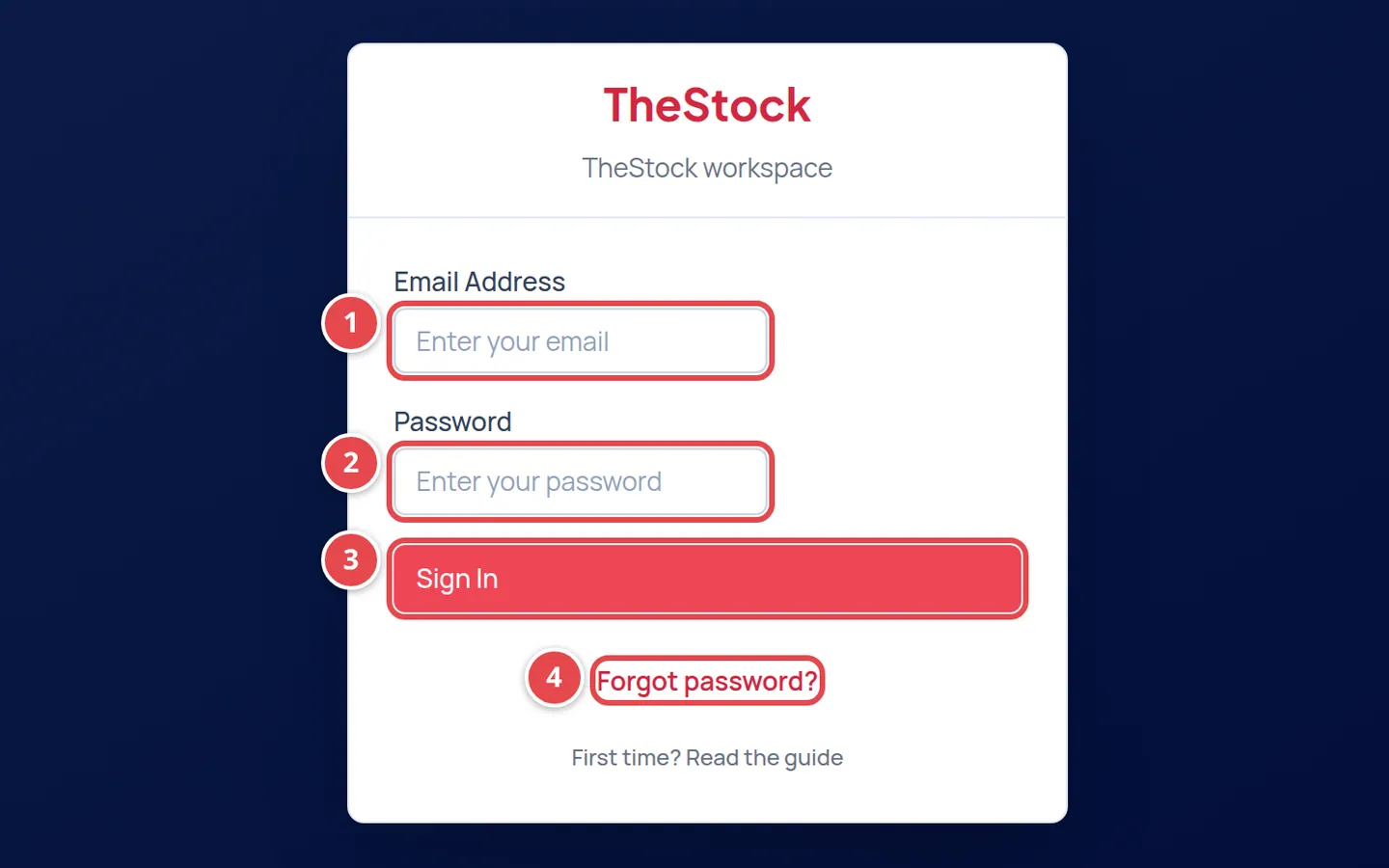
- Email Address.
- Password.
- The Sign In button.
- The Forgot password? link.
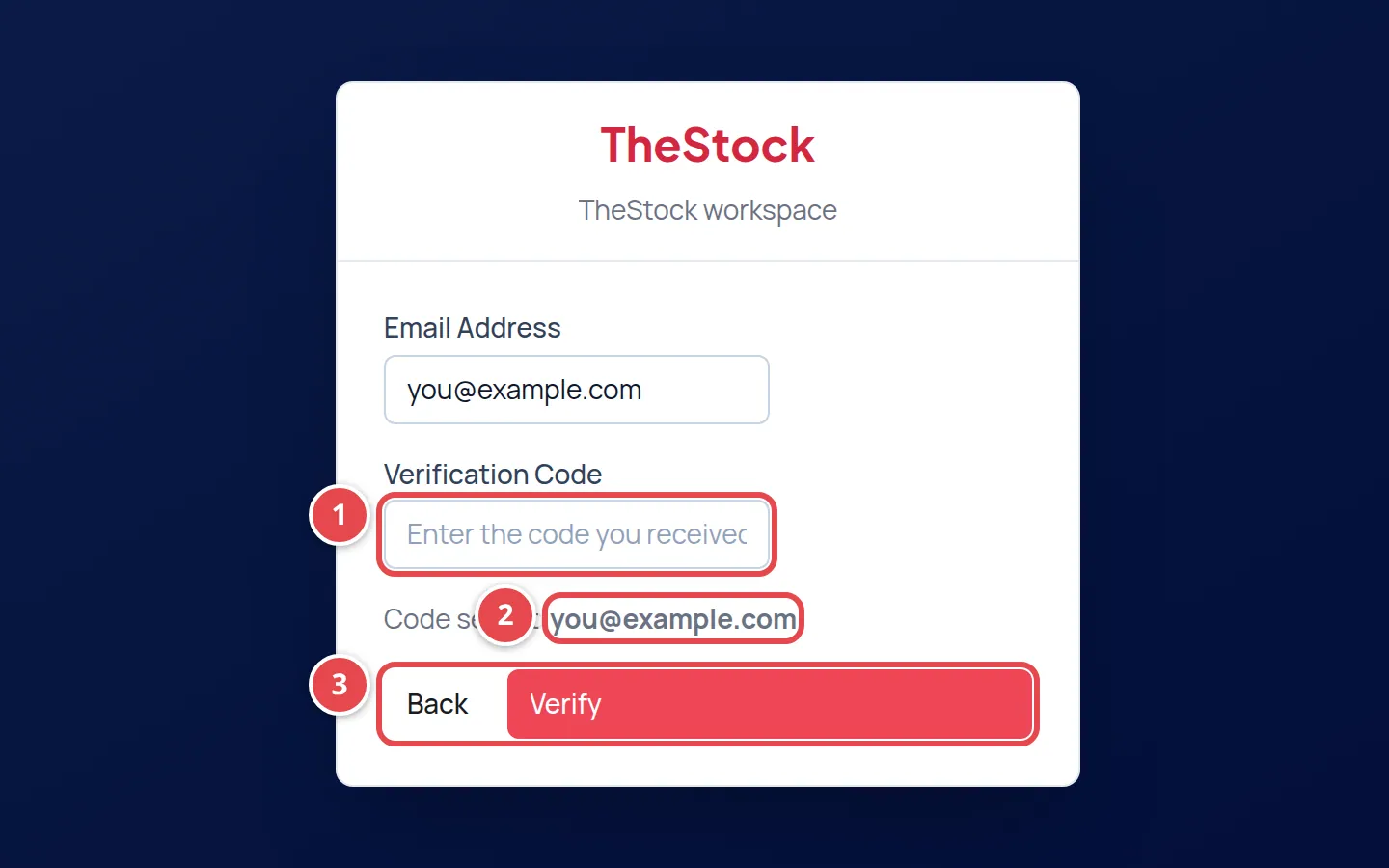
- The Verification Code field.
- The email we sent the code to.
- The Back and Verify buttons.
Forgot your password
Press Forgot password? on the sign-in page. The Password Recovery page opens, in three steps:
Send the code
Type your email and press Send Recovery Code.
Verify the code
Type the code you received in Recovery Code and press Verify Code.
Set the password
Type the New Password and Confirm Password, then press Update Password. The same rules apply as in Setting your password.
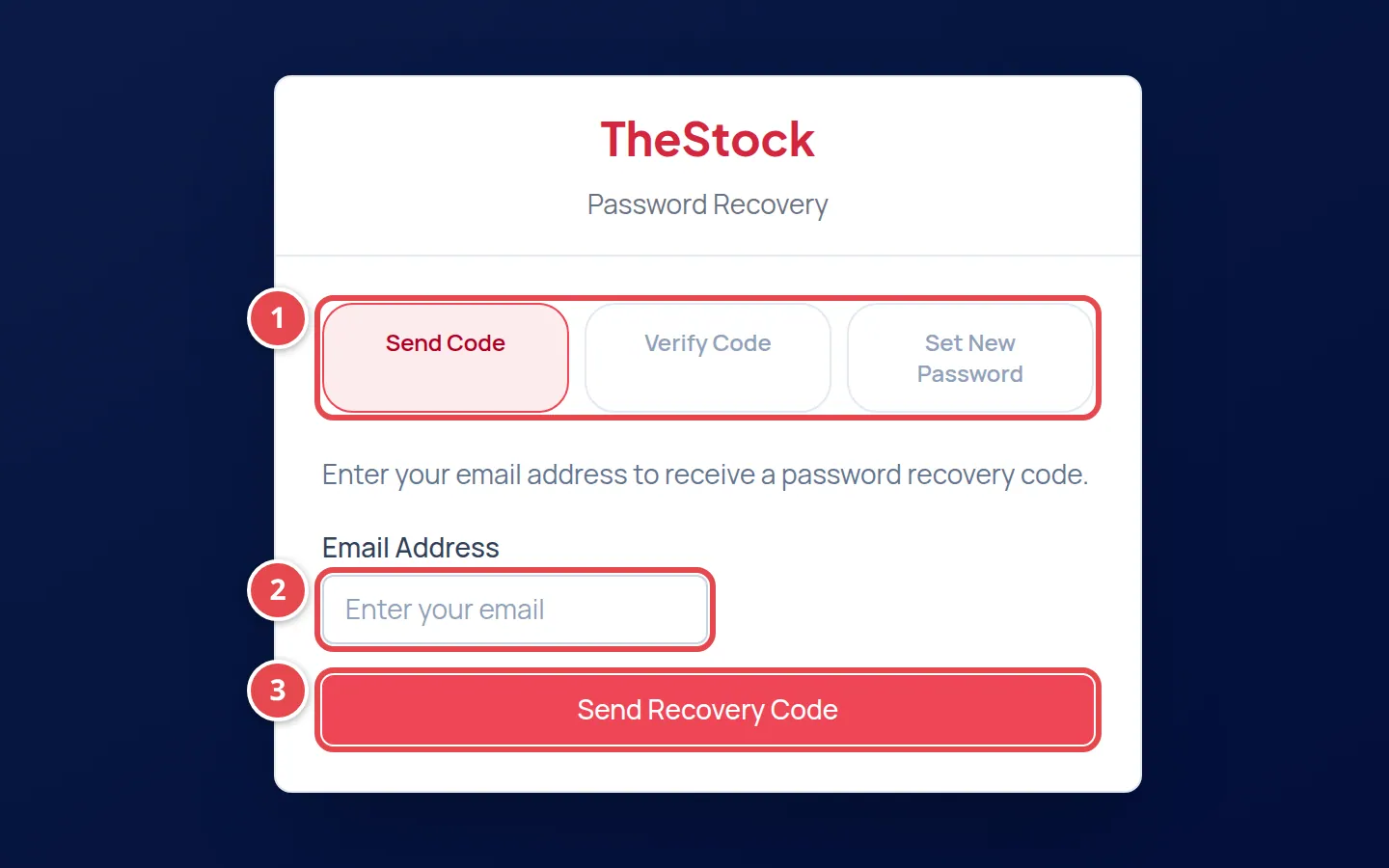
- The three steps.
- The email field.
- The Send Recovery Code button.
After Your password has been updated. You can sign in now., press Back to sign in and sign in with the new password.
Choosing a workspace
When your store goes live, we also switch on a Contributor workspace for your account on The Stock's main marketplace. So your account usually has two workspaces, and the Choose a workspace page appears after you sign in with your password.
We remember the workspace you chose last, so your next sign-in opens it directly without this page. The page shows again when that workspace is no longer available to your account, or when you sign in from another browser or device.
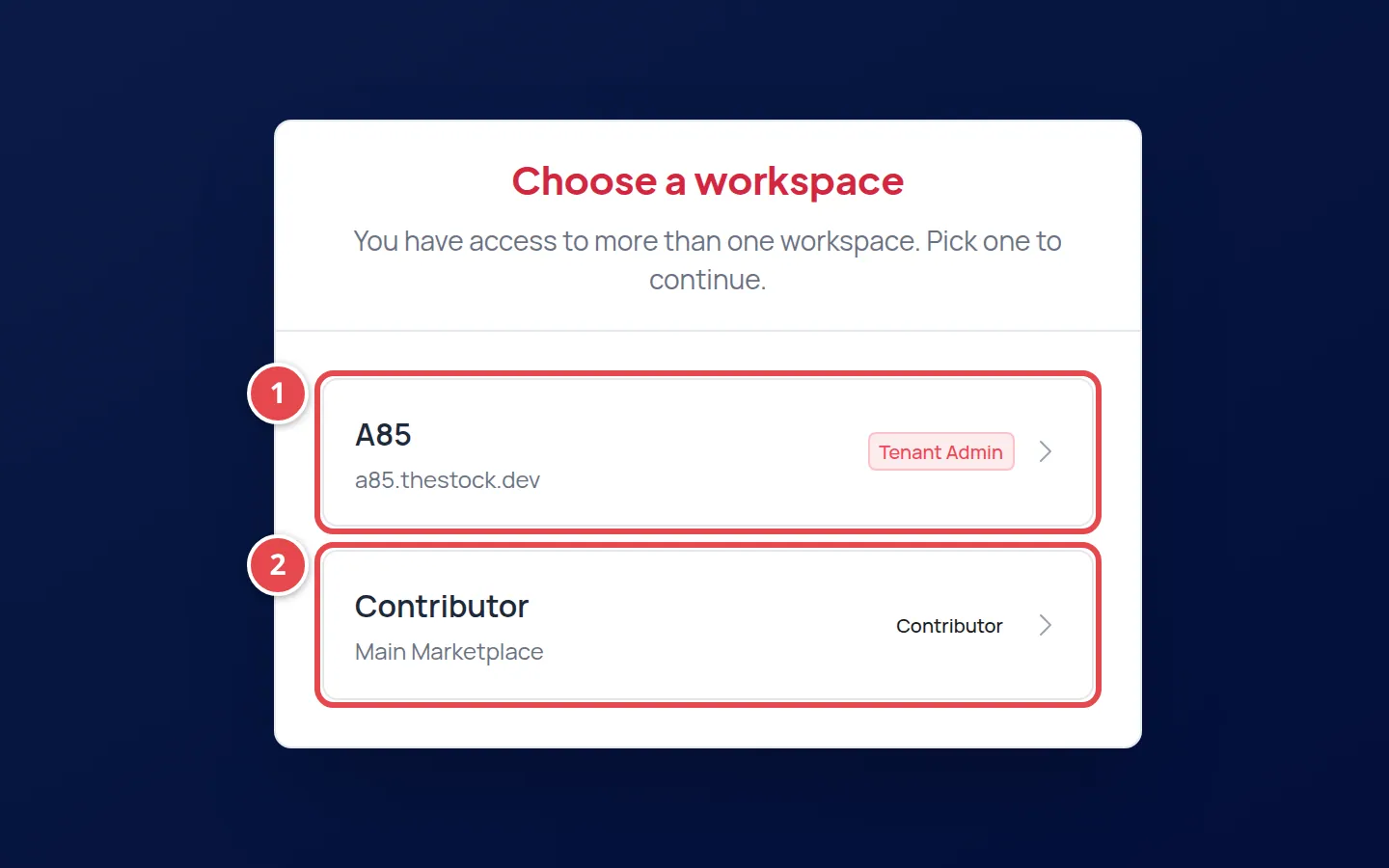
- Your store: its name and address, with the Tenant Admin badge. Choose it to run your store.
- The Contributor workspace on the Main Marketplace: for uploading your work for sale on the main The Stock.
To move between the two later, open your account menu at the top of the dashboard and choose Switch Workspace; the workspace you switch to is the one your next sign-in opens. Signing in through Open dashboard on the sign-up site opens your store directly, without this page.
What is the difference between signing in on the sign-up site and in the dashboard?
The sign-up site signs you in with a code sent to your email only, and shows your store status and the Open dashboard button. The dashboard asks for your email and password, then a verification code.
Can I keep using the temporary password?
No. It is used once to set your own password, and no other page opens before you do.
I see "This account does not have access to the workspace."
Your account is not linked to a live store yet. Make sure you finished signing up and your store is ready, and that you sign in with the email you signed up with.
How do my team members sign in?
You invite them from the team page and they get an email explaining how to sign in. See Team and roles.