
Your subdomain and store address
How your free store address under the platform domain is formed, the rules for picking a name, and when the address starts working.
The subdomain is a free address for your store under the platform domain. It is a name you choose followed by the platform domain, for example salem-studio.thestock.cloud. You do not need to buy a domain or set up any DNS records.
How it works
| The subdomain | |
|---|---|
| Form | <the name you choose>.thestock.cloud |
| How many | One subdomain per store |
| When it works | As soon as your store is ready (after payment or the start of the free trial), with no setup |
| SSL certificate | Ready automatically |
| Cost | Included in your plan if it includes a Platform subdomain |
You choose the subdomain name when you sign up, on the Your platform name & domain step. See Creating your store, step by step.
Rules for the name
| Rule | Example |
|---|---|
| Lowercase English letters (a-z), digits (0-9) and the hyphen (-) only | salem-studio2 is fine, Salem Studio is not |
| Does not start or end with a hyphen | -salem is not allowed |
| Up to 63 characters, no dots or spaces | salem.studio is not allowed |
| Not a name the platform reserves | www, api, docs, help, admin and other system names are reserved |
| Not used by another store | If it is, you see This name is already taken |
Your subdomain in the dashboard
You find your store address on the Domains page in the dashboard side menu, or from the Manage domains link in Tenant Settings.
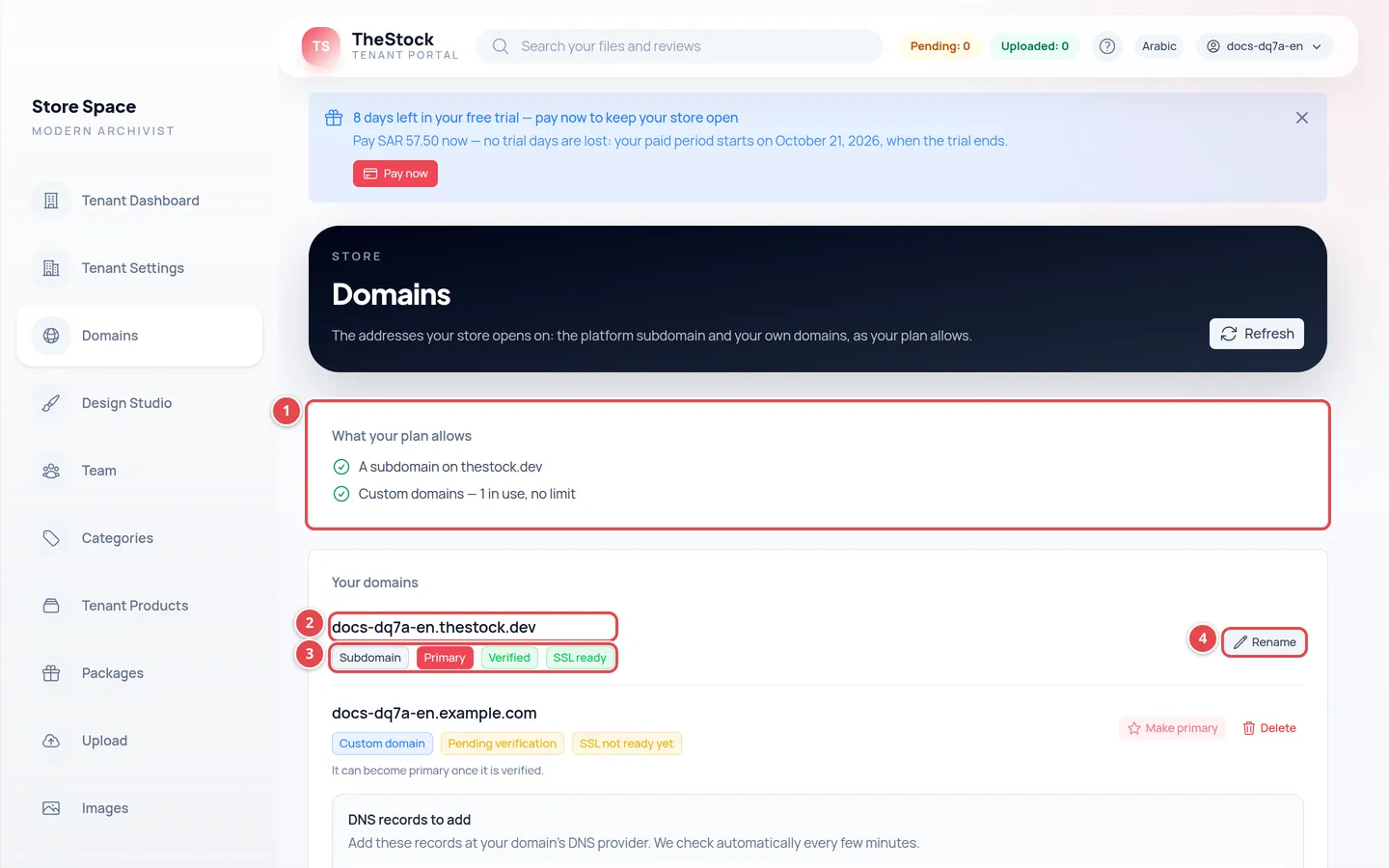
- The What your plan allows section: whether your plan includes a subdomain.
- Your store address. Press it to open the store.
- The badges: Subdomain, Primary if it is the main address, Verified and SSL ready.
- The Rename button.
If your store has no subdomain (for example you signed up with your own domain) and your plan includes one, an Add a subdomain form appears at the bottom of the page. Type the name and press Add.
Changing the subdomain name
Open the Domains page
In the side menu, press Domains.
Press Rename
Next to your subdomain, press Rename. The Rename the subdomain window opens.
Type the new name
Type only the first part; the platform domain is written next to the field. The same rules apply as in Rules for the name.
Confirm
Press Rename. You see Subdomain renamed.
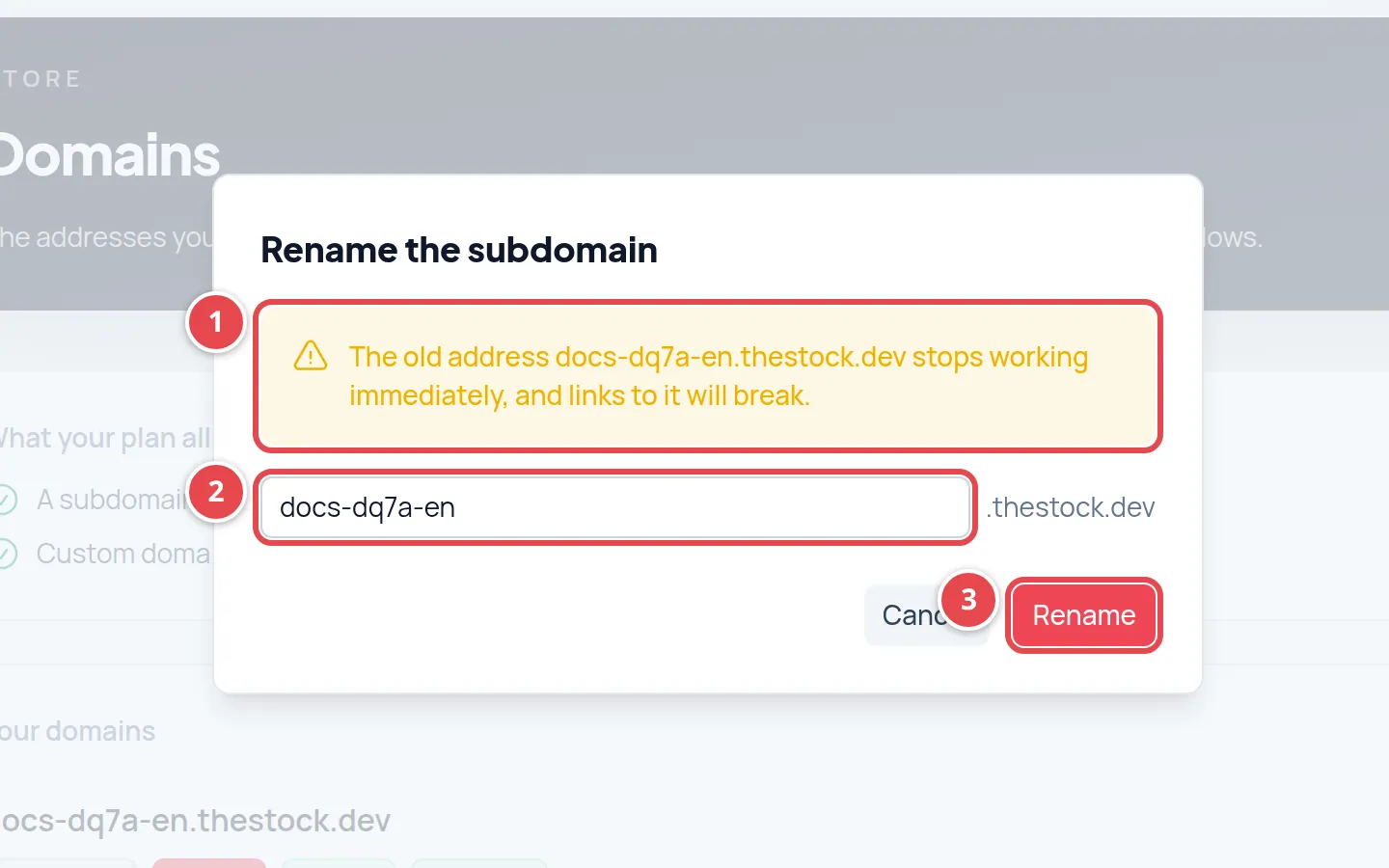
- The warning: the old address stops immediately.
- The new name field with the platform domain next to it.
- The Rename button.
If the subdomain is your store's Primary address, the new name becomes the primary address automatically.
I want a domain I own
If your plan includes Custom domains, you can connect a domain you own (like shop.example.com) next to your subdomain or instead of it, and make it the primary address. Visitors to the subdomain are then redirected to it automatically. See Managing your store domains.
Who can rename the subdomain?
The store owner and members with the admin role. Editors and viewers see the Domains page without buttons.
I renamed it by mistake. Can I get the old name back?
Yes, if no other store has taken it: rename it back to the old name the same way.
Can I have two subdomains?
No. Each store has one subdomain on the platform. For more addresses, use domains you own if your plan includes them.
When does the subdomain start working?
Right after your store is ready, with no setup on your side.