
Team and roles
Inviting members to your store, the four roles and what each can do, changing roles, removing members, and your plan’s team limit.
You do not have to run your store alone. On the Team page you invite people to work with you and give each of them a role that decides what they see and what they can change.
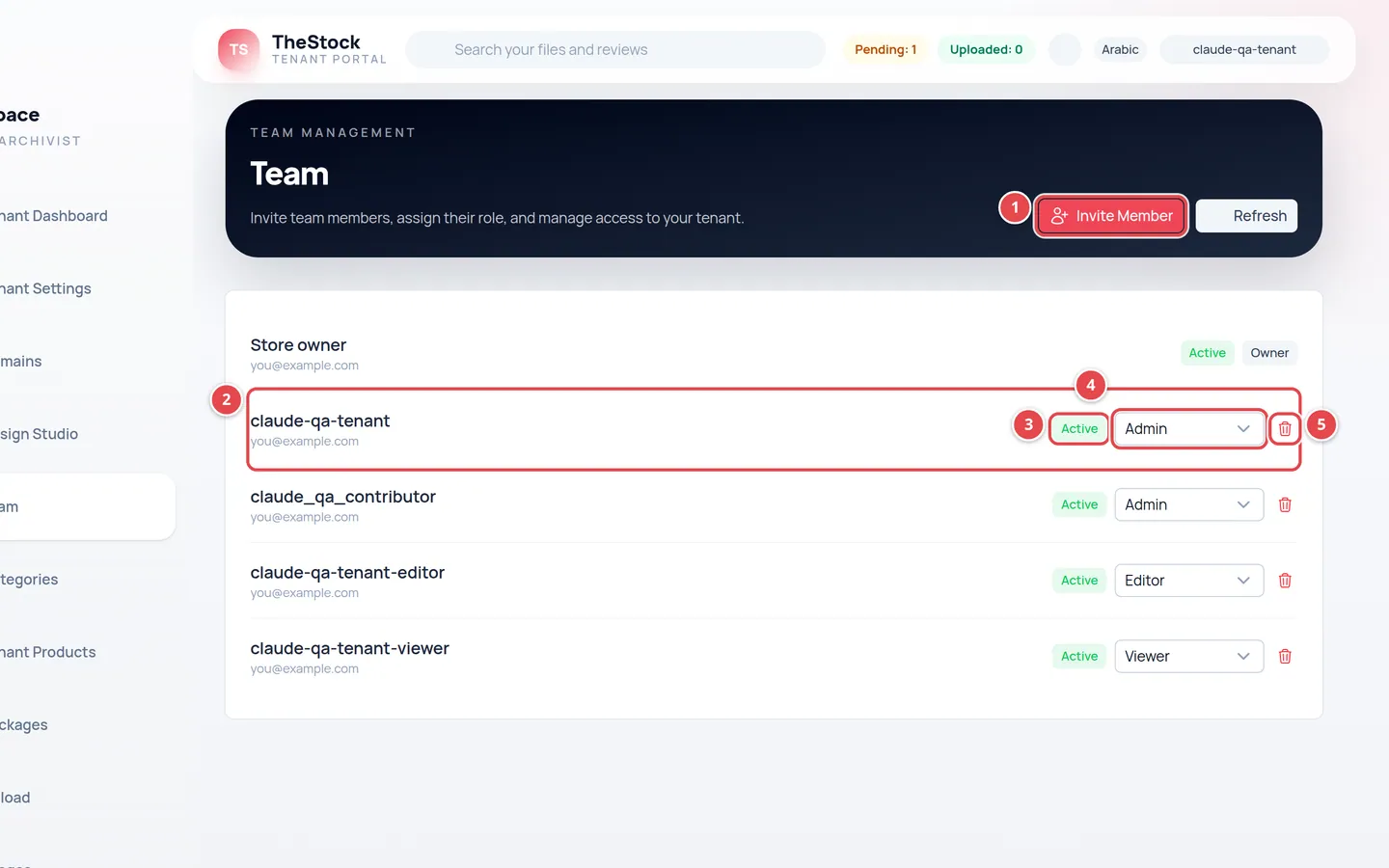
- Invite Member: opens the invitation form.
- Each member: name and email, and who invited them.
- Membership status: active or invited.
- The role: a list you change the member’s role from.
- The remove button.
Inviting a member
Press Invite Member at the top of the page.
In the Invite a Team Member window, type the person’s Email Address and choose the Role. The role chosen by default is Editor.
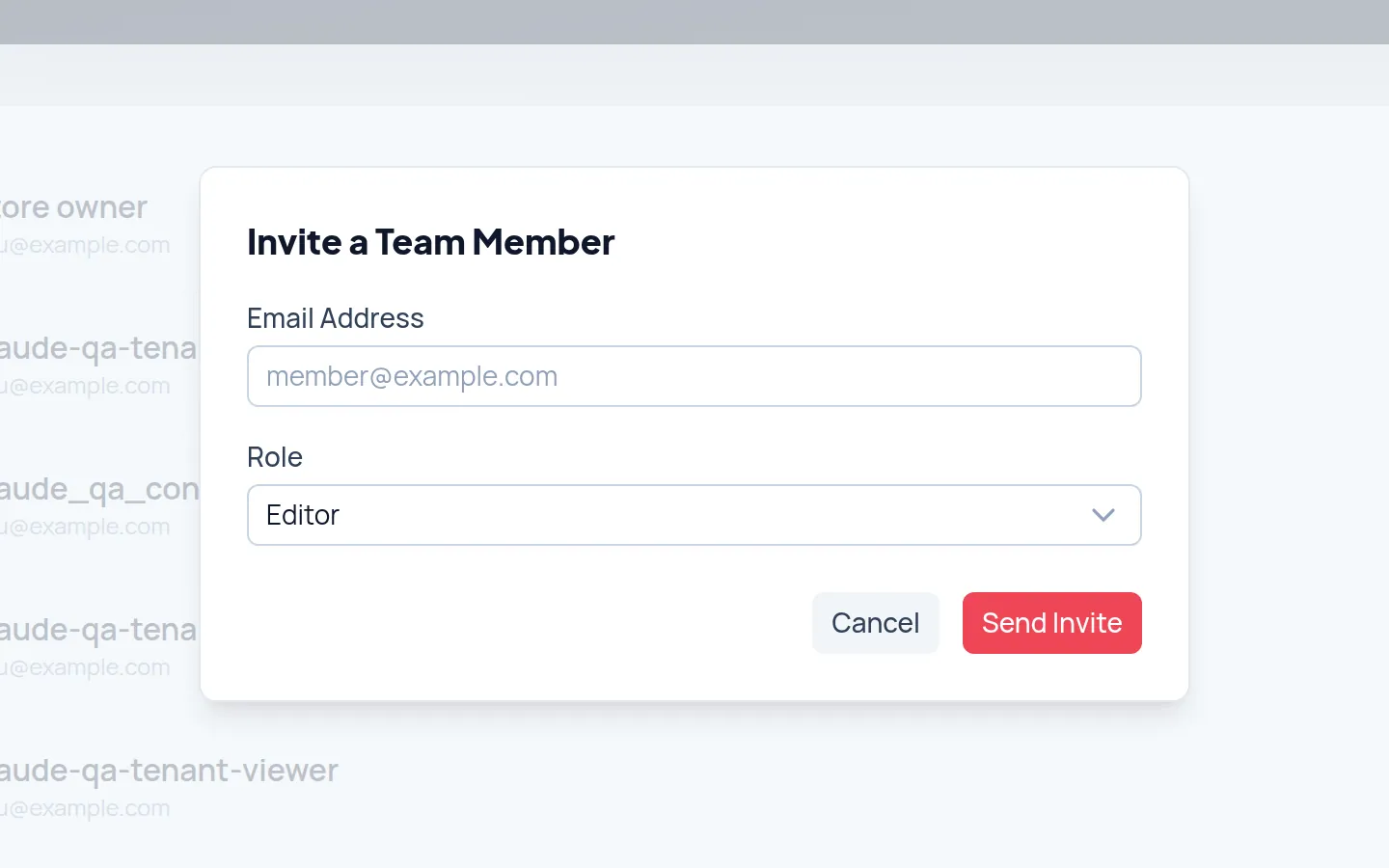
Press Send Invite. You see Member invited successfully. and the member appears in the list.
The person does not need a The Stock account already:
| If the email… | What happens |
|---|---|
| Has no account | An account is created automatically, and they get an email with a link to set their password and sign in. |
| Has an account | They are added to your store and get an email telling them so, with a sign-in link. |
| Is already on your team | The invitation is refused, because they are already there. |
The member signs in to the dashboard with email, password and a verification code, just like you. If they belong to more than one store, they choose the workspace after signing in. See First sign-in to your dashboard.
The four roles
| Role | In short |
|---|---|
| Owner | Everything, and the only one who manages the subscription and billing. |
| Admin | Everything except the subscription and billing. |
| Editor | Edits the store’s pages, menus and media library, sends notifications, and sees the rest without editing. |
| Viewer | Sees most pages without editing anything. |
| Customer service | Reads and replies to the store’s tickets only: no settings, team or statistics. See The tickets app. |
What each role can do
| Area | Owner | Admin | Editor | Viewer |
|---|---|---|---|---|
| Tenant Dashboard | View | View | View | View |
| Tenant Settings | Edit | Edit | View | View |
| Pages, menus and banners | Edit and publish | Edit and publish | Edit and submit for review | View |
| Theme, section order and branding | Edit and publish | Edit and publish | View | View |
| Team | Manage | Manage (except anything about the owner) | View | View |
| Categories and Tenant Products | Manage | Manage | No | No |
| Uploading and reviewing content | Yes | Yes | No | No |
| Packages | Manage | Manage | No | No |
| Media Library | Manage | Manage | Manage | View |
| Storage Statement | View | View | View | View |
| Account Statement | View | View | No | No |
| Subscription | Manage | No | No | No |
| Domains | Manage | Manage | View | View |
| Review Spaces | Manage | Manage | View | View |
| Review Assets | Manage | Manage | Upload and comment | View |
| Email Templates | Edit | Edit | View | View |
| Notifications | Manage | Manage | View and send | View |
| Audit Log | View | View | No | No |
"No" means the page does not appear in that role’s menu at all.
Changing a member’s role
Owners and admins see a role list next to each member. Choose the new role; it saves straight away and you see Role updated.
| Who changes it | Roles they can give |
|---|---|
| Owner | Owner, Admin, Editor, Viewer |
| Admin | Admin, Editor, Viewer. An admin cannot change the owner’s role. |
Removing a member
Press the remove button next to the member. Removal happens straight away, with no confirmation, and you see Member removed. The member loses access to your store, but their The Stock account stays.
The owner cannot be removed, so there is no remove button next to them.
Your plan’s team limit
Each plan sets a maximum number of team members. The count includes the owner and invitations that have not been accepted yet.
I invited someone and the email did not arrive.
Ask them to check their spam folder. If it is not there, they can open the sign-in page and use Forgot password? with the same email.
A member cannot see a page they need.
Their role does not allow it. Check the table above and change their role if needed.
Can an admin upgrade the plan?
No. The subscription and billing are for the owner only.