
The store dashboard
What the dashboard home shows: summary cards, upload statistics and processing stages, features summary, and the subscription-ending notice.
The first page you see after signing in is the Tenant Dashboard, your store’s dashboard. It gives you a quick look at your store: its address, what is happening to the files you uploaded, and the features switched on.
The page is for viewing only. To change anything you see here you go to the right page, and this article tells you where.
The top of the page
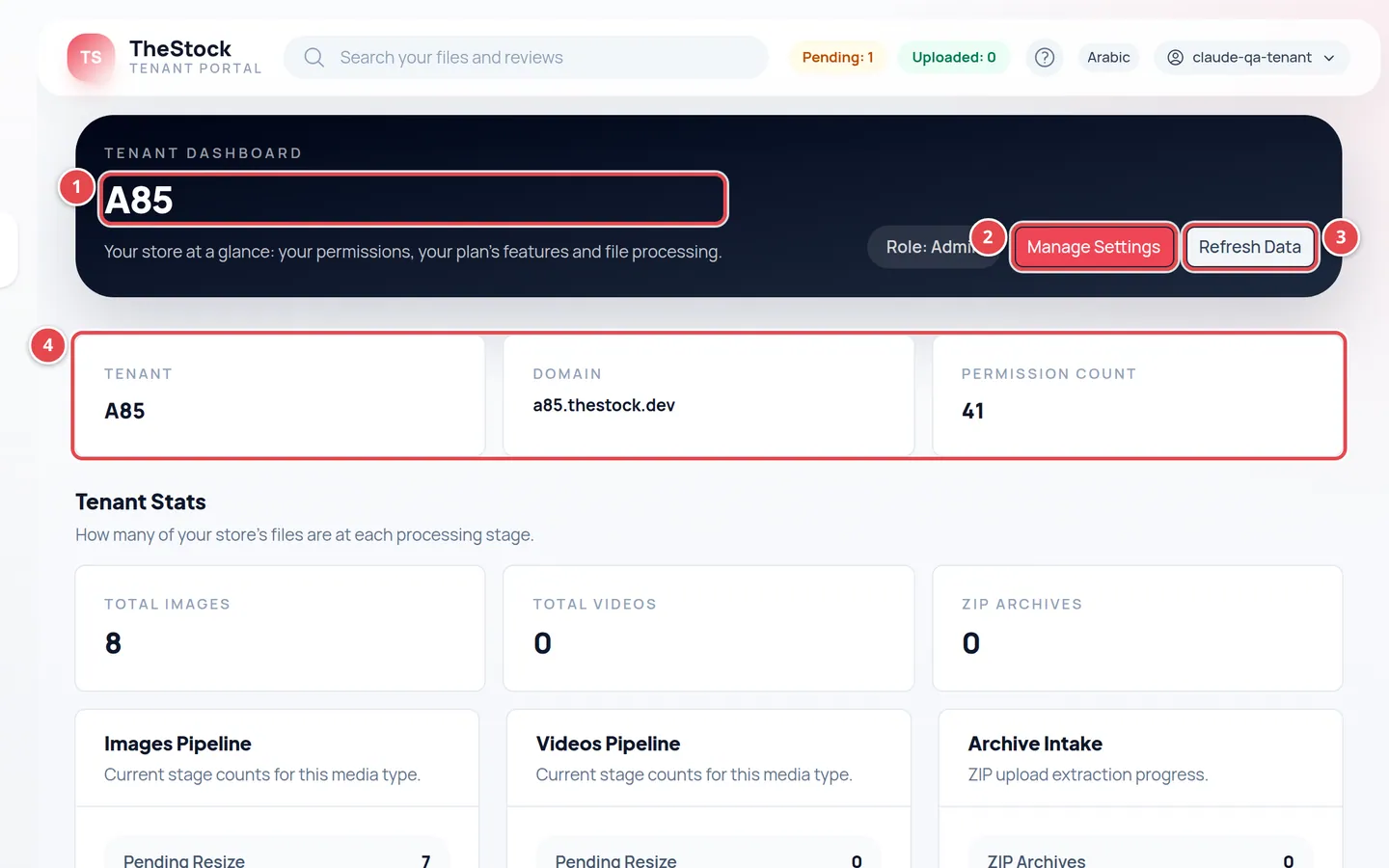
- Your store name.
- Manage Settings: takes you to Tenant Settings.
- Refresh Data: reloads the numbers on the page.
- The three cards: the store name, the Domain it runs on, and the Permission Count your role has.
The welcome message
The first time you sign in after creating your store, a Welcome to your new store message appears with a Customize your site button that opens the Design Studio. You can close it, and it does not come back.
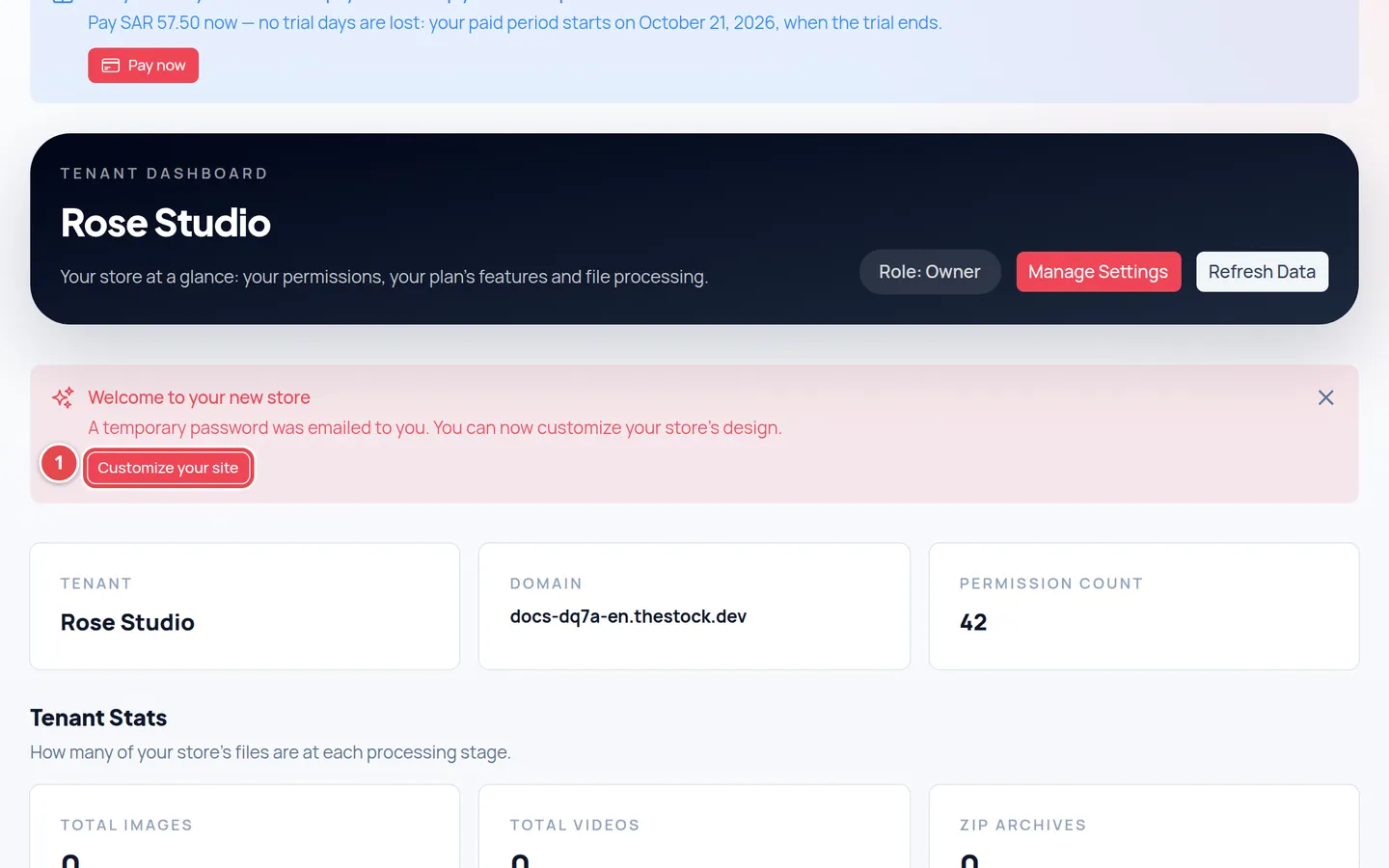
- The Customize your site button: opens the Design Studio.
Upload statistics and processing stages
The Tenant Stats section first shows three numbers: Total Images, Total Videos and ZIP Archives.
Below them are two panels, Images Pipeline and Videos Pipeline. Each tells you how many files are sitting at each stage of their journey right now.
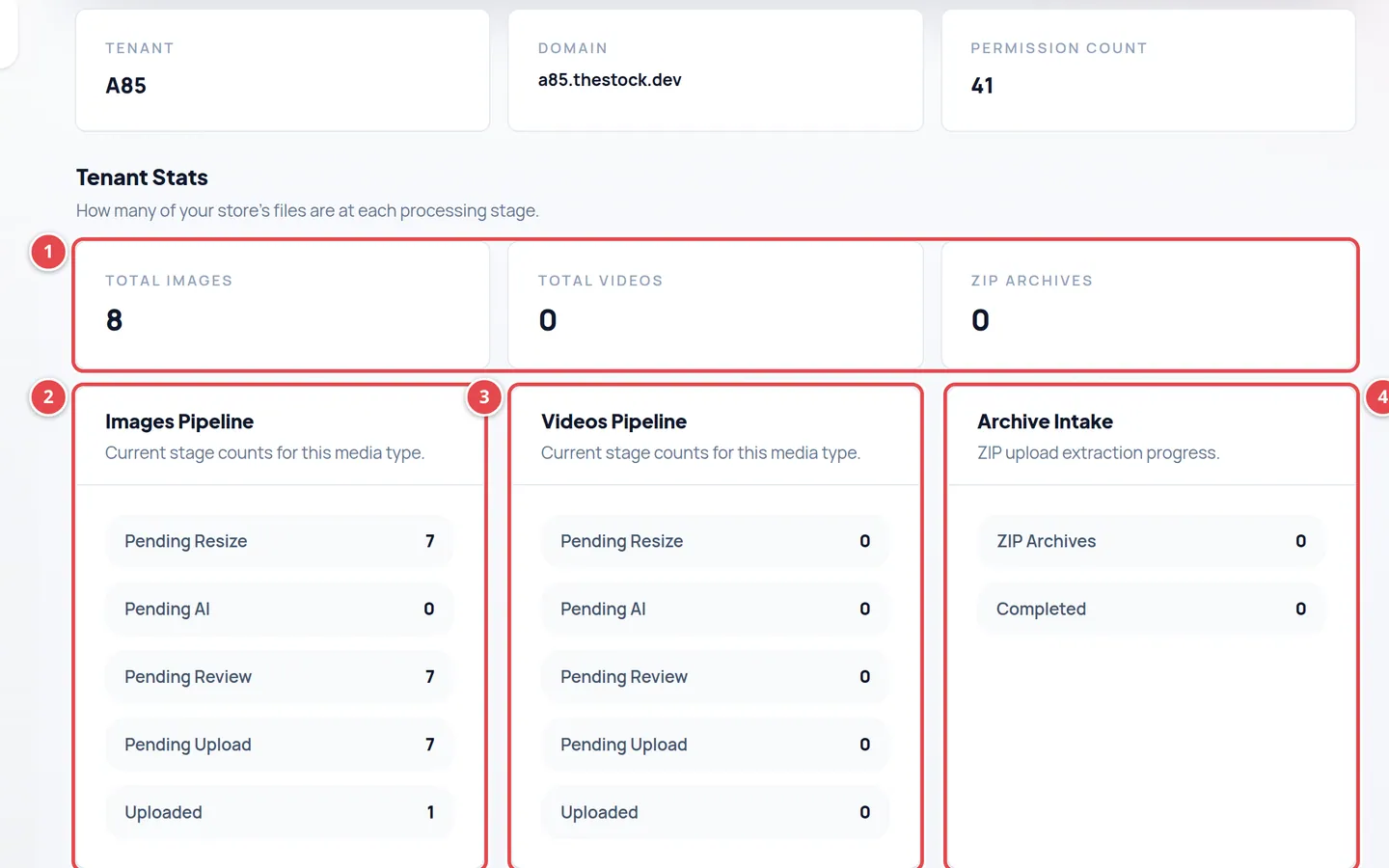
- The totals: images, videos and ZIP archives.
- Images Pipeline: how many images are at each stage.
- Videos Pipeline: how many videos are at each stage.
- Archive Intake: how many ZIP files were uploaded and how many have Completed extraction.
| Stage | What it means |
|---|---|
| Pending Resize | The file has arrived and we are making a display copy. |
| Pending AI | The AI is writing the description and keywords and suggesting a category. |
| Pending Review | The suggestions are ready and the file is waiting for you to review and approve it. |
| Pending Upload | You approved it and we are sending it to be published. |
| Uploaded | Sending is complete. |
If you see numbers under Pending Review, those files are waiting for you. Open Images or Videos from the menu to review them. Details in Uploading content with AI.
Feature and SEO summaries
The Feature Summary shows whether the blog, payments and search are Enabled or Disabled in your store.
The SEO Summary shows your store’s Default Title and Default Description for search engines, and whether indexing and the sitemap are on.
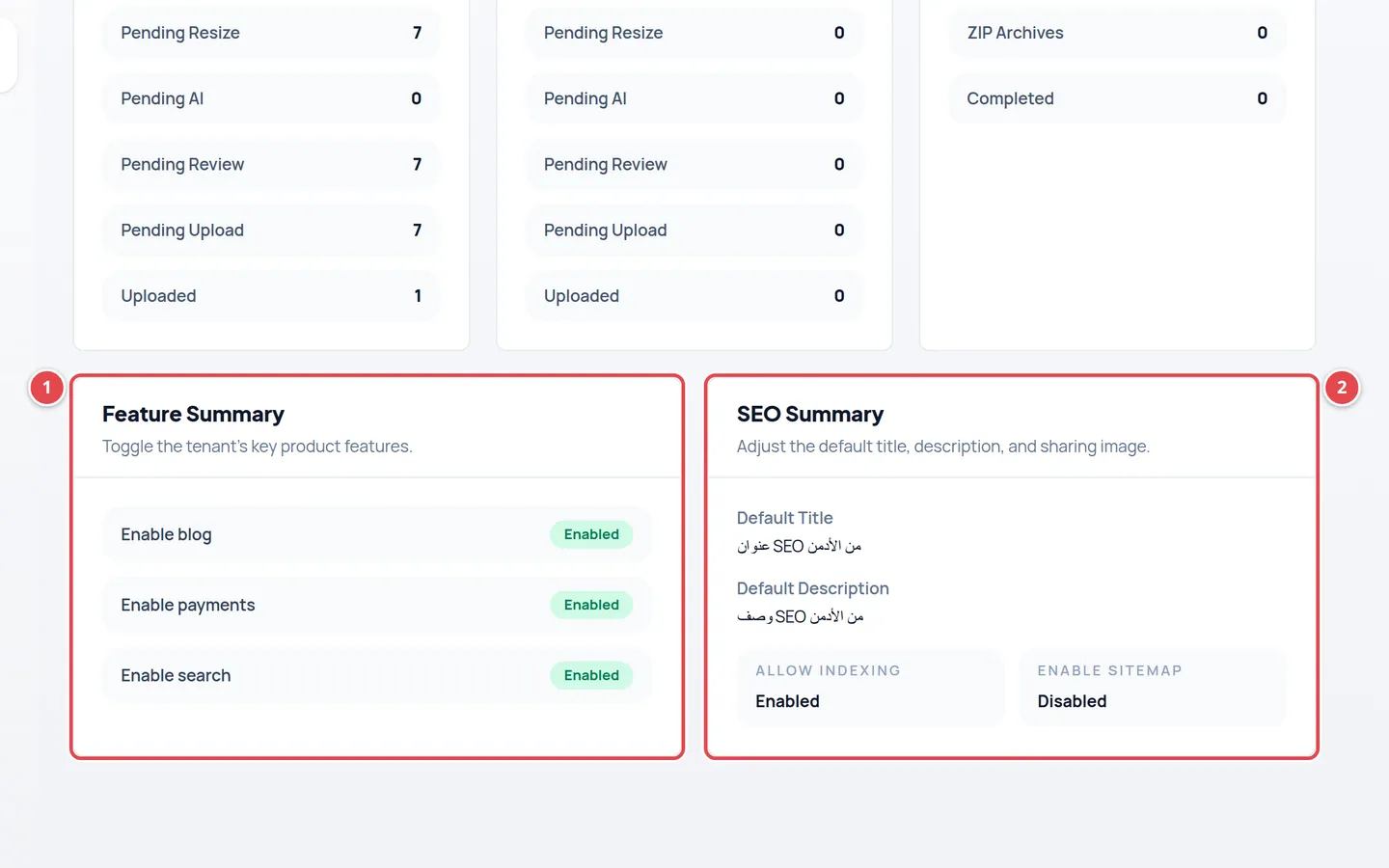
- Feature Summary: the state of each feature.
- SEO Summary: title, description, and the indexing and sitemap state.
The subscription notice
If your subscription period has ended and was not renewed, a notice at the top of the dashboard explains the state of your public store, with an Open subscription button.
| Subscription state | What it means for your public store |
|---|---|
| Grace period | Your store keeps running until the date in the notice, then stops if you do not pay. |
| Suspended | Your public store is stopped. Pay to open it again. |
| Cancelled | You cancelled the subscription and your public store is stopped. Pay to open it again. |
| Expired | The subscription has expired and your public store is stopped. Pay to open it again. |
During the free trial this notice does not appear. The free-trial bar at the top of the pages appears instead. See A tour of your dashboard.
I uploaded files and cannot see them in the statistics.
Press Refresh Data. The page does not update on its own.
What does the number in the permissions card mean?
The Permission Count card shows how many permissions your role has in the store. What each role can do is in Team and roles.
The domain card shows no address.
If you see No domain available, check the Domains page. See Managing domains.