
A tour of your dashboard
The parts of the dashboard — header, menu, language and workspace switching — the free-trial bar, and the plan-limit message.
The dashboard (workspace) is where you run your store day to day. Its home page is called Tenant Dashboard in the interface, and "tenant" there simply means your store.
This article introduces the parts of the screen, so you know where everything is before you go into the details.
The parts of the screen
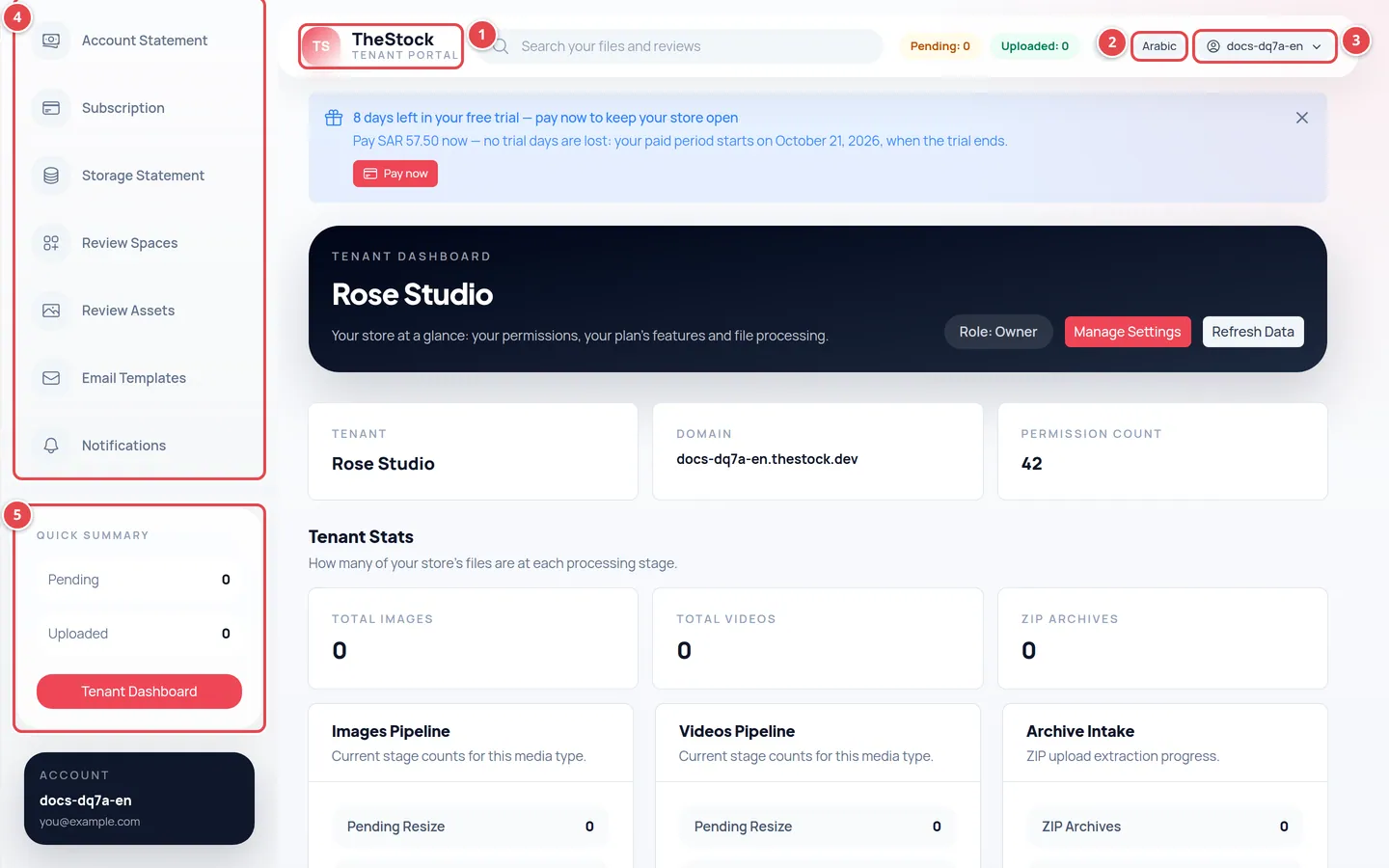
- The logo: takes you back to the Tenant Dashboard from any page.
- The language button: shows the other language (Arabic or English) and switches to it straight away.
- The user menu: carries your name; from it you switch workspace or log out.
- The side menu: every dashboard page your role allows.
- The Quick Summary card: how many files are Pending and how many are Uploaded.
The header
The header stays at the top of every page. It holds the logo, the language button and a button with your name that opens the user menu.
On large screens the header also shows two small counters: Pending and Uploaded.
The menu
On a computer the menu sits at the side of the screen. On a phone it becomes a row of icons at the bottom of the screen with the same pages.
You only see the pages your team role allows. The owner sees everything; other roles see part of it. Details in Team and roles.
| Menu item | What you do there | Article |
|---|---|---|
| Tenant Dashboard | An overview of your store and upload statistics | The store dashboard |
| Tenant Settings | Name, logo, features and SEO | Store settings |
| Domains | Your store address and the domains you own | Managing domains |
| Design Studio | Menus, pages, theme and visual editing | Design |
| Team | Inviting members and setting their roles | Team and roles |
| Categories and Tenant Products | Your store categories and prices, and activating products | Categories and products |
| Packages | Prepaid download packages | Download packages |
| Upload, Images and Videos | Uploading content and reviewing what the AI wrote | Uploading content |
| Media Library and Storage Statement | Your files and the storage you use | Media library |
| Audit Log | Who did what, and when | Audit log |
| Account Statement | Your sales, fees and VAT | Account statement |
| Subscription | Your plan, payments and renewal (owner only) | Subscription and billing |
| Review Spaces and Review Assets | Reviewing work with your clients | Review spaces |
| Email Templates and Notifications | Emails and notifications to your customers | Templates and notifications |
The user menu
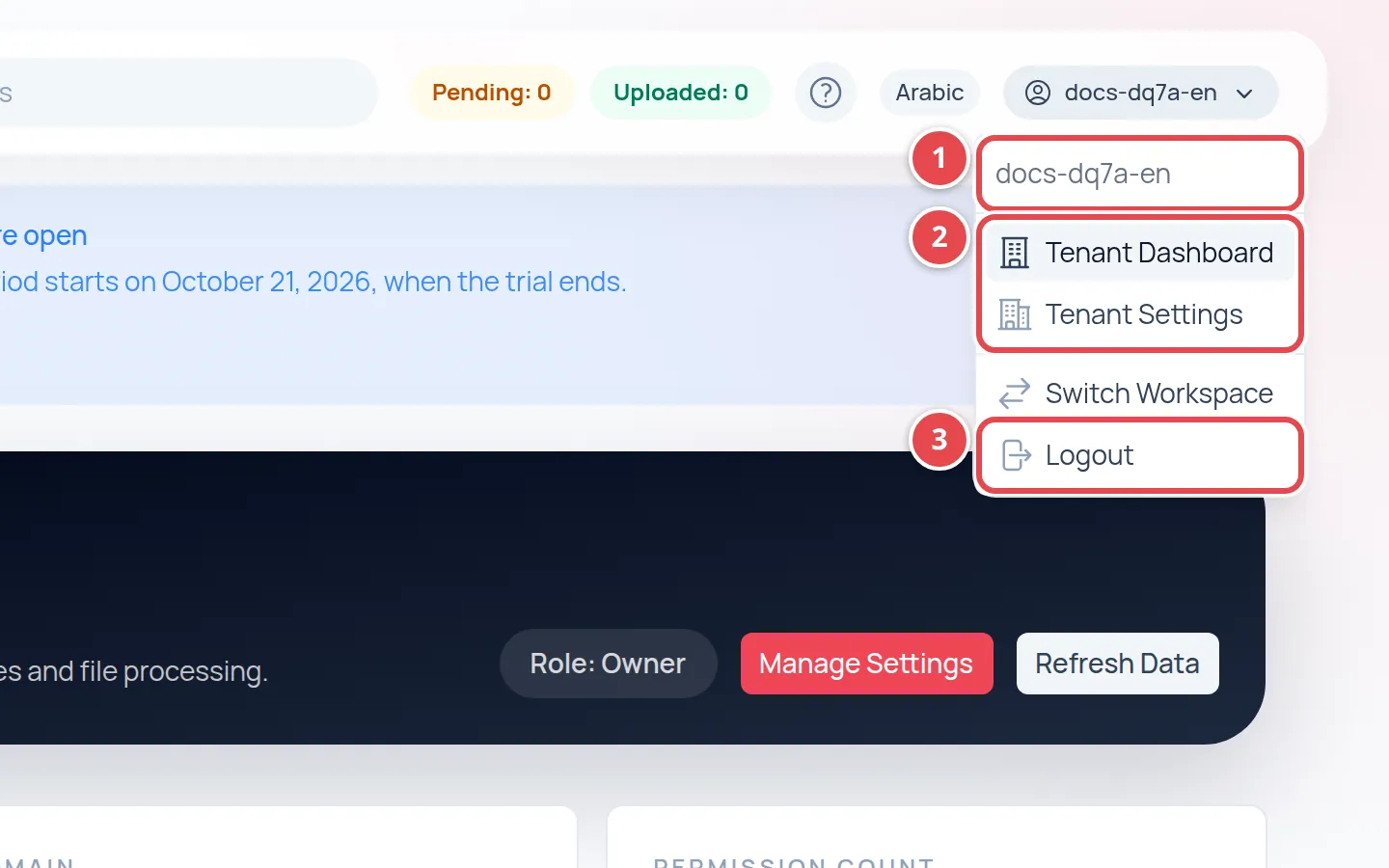
- Your name, or the start of your email (before the @) when your account has no name.
- Shortcuts to the Tenant Dashboard and Tenant Settings.
- Logout.
Switching workspace
If your account runs more than one store, or you are also a contributor on The Stock, the user menu shows Switch Workspace.
Open the user menu and press Switch Workspace.
The Choose a workspace window lists all your stores. Each store has a Tenant Admin badge, and a contributor account has a Contributor badge.
Press the workspace you want. The dashboard reloads and opens on its home page, and your next sign-in opens this workspace directly.
The free-trial bar
During the free trial a bar at the top of the pages tells you how many days are left, with a Pay now button that takes you to the Subscription page.
With 7 days or fewer left, the bar turns to a warning colour. You can close it; it stays hidden until you close the browser, then comes back.
The "Plan limit reached" message
Every plan has limits, such as the number of team members and the number of live products. If you try to add something beyond a limit, a notice titled Plan limit reached appears and names the limit you hit.
If you try to use a feature your plan does not include at all, the notice is titled Not in your plan.
Either way the notice has a button that takes you to the Subscription page to upgrade. Nothing is removed from your store because of this notice; the new addition simply did not go through.
Why can’t I see a certain page in the menu?
The menu only shows what your role allows. Ask the store owner to change your role on the Team page if you need it.
Why does the interface say "tenant"?
It is the technical name for your store inside the dashboard. Tenant Dashboard means your store’s dashboard, and Tenant Products means your store’s products.
How do I change the dashboard language?
Press the language button in the header. The language and page direction change straight away, without signing in again.