
Store settings
Identity, logo and watermark, appearance as a draft, the features in your plan, and SEO and sitemap settings.
On the Tenant Settings page you set the basics for your whole store: its name and logo, the watermark on your files, the features switched on, and how it appears in search engines.
You reach it from the side menu, the user menu, or the Manage Settings button on the Tenant Dashboard.
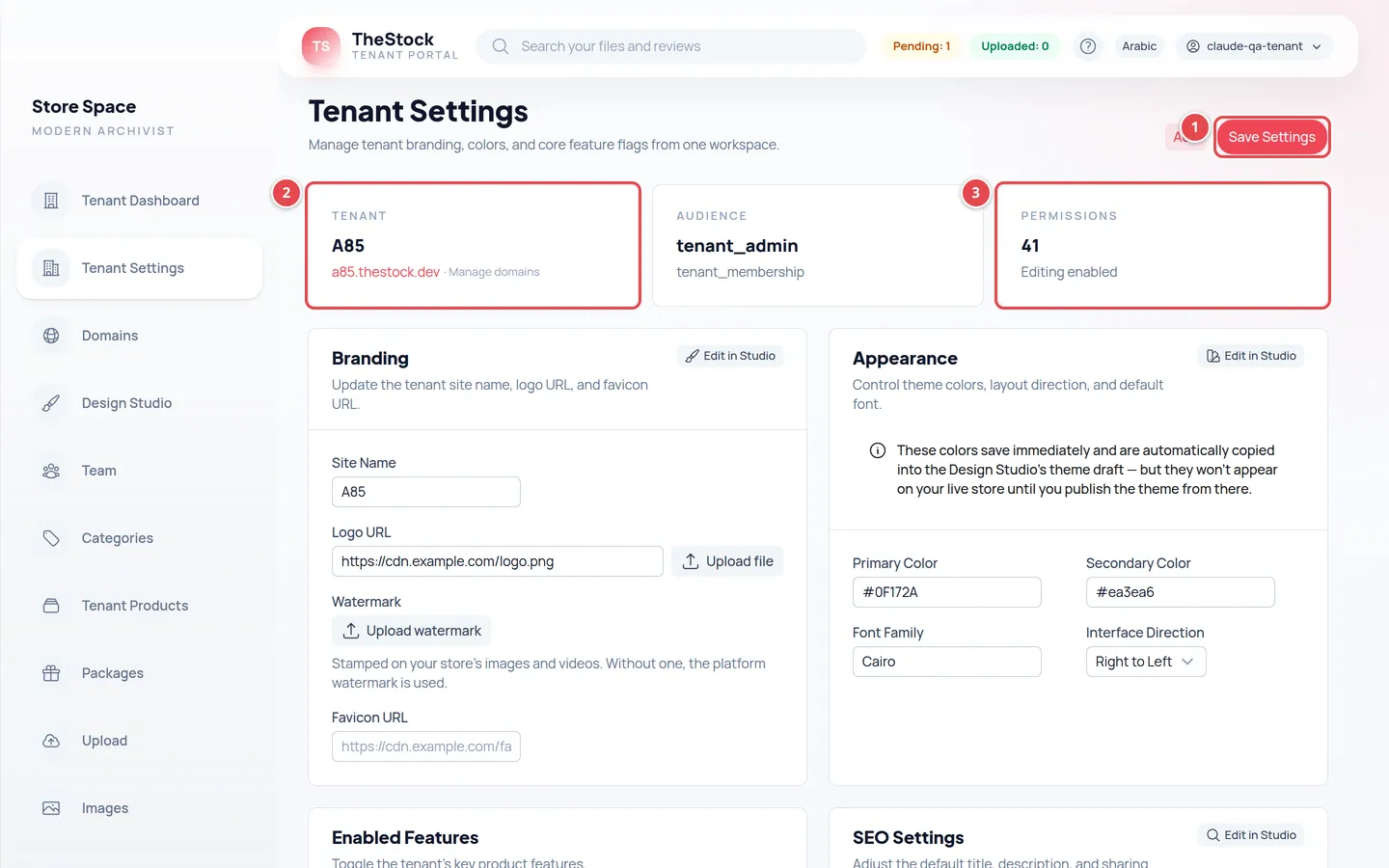
- Save Settings: saves everything you changed on the page in one go.
- The store card: its name and domain, and a Manage domains link.
- The Permissions card: tells you whether you can edit (Editing enabled) or only view (Read only).
Branding
In the Branding card you set the Site Name your customers see, the logo, and the browser icon.
Site name
Type your store name in Site Name.
Logo
Press Upload file next to Logo URL and choose your logo image. When it works you see Logo uploaded.
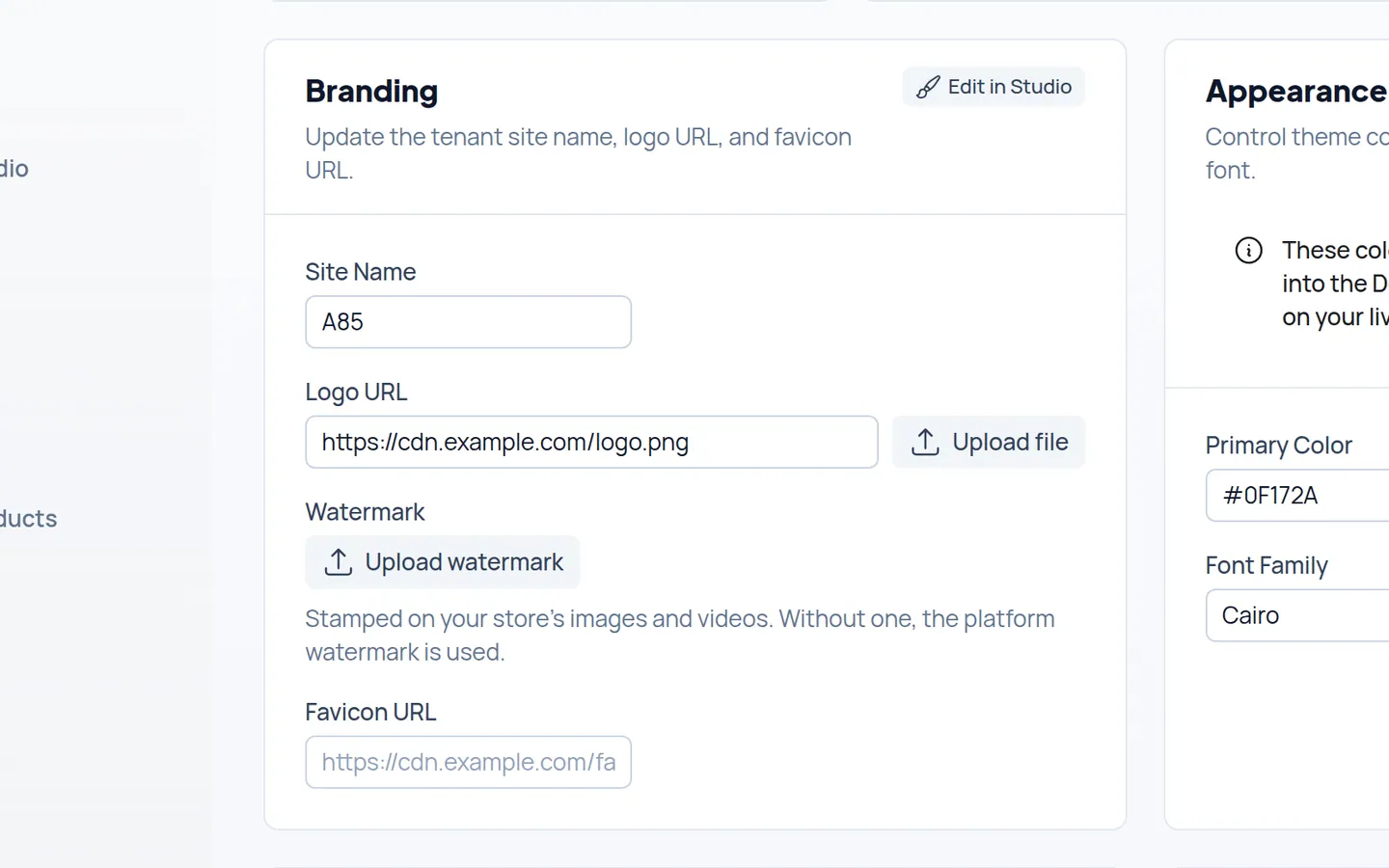
Watermark
Press Upload watermark and choose a PNG, WEBP or JPEG image. It is stamped on your store’s images and videos.
Favicon
Paste the link to your browser icon (favicon) into Favicon URL. To upload the icon file instead of a link, use Edit in Studio.
Save
Press Save Settings at the top of the page.
Images can be up to 8 MB, in JPG, PNG, WEBP, GIF, SVG or ICO.
Appearance
In the Appearance card you choose the Primary Color, Secondary Color and Font Family, and the Interface Direction (Right to Left or Left to Right).
Enabled features
In the Enabled Features card you switch four features of your public store on or off. The switch names can differ slightly by role; the owner sees the feature names used in the plan:
| Feature | What it does |
|---|---|
| Blog | The stories and articles section of your store. |
| Payments | The cart and checkout, so customers can buy directly. |
| Search | The search box in your store. |
| Video | Showing and selling videos. |
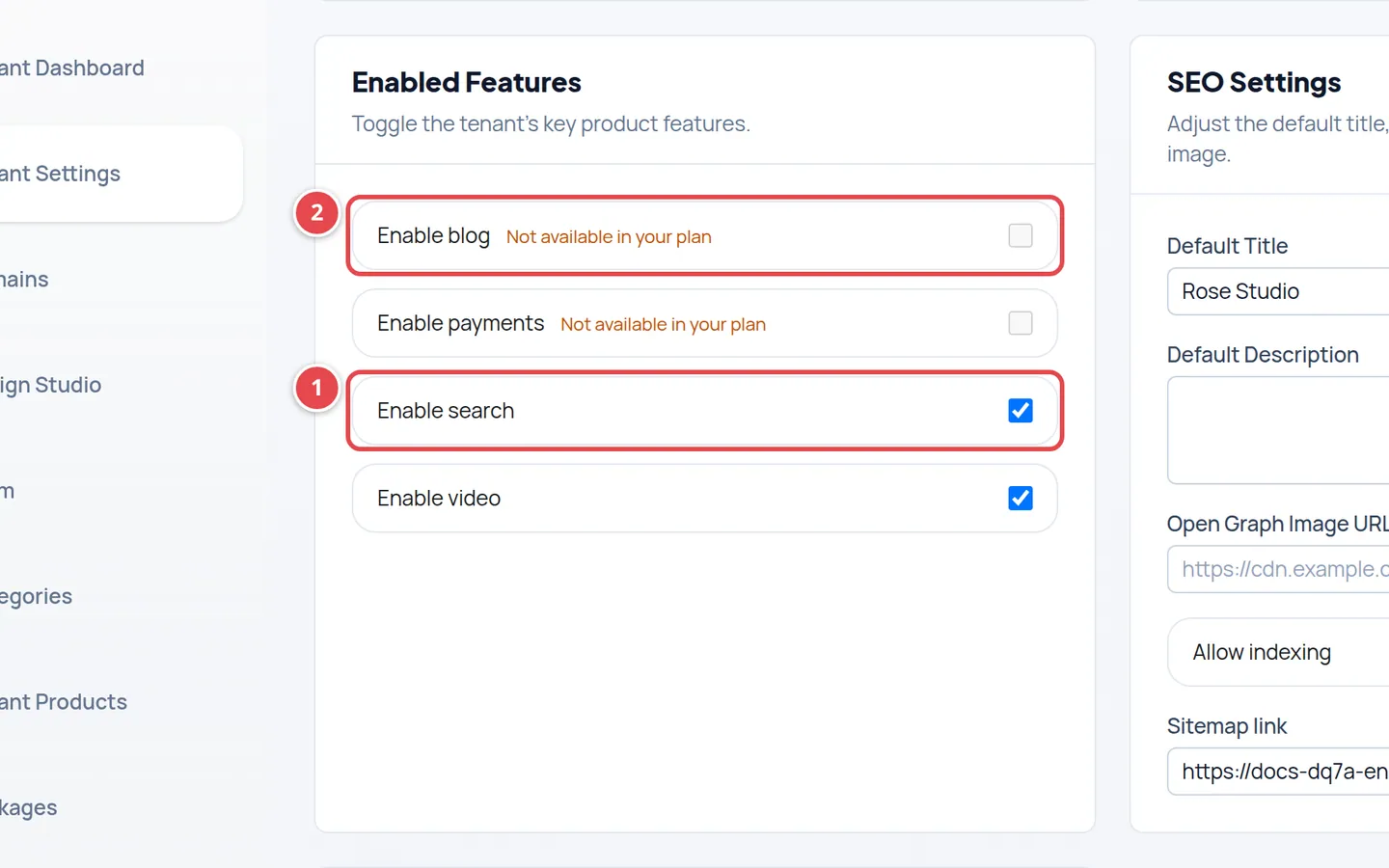
- A feature in your plan: switch it on or off, then save.
- A feature outside your plan: the switch is locked and shows Not available in your plan.
SEO settings and sitemap
In the SEO Settings card you decide how your store appears in search engines and when its link is shared:
| Field | What it means |
|---|---|
| Default Title | Your store title in search results and the browser tab. |
| Default Description | The sentence shown under the title in search results. |
| Open Graph Image URL | The image shown when your store link is shared on social networks. |
| Allow indexing | Lets search engines add your store to their results. |
| Enable sitemap | Creates a sitemap.xml file that helps search engines find your pages. |
With the sitemap on, a Sitemap link appears with a Copy link button, so you can paste it into search-engine tools such as Google Search Console.
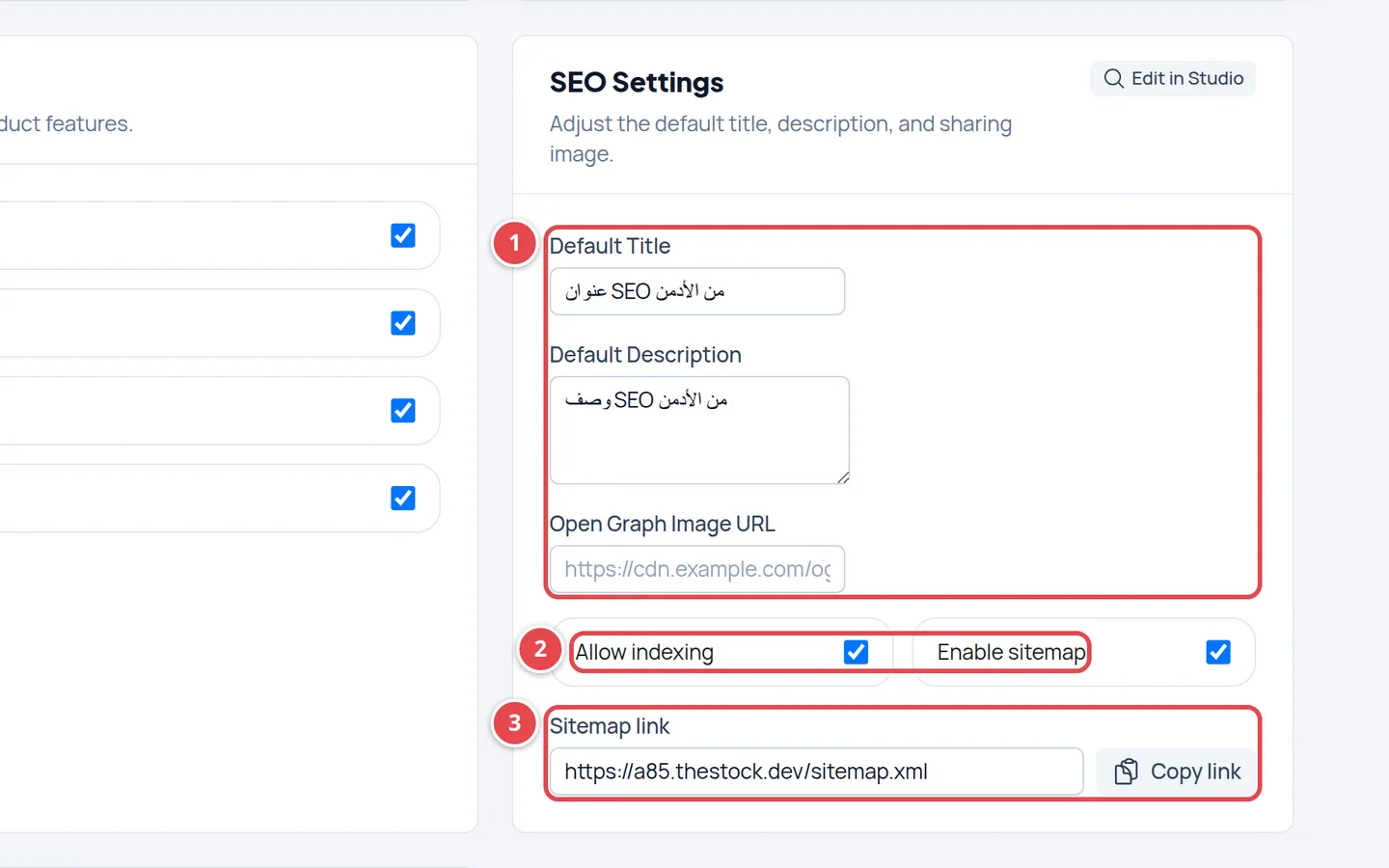
- Title, description and sharing image.
- Allow indexing and Enable sitemap.
- The Sitemap link and the Copy link button.
Connected apps
At the bottom of the page the Connected apps card is for connecting your store dashboard to ChatGPT or Claude, to manage and design your store by chat. AI assistant connection (ChatGPT / Claude) is a paid feature set by your plan, and it is not switched on from this page. The card appears only when your plan includes this feature; if you don't see it, your plan doesn't include it.
| What the card shows | What it means |
|---|---|
| Included in your plan | Your plan includes the feature. The card shows the address to add as a connector in ChatGPT or Claude; you then sign in, choose your store and allow it. The full steps are in Connect your store to ChatGPT or Claude. |
| The list of connections | For each connection: the app, the member, the store, Read only or Can make changes, and Last used. Disconnect stops the assistant at once. The owner sees the whole team's connections and can disconnect any of them; the rest of the team see only their own. |
Editing from the studio
The branding and SEO cards each have an Edit in Studio button. It opens the Design Studio on the same panel, so you see the change on a preview of your store as you edit. What you save there shows here too. See The visual design studio.
I changed the colours and cannot see them on my store.
Colours save as a draft. Open the Design Studio and publish the theme with Publish Theme.
Why is the save button disabled for me?
Your team role is editor or viewer. Ask the owner or an admin to make the change.
I uploaded a new watermark and my older files did not change.
That is expected. The new watermark is stamped only on files you upload after changing it.