
Uploading content
Accepted formats and sizes, the minimum image dimensions, stock versus editorial, and what happens after you upload.
From the Upload Content page you send your photos and videos to the workspace. After the upload, the AI writes their description and keywords and picks their category, then you review them. Nothing is sent to The Stock before you approve it.
Accepted formats and sizes
| Type | Formats | Notes |
|---|---|---|
| Photos | JPG, PNG and TIFF | Have a minimum size (see below). Up to 100MB per photo. A TIFF must be a single layer (one page); it is converted to JPEG for display and the original is kept. |
| Vector | EPS | Appears among the Images cards with a Vector (EPS) badge. No minimum size. Up to 100MB. If the file version or bounding box looks unusual, a warning appears; it does not block the upload. |
| Video | MP4 and MOV | Between 5 and 60 seconds and at least 1280×720. The system takes frames from the video so the AI can describe it. |
| Archive | ZIP only | Its photos (JPG and PNG) and videos (MP4 and MOV) are extracted; any other files inside are ignored. EPS files inside a ZIP are not processed: upload them separately. |
Maximum file sizes: video 10GB, image 100MB, EPS 100MB. Large files are uploaded in parts, so a short drop in your connection is fine; the system retries the part automatically.
The minimum image size
Stock photos (JPG and PNG) have a minimum size set by the platform team, currently 2000×2000 pixels. A smaller photo is refused before it is uploaded, and a message appears under its name, such as: The image is 1600×1200 pixels, below the minimum of 2000×2000 pixels. Upload a larger version.
Editorial content and EPS files have no minimum. Photos inside a ZIP file are checked after they are extracted, before the AI describes them. A photo below the minimum gets a card with empty fields and a notice with its size, and it cannot be approved as a stock photo: delete it and upload a larger version, or make it Editorial.
Stock or editorial?
| Option | When to use it |
|---|---|
| Stock content | Photos and videos published as stock content, filed under the photo or video categories. This is the default. |
| Editorial | News content that documents an event or a story. It is filed under the editorial categories, and you can link it to an event or collection when reviewing. |
Your choice applies to every file in the batch you upload after it. You can change any file’s type later on its review card. The difference is explained in Content and rights rules.
Uploading, step by step
Open the upload page
In the menu press Upload, or Upload New Content on your dashboard.
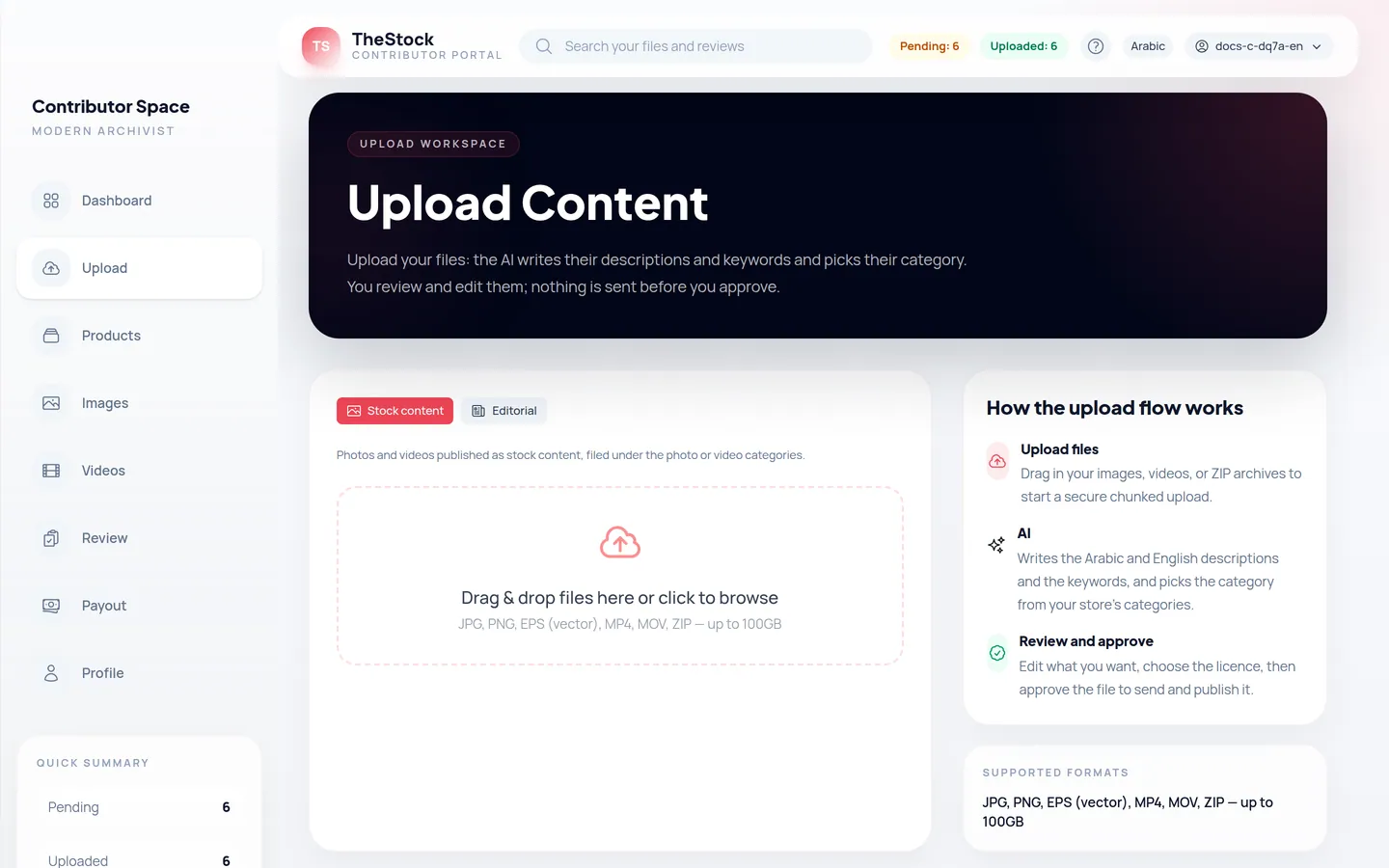
Choose the content type
Press Stock content or Editorial.
Add your files
Drag files onto the area that says Drag & drop files here or click to browse, or click it to choose from your device. You can pick several files at once.
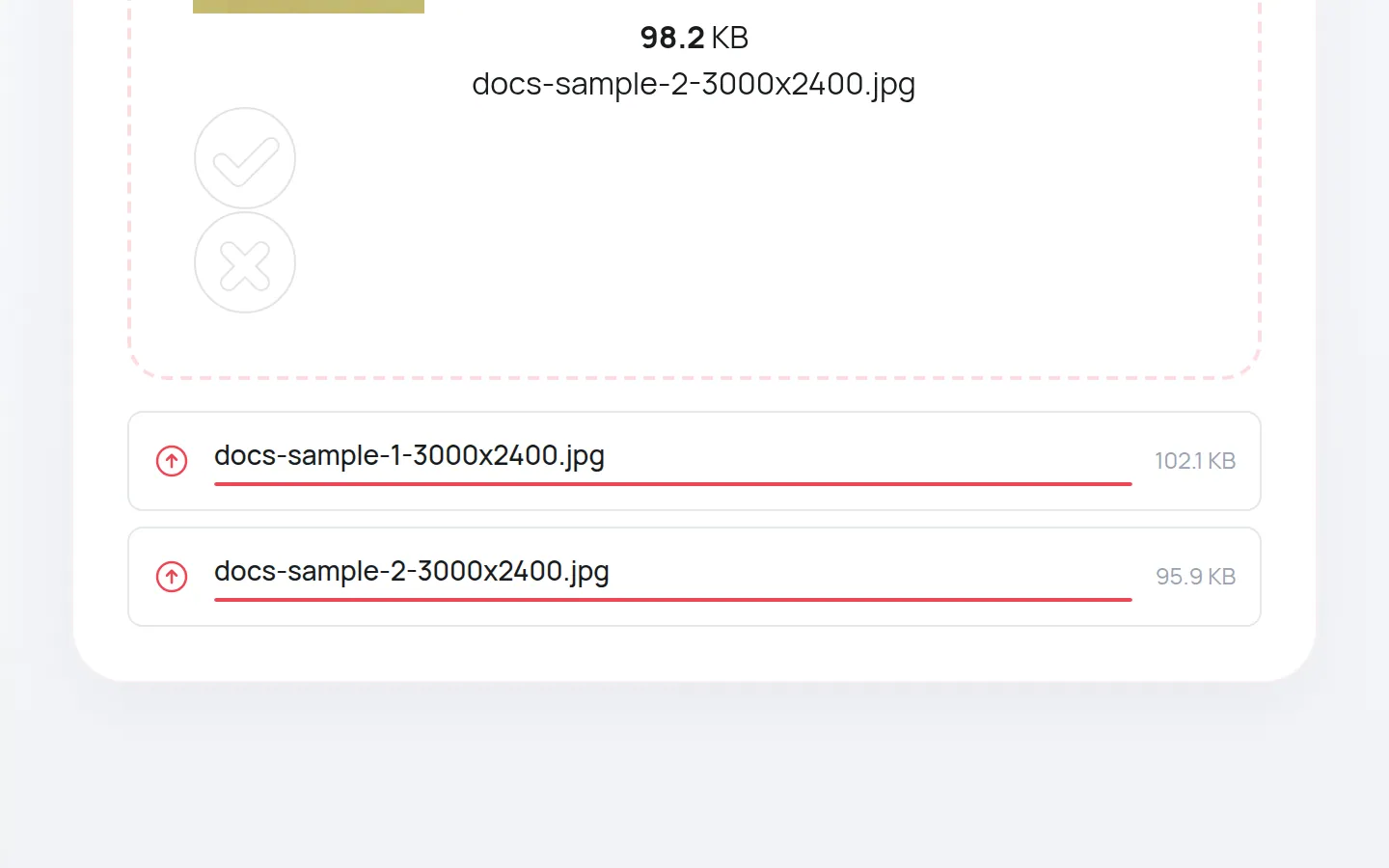
Follow the progress
Each file appears in a list with a progress bar and its size. If a file is refused, a message under it says why. Keep the page open until the upload finishes.
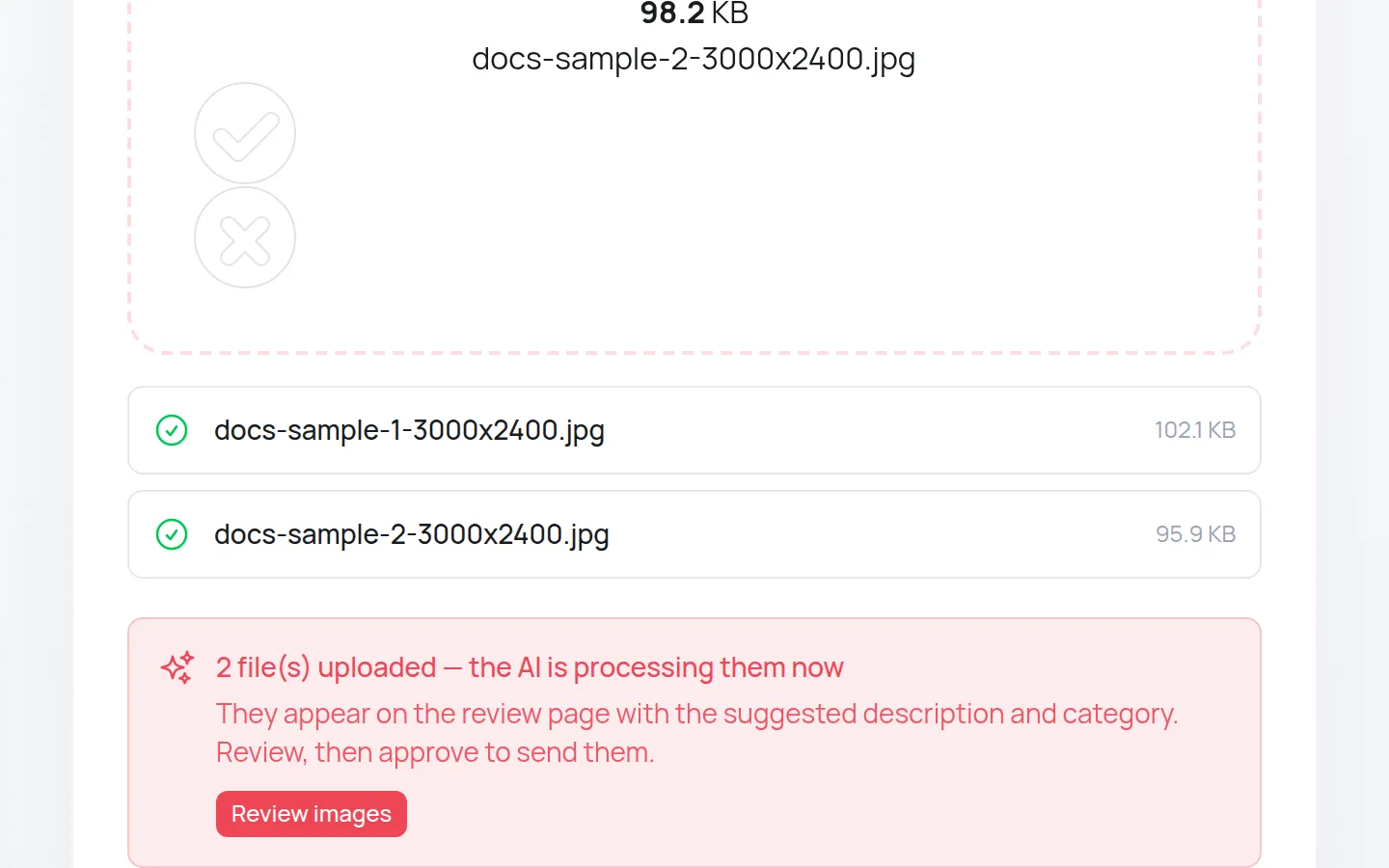
Go to review
When it is done you see 3 file(s) uploaded — the AI is processing them now with a Review images or Review videos button.
What happens after you upload?
The system prepares the display versions, then the AI writes the Arabic and English descriptions and the keywords and picks the category. This usually takes moments for a photo, a little longer for a video.
You then find the file on the Images or Videos page as Ready for review. Review and approve it as described in Reviewing the AI text and submitting.
How many files can I upload at once?
There is no limit on the number of files. Two upload at the same time and the rest wait their turn automatically.
I uploaded a file by mistake. What do I do?
No problem, nothing is sent before you approve it. Delete it from its card on the Images or Videos page with the delete button.
Why was my photo refused as soon as I chose it?
Usually because it is smaller than the minimum size, or its format is not accepted. Read the message under the file name.