
Tracking your content
Following your files on the review and products pages, what each state means, and the emails you receive.
You follow your files on two pages. The Review page shows each file’s stage inside the workspace until it reaches The Stock. The Products page shows the platform team’s decision after that, and whether the file is on sale.
The review page
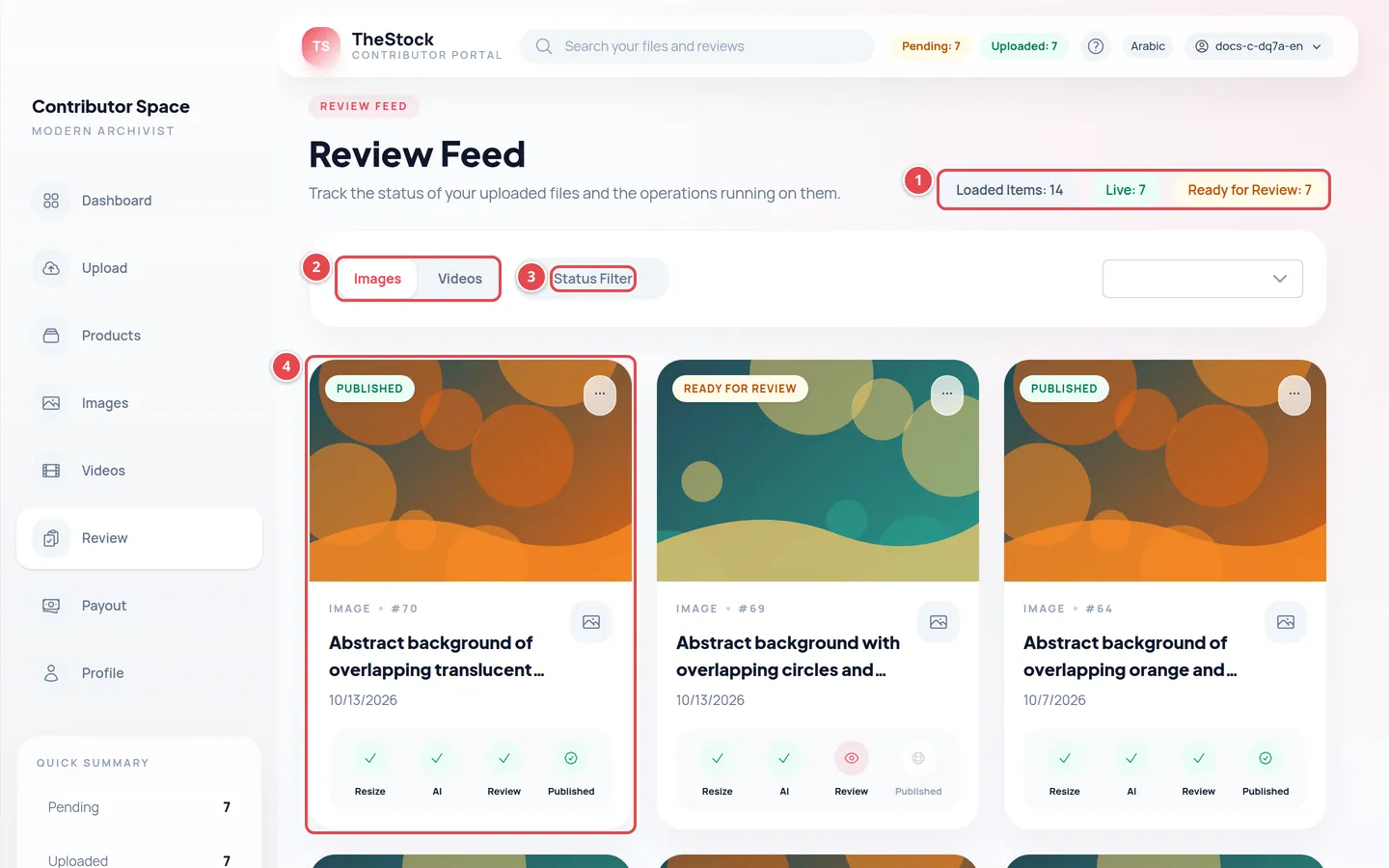
- The counters: Loaded Items, Live and Ready for Review.
- The Images and Videos tabs.
- The Status Filter.
- A file card with its state badge.
Choose Images or Videos, then narrow the list with the Status Filter: All Statuses, Pending (files you have not approved yet) or Submitted (files you approved). More cards load as you scroll down.
| Card badge | Meaning |
|---|---|
| Pending | The file was uploaded and is waiting to be prepared. |
| Processing | The file is being prepared and its details written. |
| Ready for Review | The details are ready; review and approve them on the Images or Videos page. |
| Submitted | You approved it and it is on its way to The Stock. |
| Published | It reached The Stock. The platform team’s decision shows on the Products page. |
| Deleted | The file was deleted and will not be sent. |
The products page
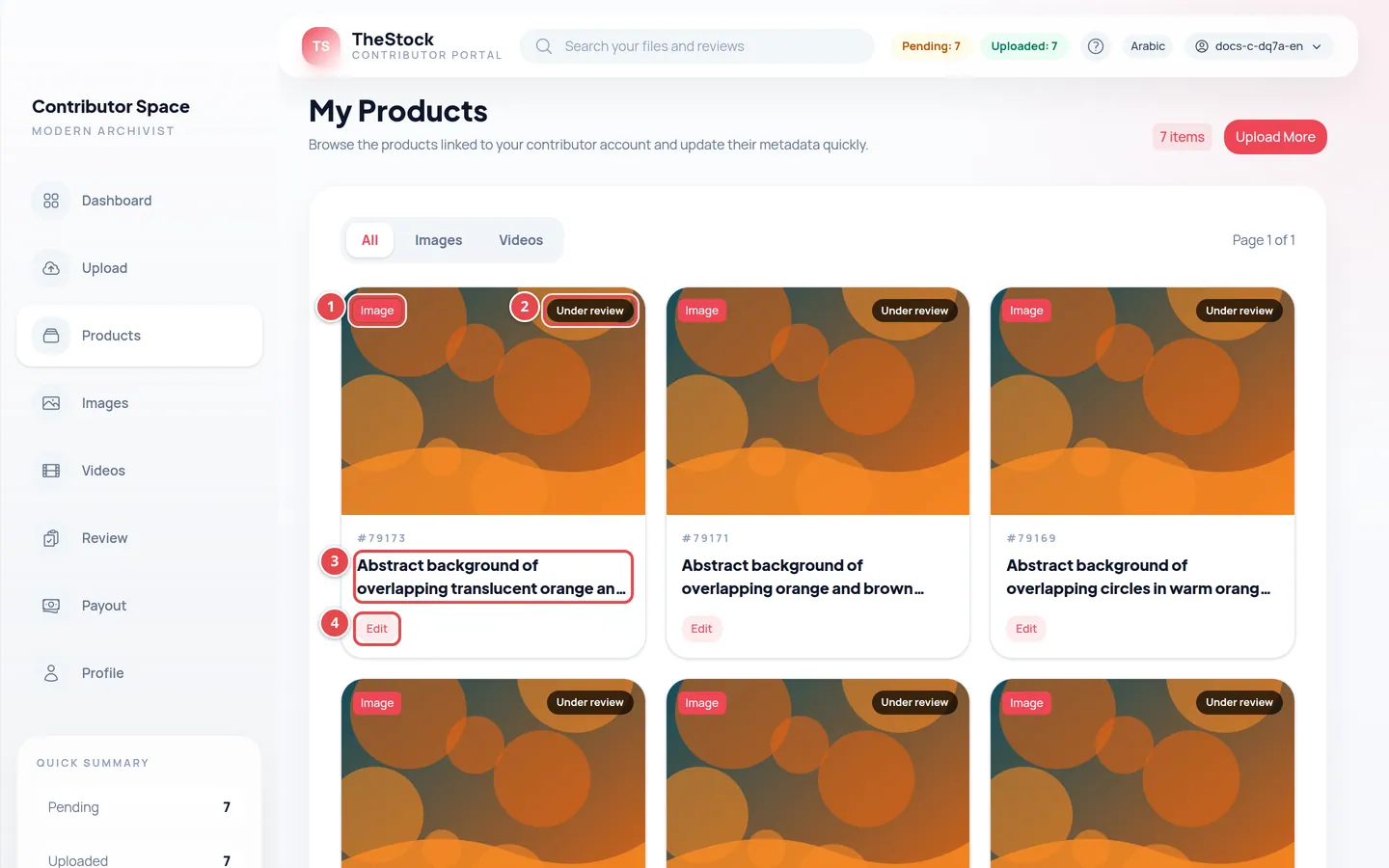
- The product type: Image or Video.
- The product status.
- The description.
- The Edit button.
In My Products you find every file you sent to The Stock, with its current status:
| Status | Meaning |
|---|---|
| Under review | The platform team is reviewing the product. Every new product shows this until the team decides. |
| Accepted | The platform team approved it, and the product is on sale. |
| Rejected | The product was not approved. You get the reason by email. |
| Suspended | The product was accepted, then the platform team took it off display. |
| The file is not supported | The platform cannot convert this video format for display yet, so it is not on sale. The product is not rejected: the platform team is adding support for the format, and the product goes on display once it is done. You do not need to upload it again. |
If the platform’s data is briefly unavailable, the page shows the workspace states instead: Awaiting your approval, Submitted for publishing or Deleted. Reload the page a little later.
Editing a product’s description
Open the editor
Press Edit on the product card. The Edit Product window opens.
Change the details
Change the Arabic Description, the English Description or the Attachment URL.
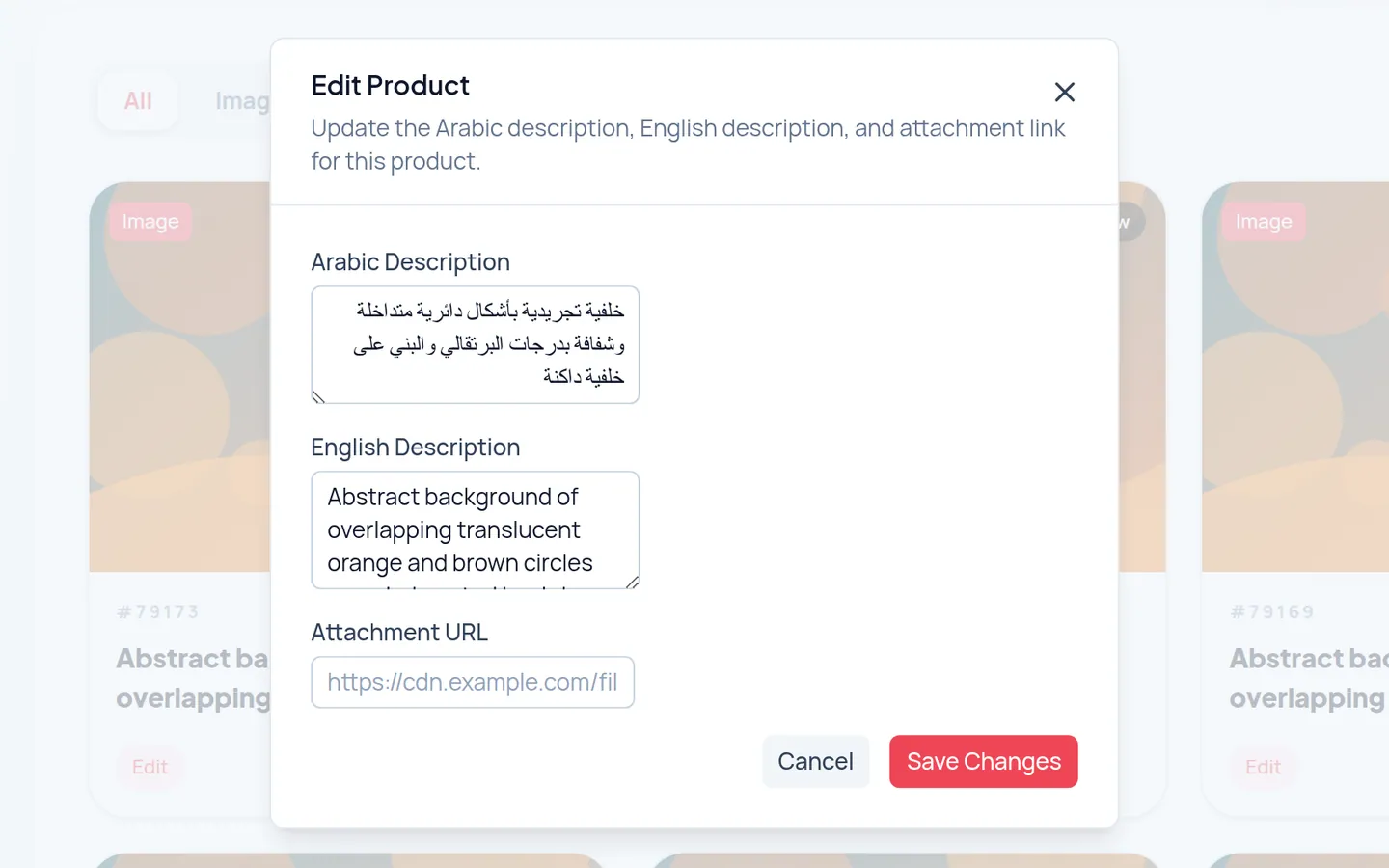
Save
Press Save Changes. You see Product updated successfully.
The emails you receive
| When | What the email says |
|---|---|
| When your file reaches The Stock | Confirmation that the product was received and is waiting for review. |
| When the product is approved | The product name and its link in the store. |
| When the product is rejected | The product name and the reason the platform team wrote. |
| When your product is bought | The product name, the order number and how much you earned from the sale. |
My product is “Accepted” but I cannot find it in the store. Why?
It can take a little while to show up in search after approval. And if it was sold under an exclusive (RM) licence, it is withdrawn from sale for good.
My product was rejected. Can I send it again?
Read the reason in the email. If the problem can be fixed, upload an improved version of the file, review it and approve it again.