
Your dashboard
What your dashboard figures mean: total earnings, balance due, live assets, and your files’ processing stages.
The Dashboard is the first page you see after signing in. It gives you a quick view of your earnings and of where each file is in the workflow, and its figures refresh automatically every 30 seconds.
The side menu
| Item | What you find there |
|---|---|
| Dashboard | This page. |
| Upload | Upload new photos and videos. See Uploading content. |
| Products | Your files after they are sent to The Stock, and the status of each. See Tracking your content. |
| Images and Videos | The review cards: edit what the AI wrote, then approve. See Reviewing the AI text and submitting. |
| Review | All your files and the stage each one is at, with a filter. |
| Payout | Your earnings and how you receive them. See Earnings and payouts. |
| Profile | Display name, bio and images. See Profile and public name. |
The top of the page
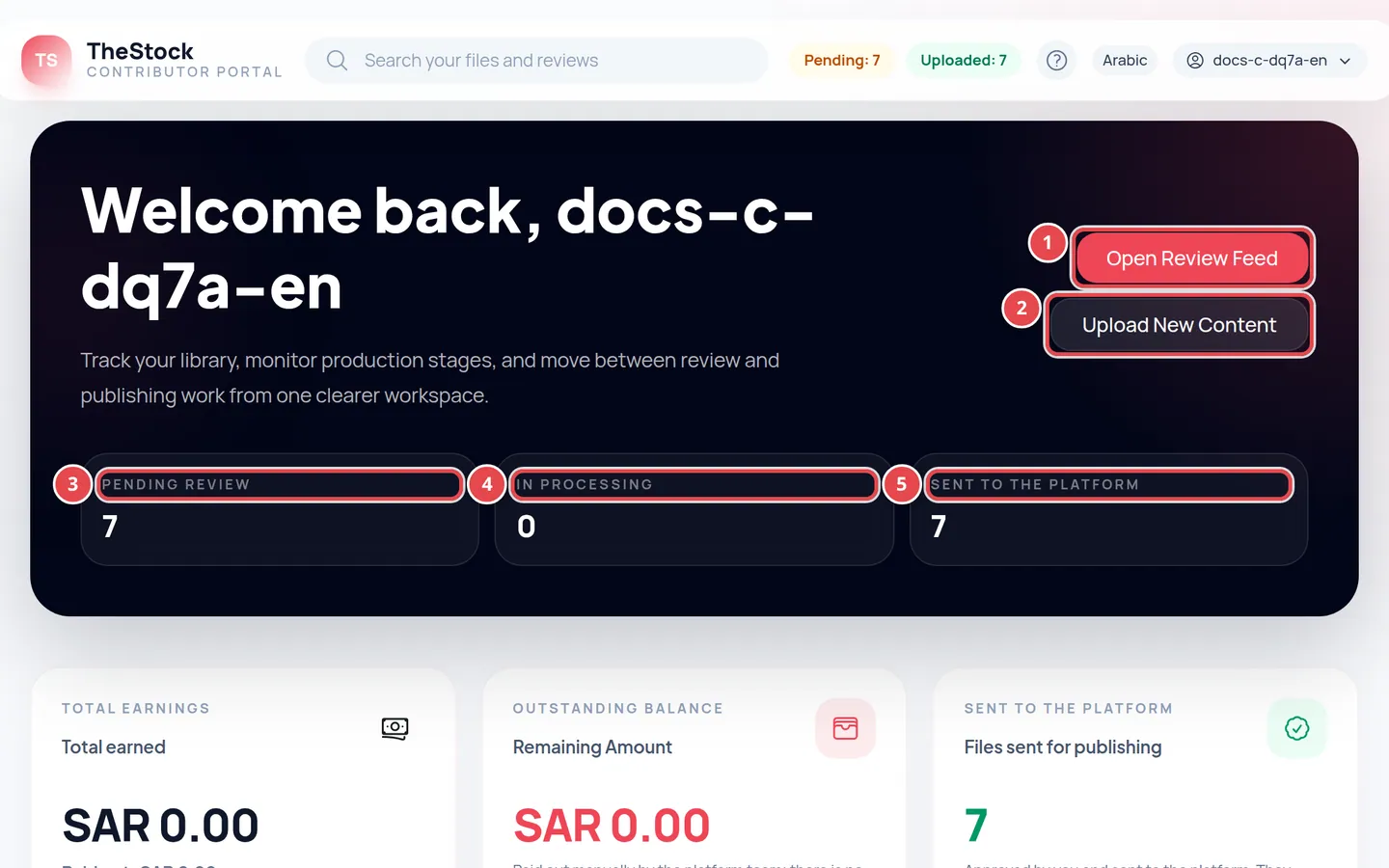
- Open Review Feed: opens the review page.
- Upload New Content: opens the upload page.
- Pending Review: files that are ready and waiting for you to review and approve them.
- In Processing: files being prepared, or whose details the AI is writing.
- Sent to the platform: files you approved that were sent to The Stock, including files the platform team is still reviewing.
The earnings and assets cards
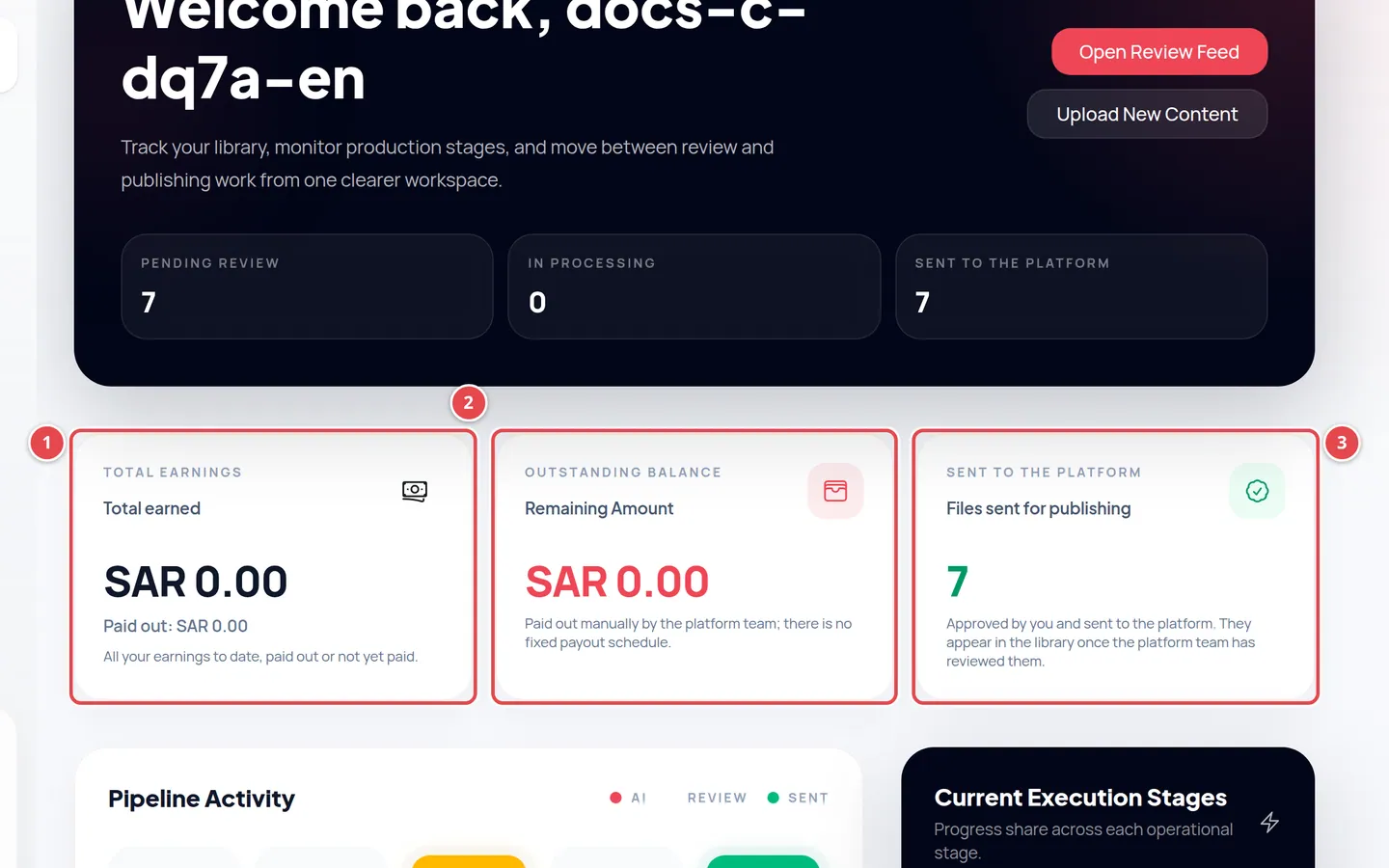
- Total Earnings: everything you have earned from your sales since you joined, in riyals, with the amount already paid out under it.
- Outstanding Balance: what has not been transferred to you yet.
- Sent to the platform: the number of Files sent for publishing.
Both figures are the same as on the Payout page. While they load you see “—”, and if they cannot be loaded you see Could not load your earnings. See the Payout page or try again later. under them.
The platform team transfers your Outstanding Balance to you manually, and there is no fixed payout date. You find the full breakdown (total, unpaid and paid) on the Payout page.
Processing stages
Every file you upload goes through the stages in order. The Pipeline Activity chart shows how many of your files are at each stage:
| Stage | What happens there |
|---|---|
| Resize | The display versions of your file are prepared. |
| AI | The description and keywords are written and the category is picked. |
| Review | The file is ready and waiting for you to review and approve it. |
| Upload | You approved it and it is on its way to The Stock. |
| Sent | It has reached The Stock (the platform team may still be reviewing it). |
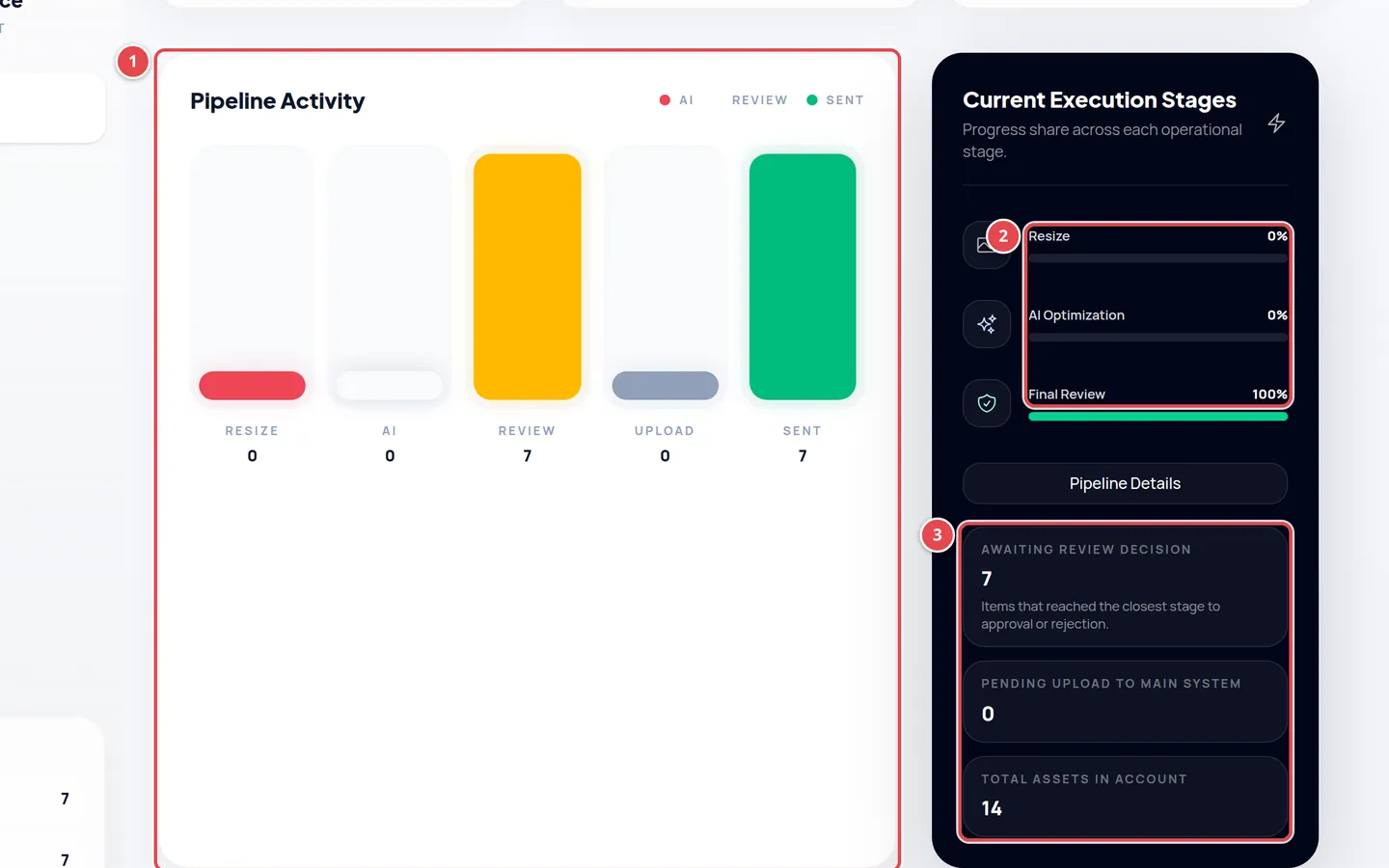
- How many files are at each stage.
- The share of in-progress files at Resize, AI Optimization and Final Review.
- Awaiting review decision, Pending upload to main system and Total assets in account.
Quick actions
At the bottom of the page, three cards take you straight to what you need most: Upload New Files, Edit Images and Review Content.
Why does a file stay “In Processing” for a long time?
Videos and large files take longer. If processing fails, the file’s card shows Processing failed with a Retry processing button.
When is my balance transferred?
The platform team transfers it manually, with no fixed date. Add your bank account or PayPal first on the Payout page.