
Signing in to the workspace for the first time
The workspace address, setting your password, signing in with email, password and code, and choosing a workspace.
Congratulations on being approved! From now on you manage your work from the workspace, your contributor workspace. This article takes you from the approval email to your first sign-in.
When your request is approved you receive an email titled Your contributor request was approved — set your password. It has three links: one to set your password, one to sign in to the workspace, and one to this guide.
The workspace address
The workspace address is workspace.thestock.sa. The easiest way in is the sign-in link in your approval email. Bookmark the page so you can come back quickly.
Step 1: Set your password
You did not choose a password when you registered, and the workspace needs one. So your first sign-in starts by setting it.
Open the set-password link
Click the link in your approval email. The Password Recovery page opens on the Verify Code step, with your email and code already filled in.
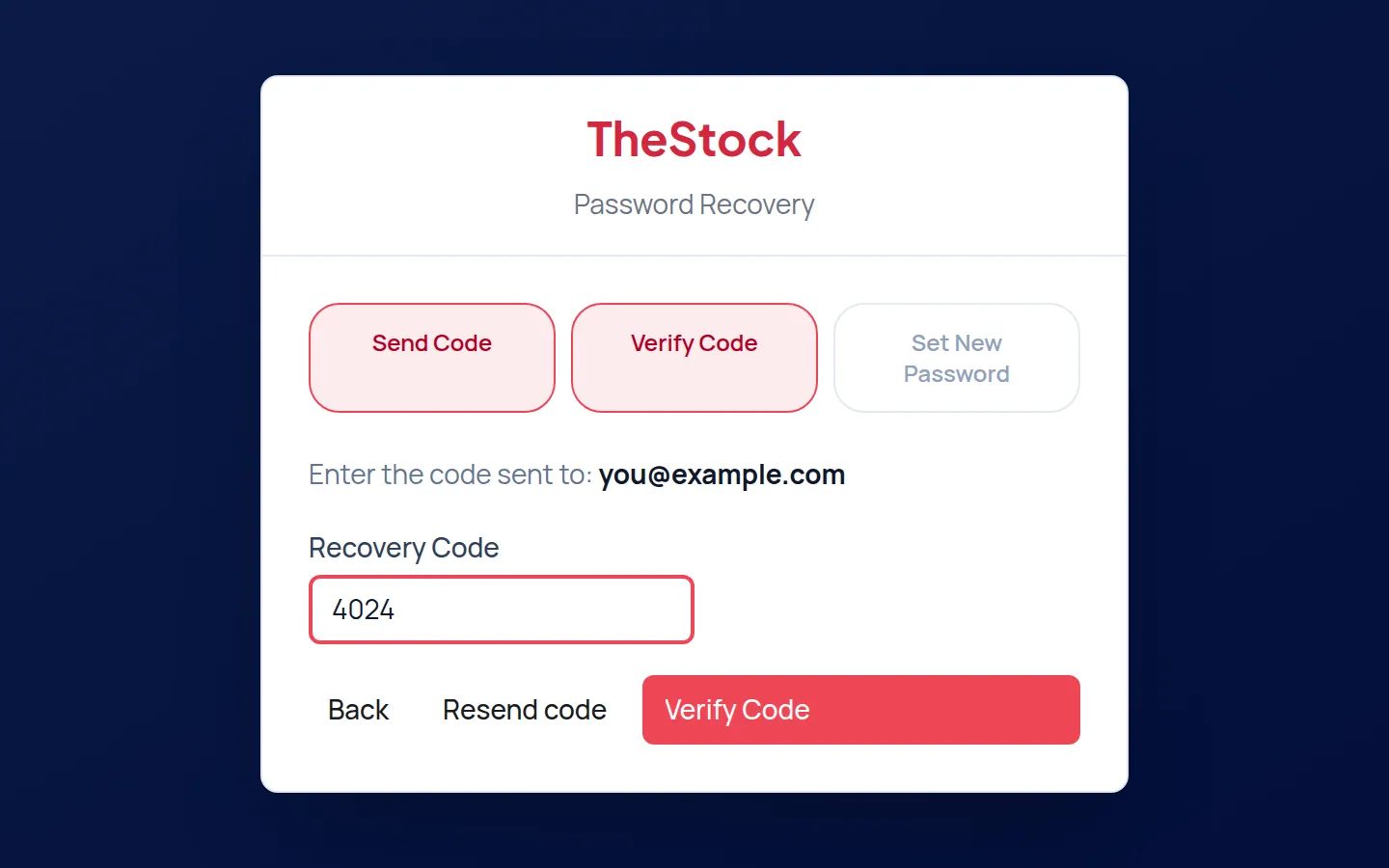
Press “Verify Code”
Press Verify Code. You see Recovery code verified successfully. and move on to the Set New Password step.
Choose your password
Type it in New Password and again in Confirm Password, then press Update Password. It must be 8 to 64 characters long, with at least one letter and one number.
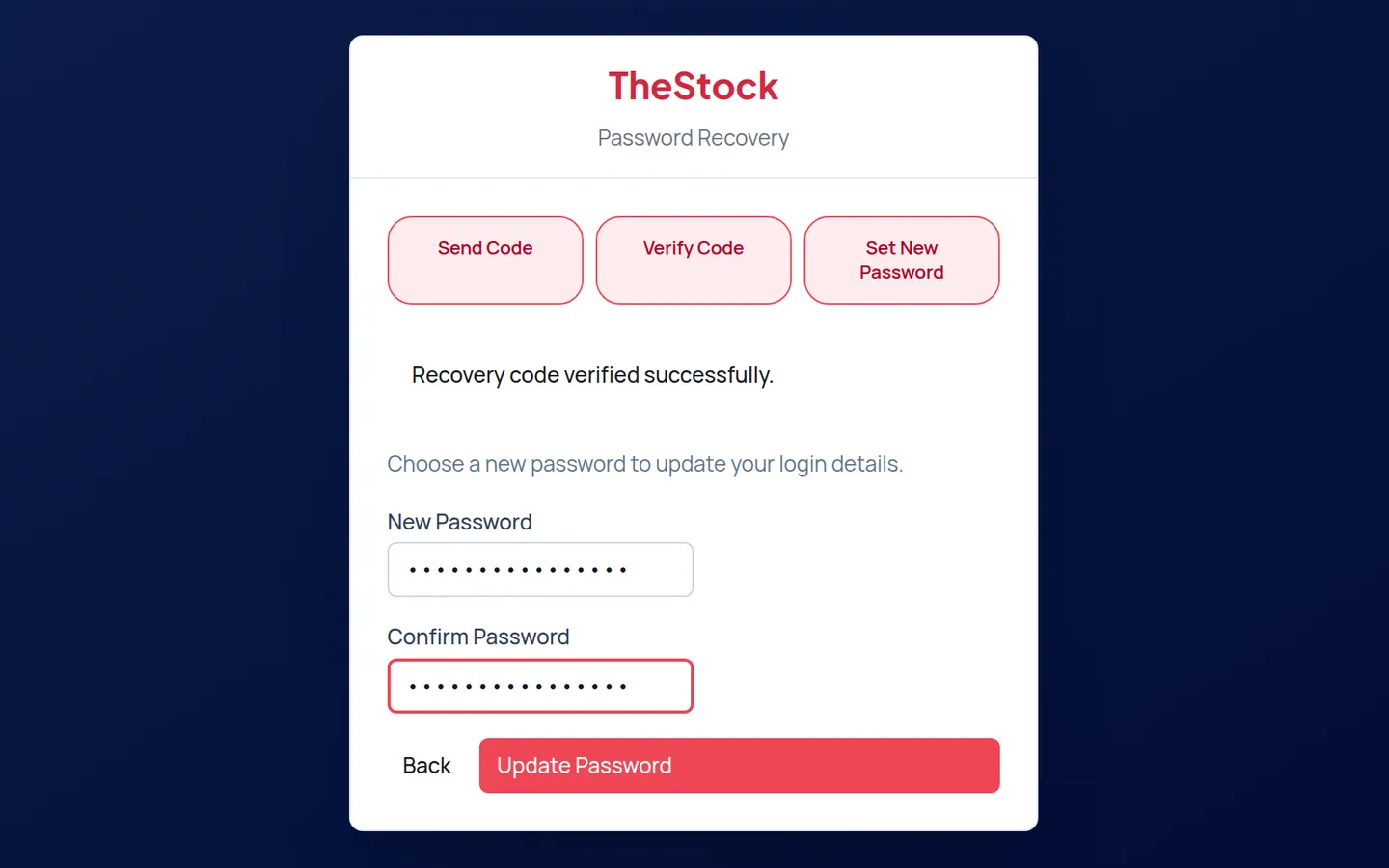
Go to sign-in
You see Your password has been updated. You can sign in now. Press Back to sign in.
Step 2: Sign in
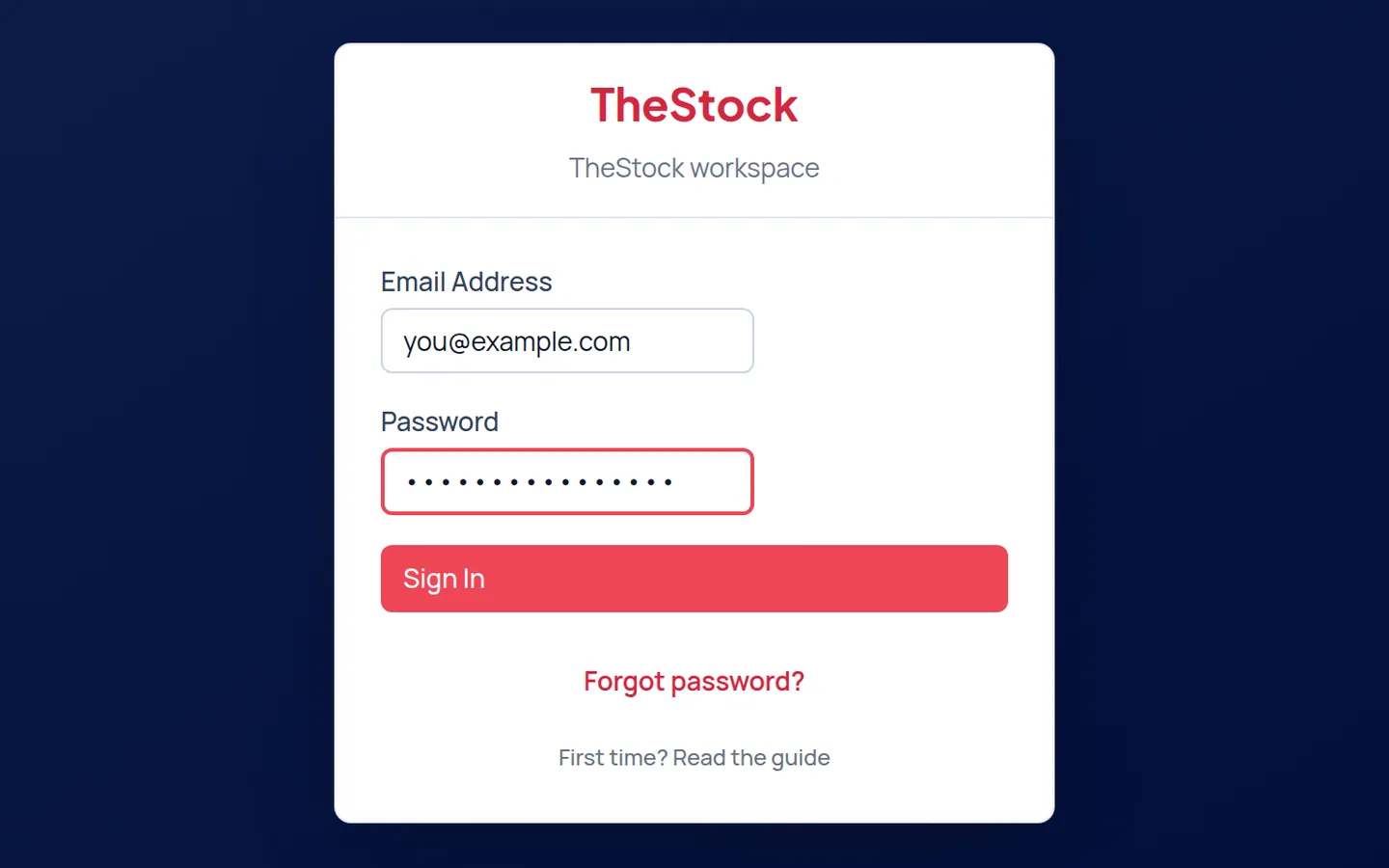
Enter your email and password
On the TheStock workspace page, type your Email Address and Password, then press Sign In.
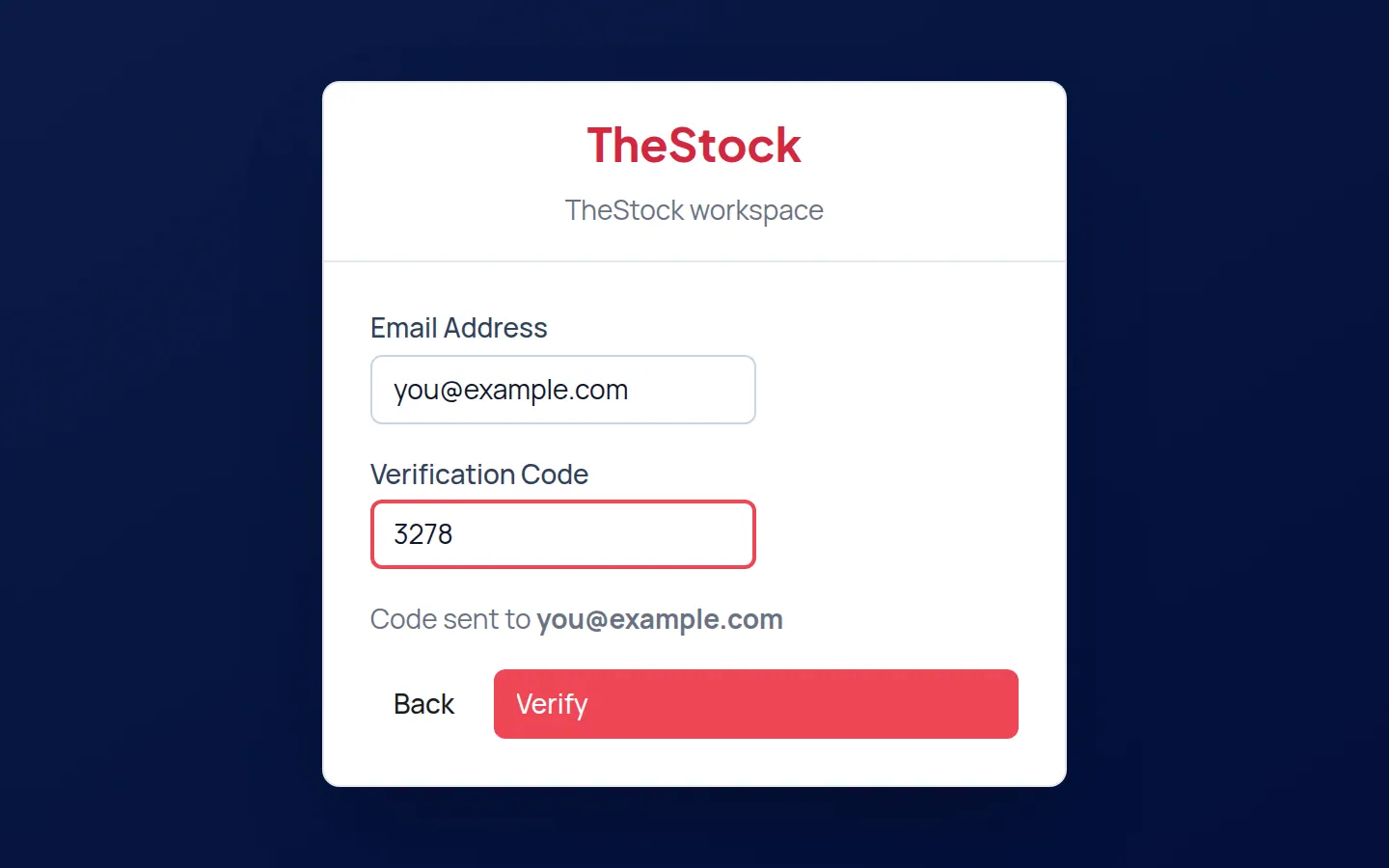
Enter the verification code
A Verification Code arrives in your inbox, and the page shows Code sent to with your email. Type the code and press Verify.
Start working
Your Dashboard opens. See Your dashboard for what its figures mean.
If you see “Choose a workspace”
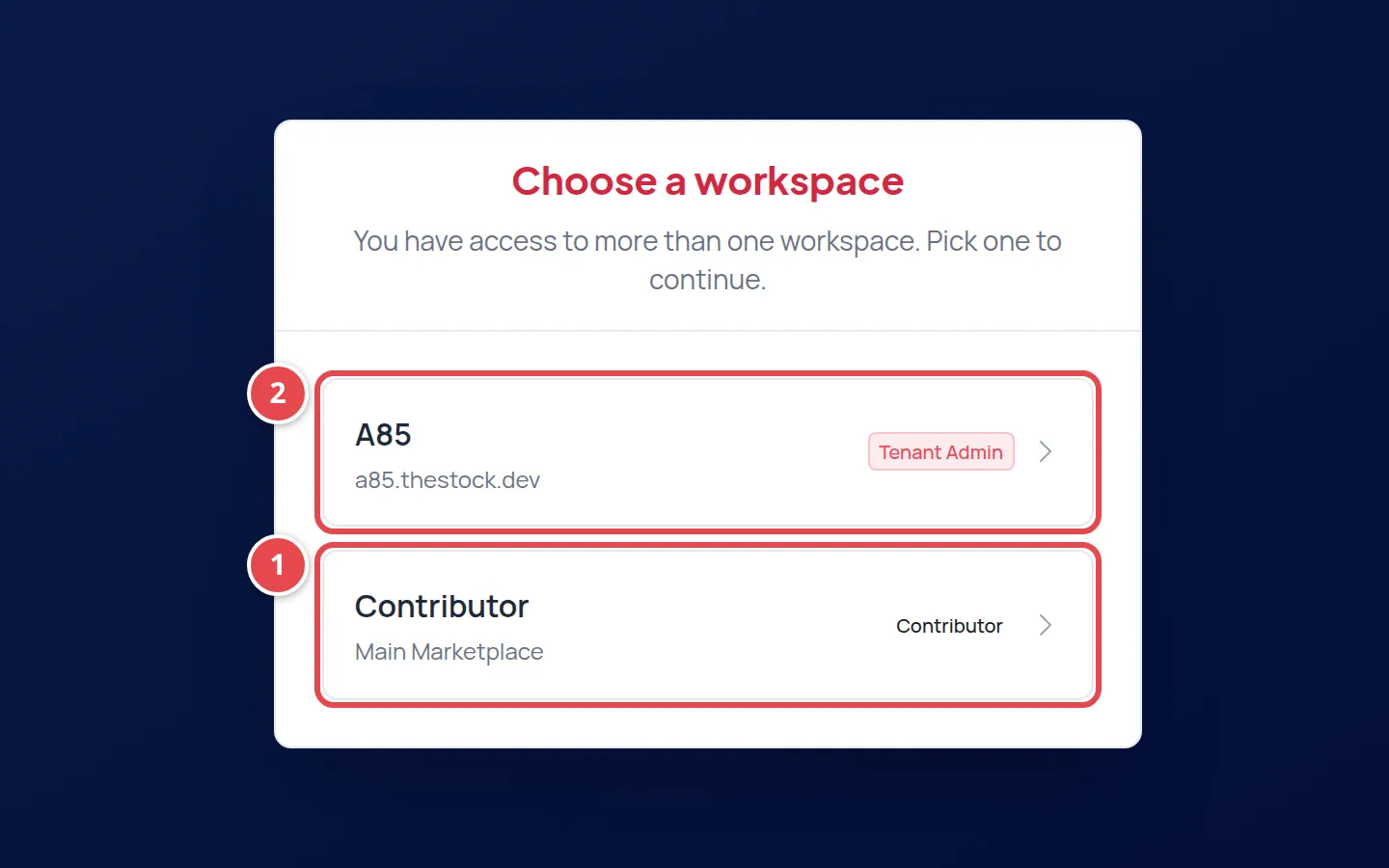
- The Contributor card (Main Marketplace): your contributor workspace.
- A card for a store you run or whose team you belong to.
If you own a store on The Stock or belong to a store’s team, you see the Choose a workspace page. Pick the Contributor card to reach the contributor pages. We remember your choice, so your next sign-in opens that workspace directly, unless it is no longer available to your account.
Forgot your password, or the link expired
Open “Forgot password?”
On the sign-in page press Forgot password?.
Send the code
Type your email and press Send Recovery Code. You see A recovery code has been sent if the account is eligible.
Verify the code
Type the code you received in Recovery Code and press Verify Code.
Set a new password
Type your New Password and confirm it, then press Update Password and sign in.
The “does not have access” message
If you see This account does not have access to the workspace., your account is not a contributor account yet. Most likely your request has not been approved, or you are signing in with a different email from the one you registered with. Check your application as described in Your application states.
I did not get the approval email. What do I do?
Check your spam folder, then your application status on the main store. If it says you are approved, use Forgot password to set your password.
I see “Too many attempts”. What do I do?
Wait for the time shown in the message, then try again.
Are email and password enough?
No. A verification code is sent to your email at every sign-in, to protect your account and your earnings.