
Registering as a new contributor
The registration form and verification code, uploading samples, your application states, and what to do if it is rejected.
You register as a contributor on The Stock main store, not in the workspace. You create an account, confirm your email with a verification code, then send samples of your work for the platform team to review.
You do not need a password at this stage. You set one after your request is approved, from the link in the email you receive.
Step 1: The registration form
Open the registration page
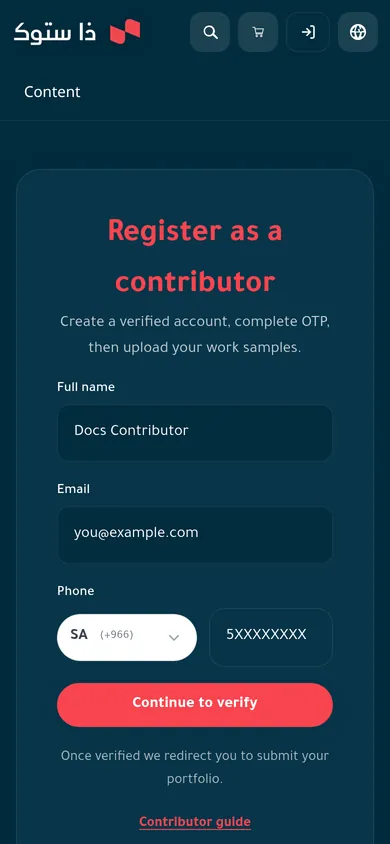
Open the Register as a contributor page on the main store (path /contributor/register).
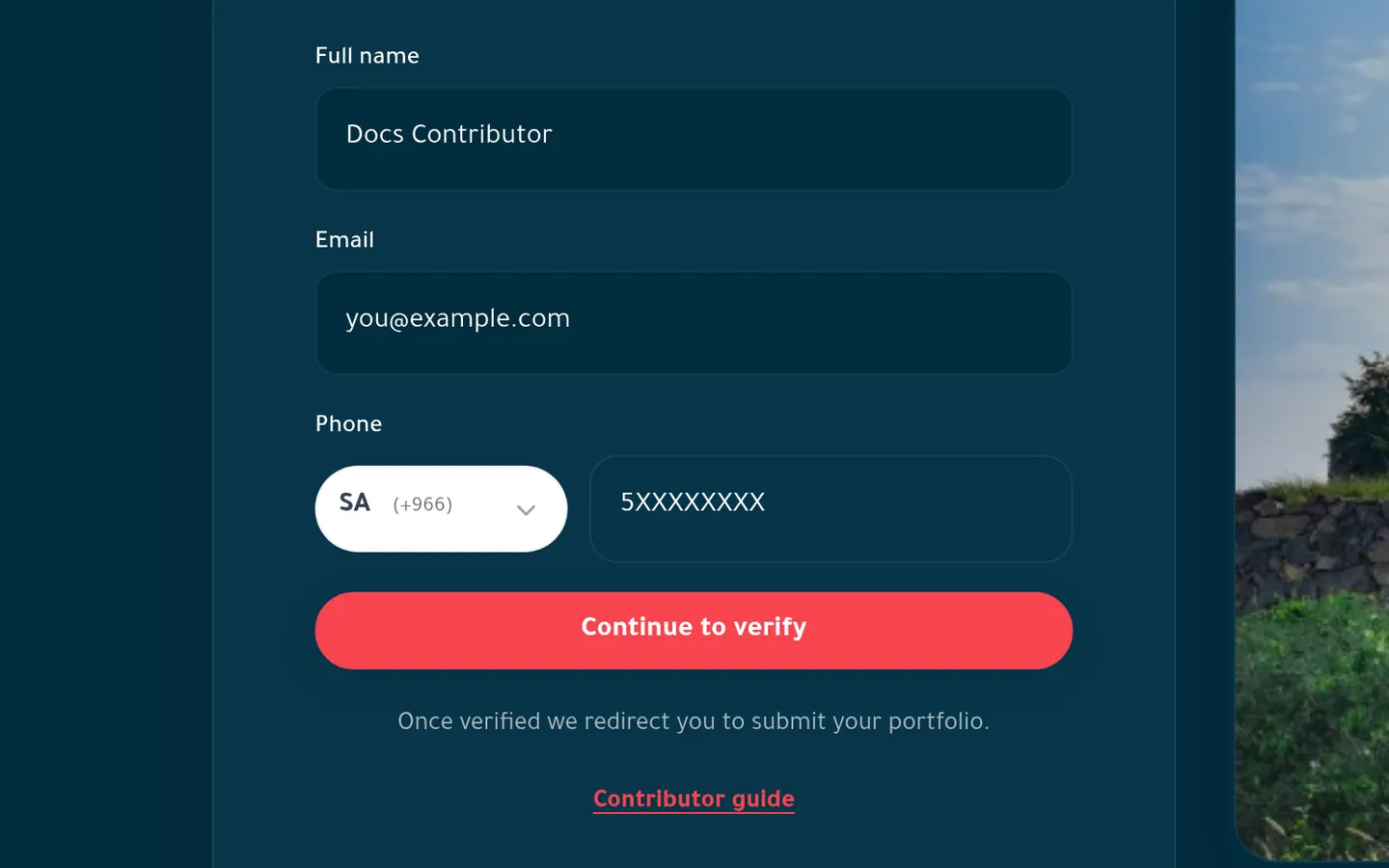
Enter your full name
In the Full name field. It must be at least 3 characters.
Enter your email
In the Email field. Your verification code and every message about your request go there, so use an address you check.
Enter your phone number
In the Phone field. Choose the country code from the list (Saudi Arabia by default) and type your number.
Press “Continue to verify”
Press Continue to verify to send the verification code to your email.
Step 2: The verification code
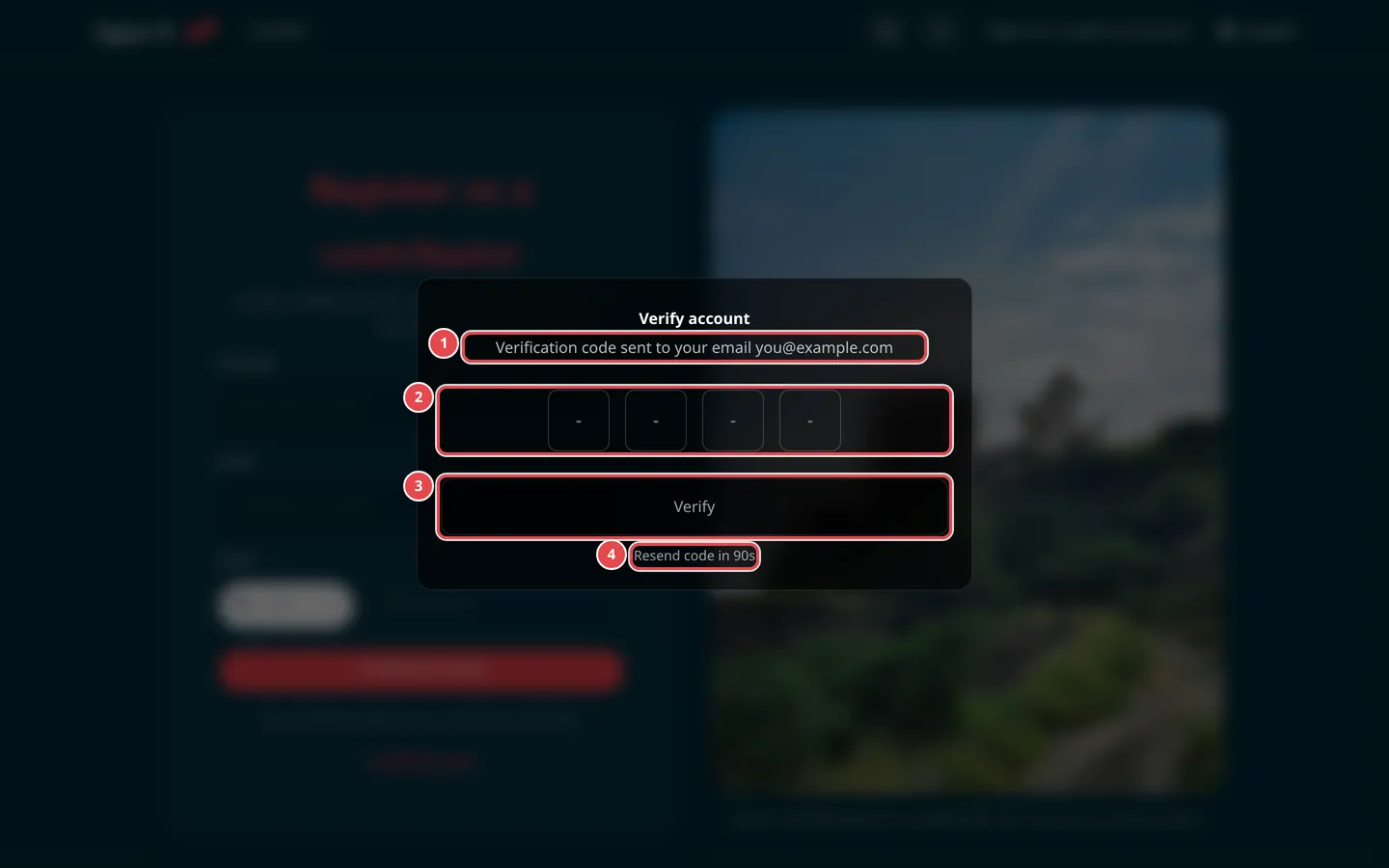
- The email the code was sent to.
- The code boxes.
- The Verify button.
- Resend code once the countdown ends.
The Verify account window opens with the message Verification code sent to your email. Type the code you received and press Verify. If it does not arrive, wait for the countdown to end, press Resend code, and check your spam folder.
Step 3: Send your work samples
After verifying you go automatically to the Upload your work sample page. This is where you send the photos the platform team judges your work by, so pick your best.
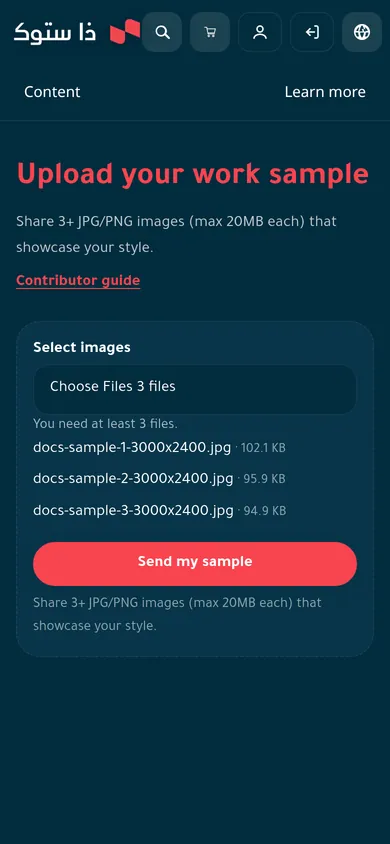
Select your images
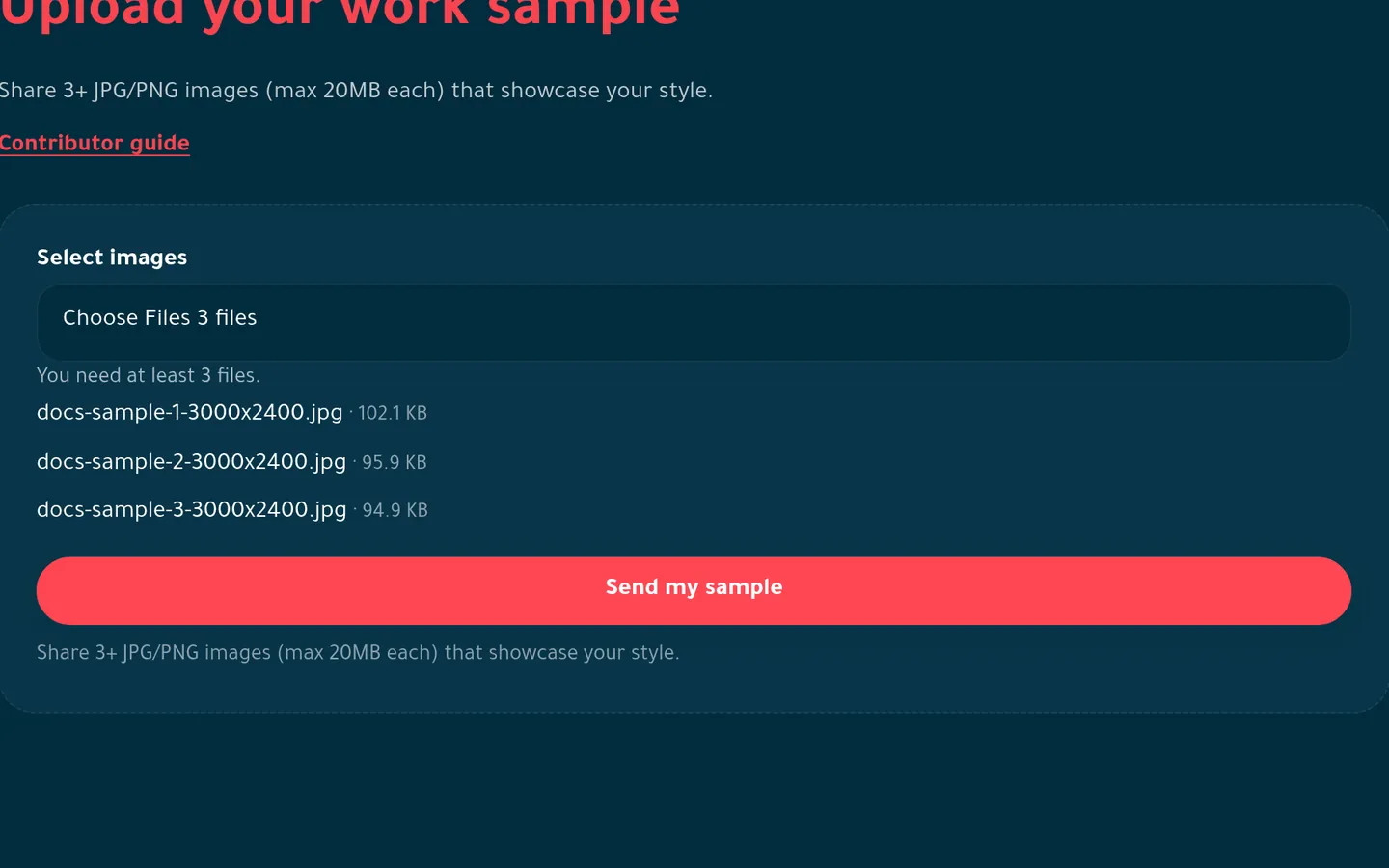
Press Select images and choose at least 3 photos. Only JPG and PNG are accepted, each up to 20MB.
Check the list
File names and sizes appear under the field. A file that is not accepted is left out and a message says why.
Press “Send my sample”
The button turns on once 3 accepted photos are chosen. After sending you see Sample received. We will review your request shortly. and an email confirms we received your request.
If your account has no name yet, the page first asks for your Full name (at least 3 characters), then completes the upload.
Your application states
You see your application on the same page under Request status, with the Submitted on date. Come back to it any time after signing in.
| What you see | What it means | The email you get |
|---|---|---|
| Your request is under review | The platform team is reviewing your samples. You cannot send another request now. | Confirmation that your request was received. |
| You are already a contributor | Your request was approved and your account is now a contributor account. | The approval email, with a link to set your password and the workspace sign-in link. |
| Your request was rejected | The request was not approved. The reason appears under the status, with the message Previous request was rejected. You can submit new samples. | The rejection email, with the reason the platform team wrote. |
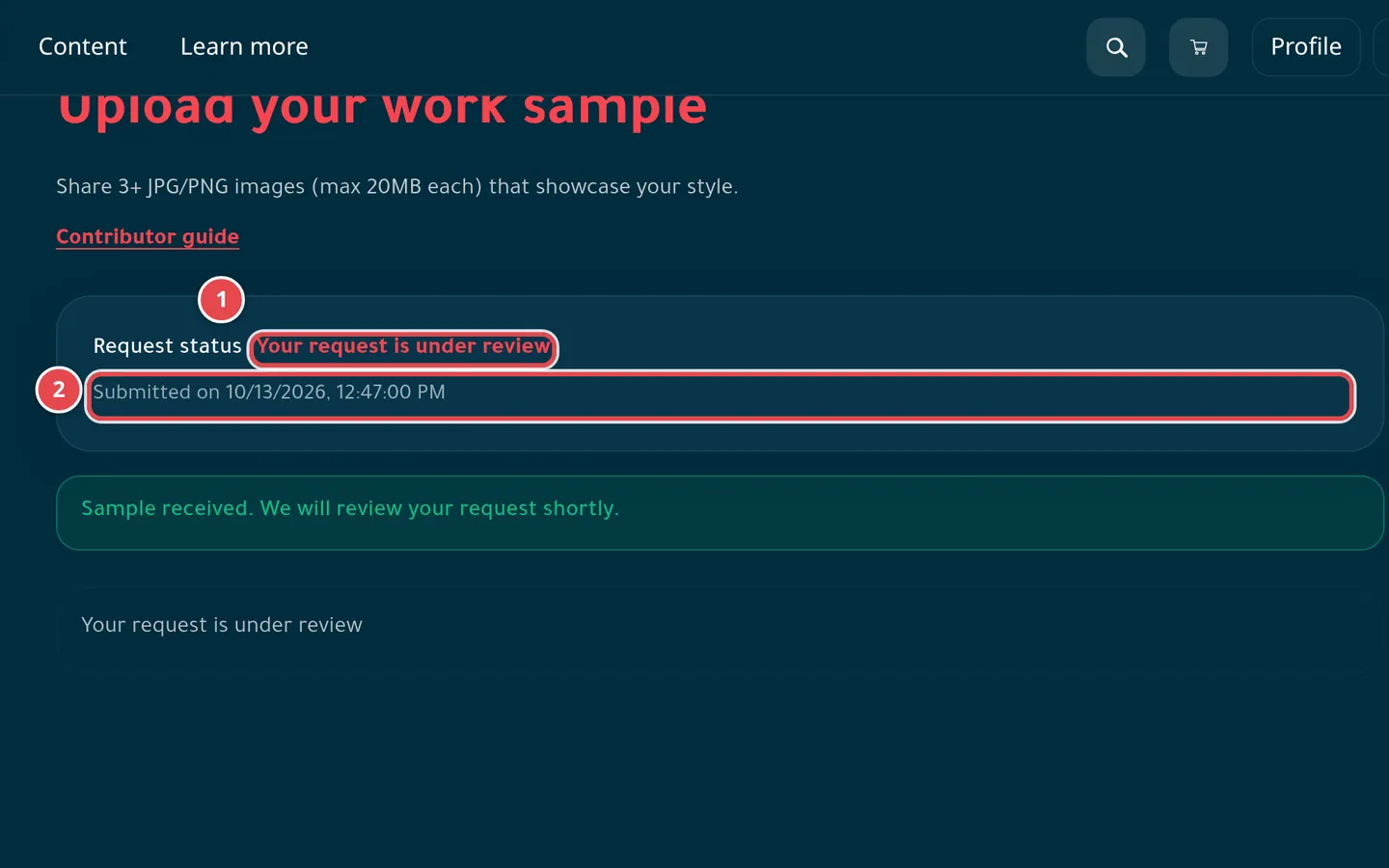
- The current Request status.
- The Submitted on date.
If your request is rejected
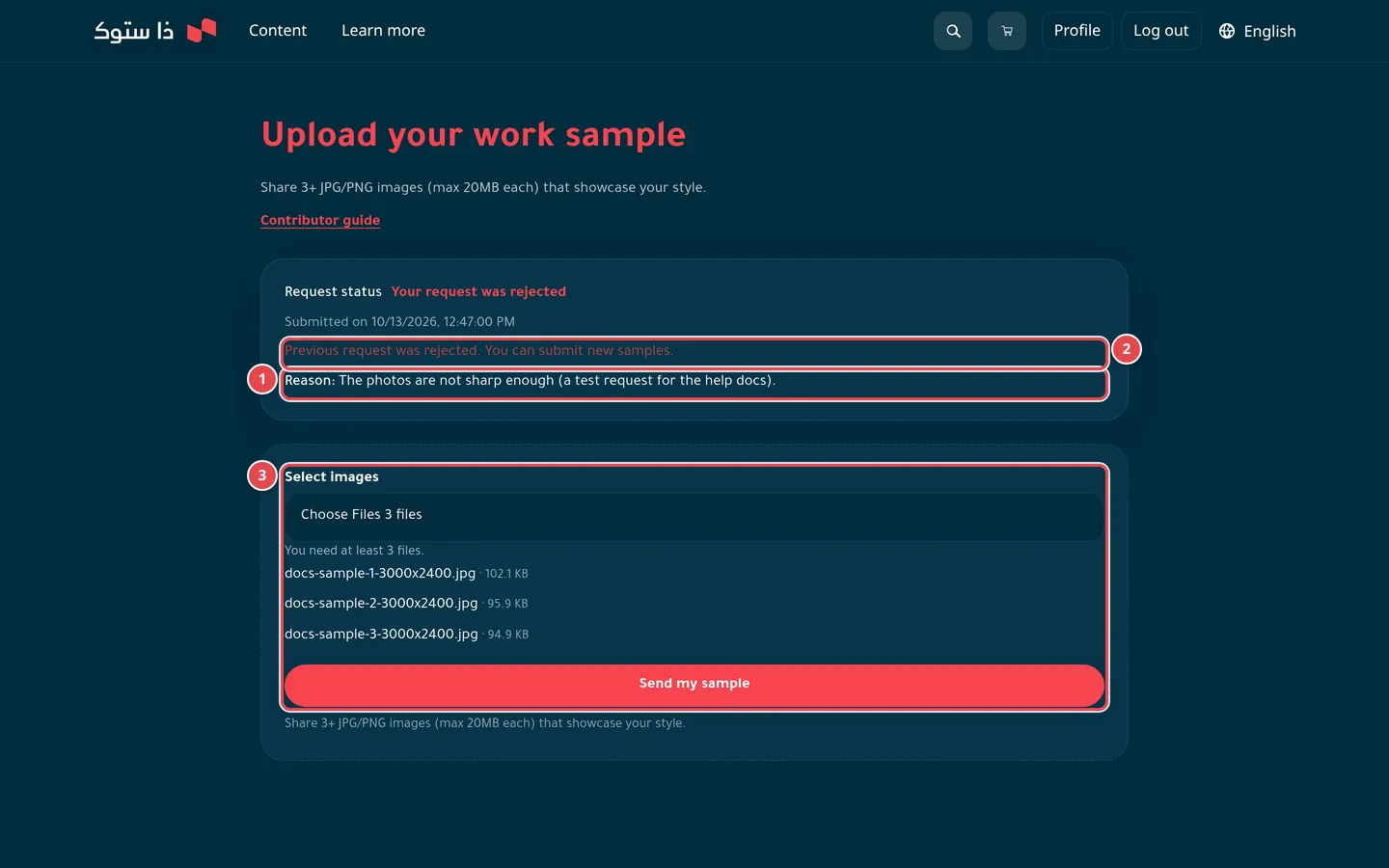
- The reason, after Reason:.
- The note Previous request was rejected. You can submit new samples.
- The Select images field for new samples.
Read the reason carefully and use it to improve your choice of photos. Then choose at least 3 new photos and press Send my sample. This becomes a new request that the platform team reviews from the start.
How long does the review take?
There is no fixed time. The platform team reviews requests in order, and you get an email when yours is approved or rejected.
Can I change my samples after sending them?
No, not while the request is under review. If it is rejected you can send new samples.
My verification code did not arrive. What do I do?
Check that you typed your email correctly and look in your spam folder, then press Resend code once the countdown ends.