
Earnings and payouts
How your share of sales, packages and subscriptions is calculated, adding an IBAN or linking PayPal, and how payouts are made.
With every sale of your work, your share is added to your balance. This article explains how your share is calculated, where you see your earnings, and how to add the details for receiving them.
How your share is calculated
Your profit rate is set by the platform team and has two levels: regular contributor and featured contributor, with a higher rate. The platform team decides who is featured. The price itself comes from the product’s category, licence type and size, not from you.
| How it is bought | How your earnings are calculated |
|---|---|
| Single purchase | Your rate applied to the product price the buyer paid. |
| Download in a subscription | Your rate applied to the value of one download in the buyer’s subscription plan. |
| Download in a product package | Your rate minus a deduction set by each package, applied to the product’s original price. |
The payout page
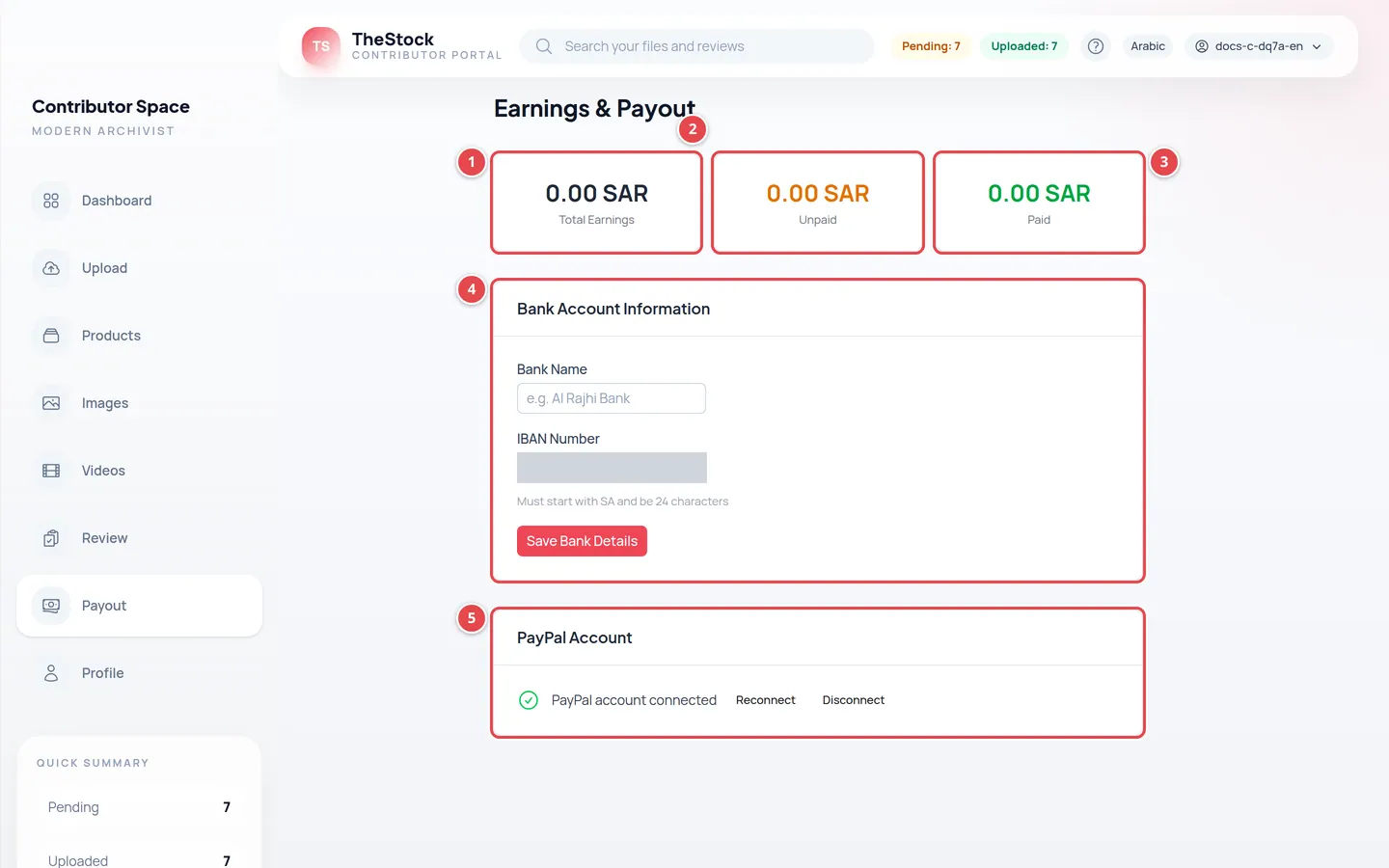
- Total Earnings: everything you have earned since you joined.
- Unpaid: your balance not yet transferred.
- Paid: what has actually been transferred to you.
- Bank Account Information.
- PayPal Account.
Open Payout from the menu. Amounts are in Saudi riyals. The same figures show on the Total Earnings and Outstanding Balance cards of your dashboard, and as Total Earnings and Unpaid Balance on your Profile.
Add your bank account
Enter the bank name
In Bank Name, for example: Al Rajhi Bank.
Enter your IBAN
In IBAN Number, type SA followed by 22 digits — 24 characters with no spaces.
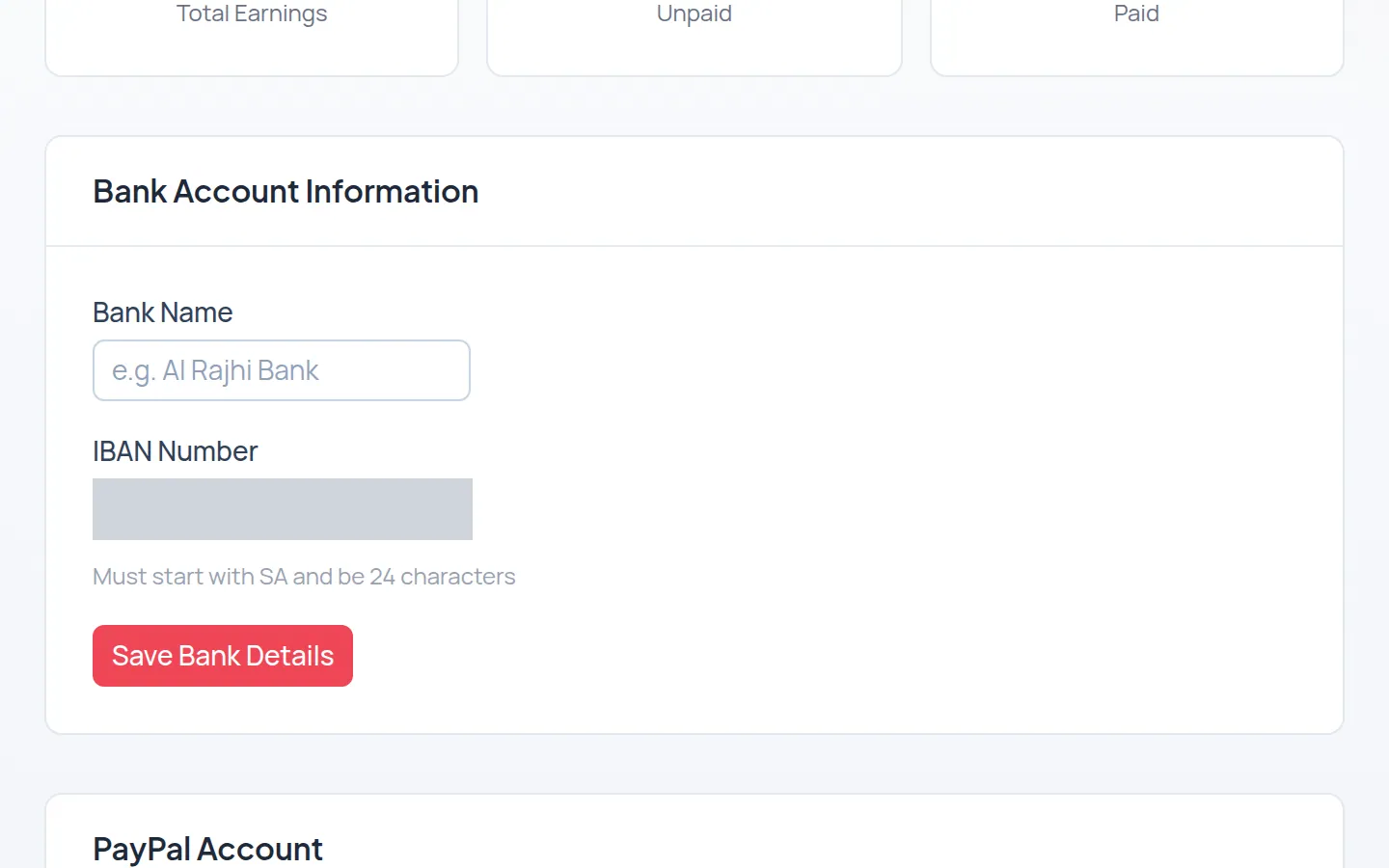
Save
Press Save Bank Details. You see Bank details saved successfully.
Link your PayPal account
Press “Connect PayPal”
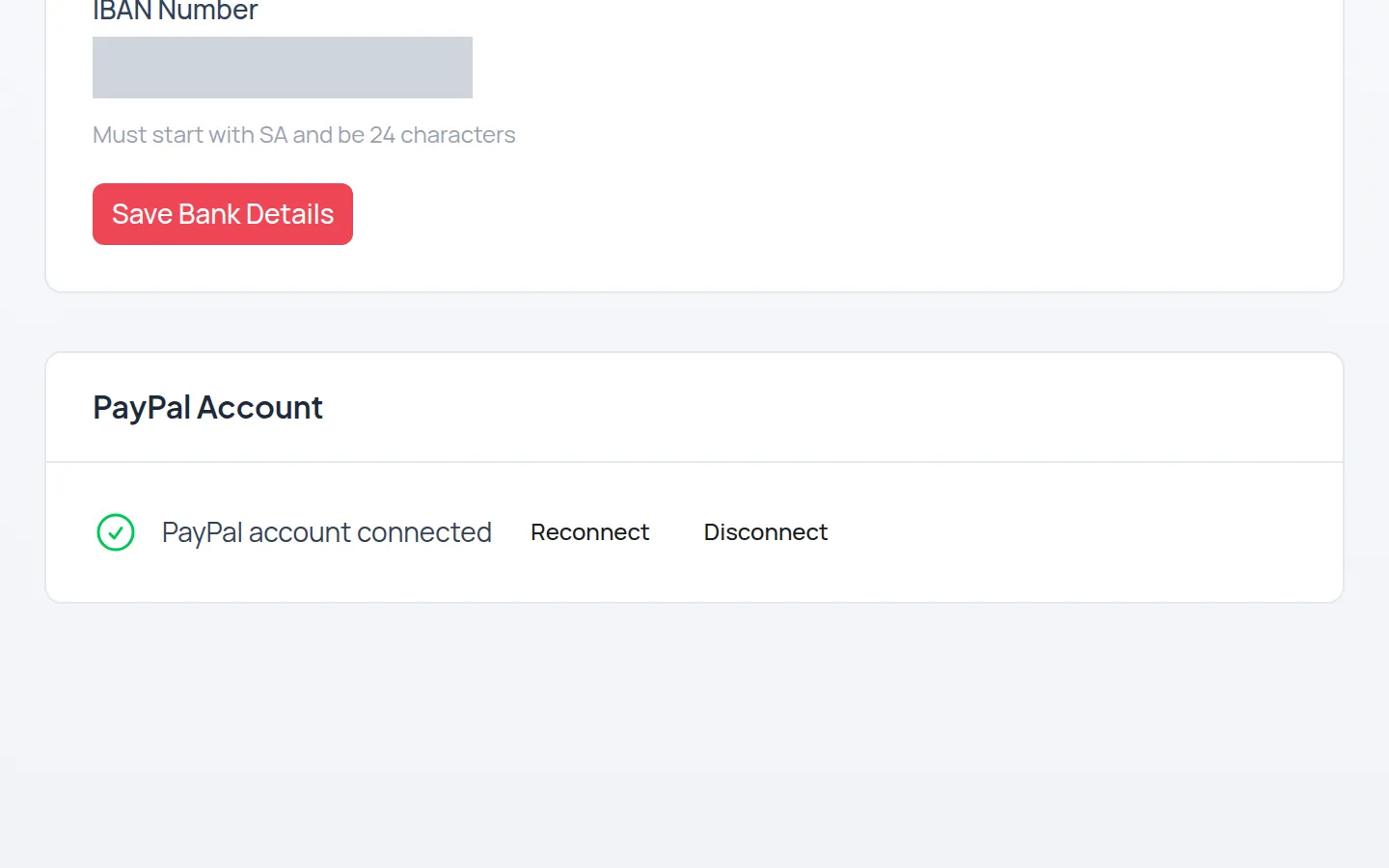
In the PayPal Account section press Connect PayPal. You are taken to PayPal.
Sign in and agree
Sign in to your PayPal account and approve the link. You come back to the workspace automatically.
Check the link
You see PayPal account connected. To change the account press Reconnect; to remove it press Disconnect and confirm.
How your balance is paid out
Payouts are manual, made by the platform team to your bank account or PayPal. There is no minimum balance and no fixed payout date. After each transfer, the amount moves from Unpaid to Paid.
Can I request a payout?
There is no payout-request button in the workspace. If you have a question about your balance, email us at [email protected].
Why was my IBAN refused?
Make sure it starts with SA followed by exactly 22 digits, with no spaces or symbols.
Do I earn from subscriber downloads?
Yes. Every download of your work in a subscription or package adds earnings to your balance, as in the table above.